Team Members and Workspace Settings in Perspection
Perspection Team & Workspace Settings Guide
Invite team members, assign Admin or Member roles, configure workspace settings, manage API keys, and personalize your Perspection account.
The Perspection Settings dialog organizes workspace and account configuration into 4 sections: General, Usage & Billing, Team Members, and Account. Admins control workspace identity (name, logo, timezone), manage the publishable API key, invite team members by email, assign Admin or Member roles, and access billing through Stripe. Members receive read-only access to analytics, events, and destinations without the ability to modify workspace configuration, billing, or team membership. The Settings dialog opens from the sidebar gear icon and uses a vertical navigation panel on desktop and a horizontal swipeable navigation bar on mobile. Every workspace supports unlimited team members within plan limits, role-based access control (RBAC) with 31 granular permissions, and Clerk-powered authentication with two-factor verification and multi-device session management.
How do you invite team members to a Perspection workspace?
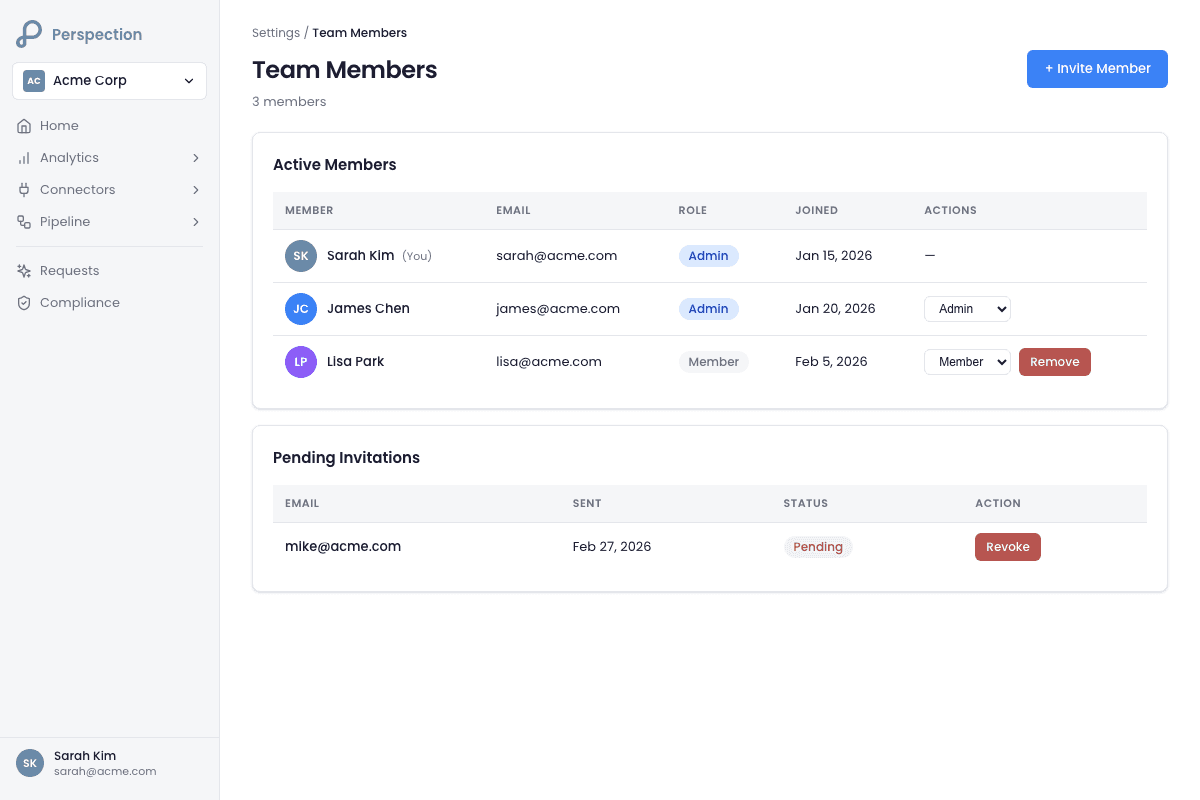
Admins invite team members by clicking "Invite Member" in Team Members settings, entering an email address, and clicking "Send Invitation." The invitee receives an email and joins with the Member role by default. Admins can promote Members to Admin after the invitee accepts and appears in the Active Members table.
Step-by-step invitation process
Open Settings -- Click the gear icon in the Perspection sidebar to open the Settings dialog. Navigate to the "Team Members" section using the left-hand navigation panel.
Click "Invite Member" -- The "Invite Member" button appears in the top-right corner of the Team Members section. Only users with the Admin role can see and click the "Invite Member" button.
Enter the email address -- The InviteUserDialog opens as a modal overlay with a single email input field prefixed by a mail icon. Enter the colleague's email address (e.g.,
colleague@company.com). The form validates the email format in real time and blocks submission of malformed addresses.Send the invitation -- Click "Send Invitation" to dispatch the invitation email. Perspection calls the
/api/v1/workspaces/{workspaceId}/invitationsendpoint with the email address and a redirect URL pointing to the/accept-invitepage.Track pending invitations -- After sending, the invitation appears in the "Pending Invitations" card below the Active Members table. Each pending invitation row displays the invitee's email address, the date Perspection sent the invitation, and the current status. Admins can revoke pending invitations by clicking the "Revoke" button on any invitation row.
Invitee accepts -- The invitee receives an email with a link to accept the workspace invitation. After acceptance, Perspection moves the invitee from Pending Invitations to the Active Members table with the Member role.
Promote if needed -- To grant Admin-level access, use the role selector dropdown in the Active Members table to change the newly joined Member's role from "Member" to "Admin."
Invitation constraints and edge cases
Perspection validates that the invitation email is not already associated with an existing workspace member before sending.
Each invitation includes a
redirectUrlparameter that routes the invitee to the Perspection accept-invite page after Clerk authentication.New invitees always join with the Member role. Perspection does not support pre-assigning the Admin role during the invitation step; Admins must promote the user after the user joins.
The success confirmation message reads: "Invitation sent to {email}. You can change their role after they join."
Plan-level team member limits apply. The workspace's subscription plan defines the maximum number of team members. The current member count appears in the Team Members header (e.g., "3 members").
For workspace creation and initial setup, see the Create Your Workspace guide.
What permissions do Perspection Admin and Member roles have?
Perspection enforces RBAC with 2 roles -- Admin and Member -- mapped to 31 permissions across 10 categories. Admins receive all 31, granting full control over settings, team, billing, destinations, sources, events, API keys, webhooks, DNS, and advanced features. Members receive 10 read-oriented permissions for viewing and exporting.
Complete Admin permissions (31 permissions)
Permission Category | Specific Permissions |
|---|---|
Workspace Management | View Workspace, Edit Workspace, Delete Workspace |
Team Management | View Team, Invite Team Members, Manage Team Roles, Remove Team Members |
Billing & Subscription | View Billing, Edit Billing, Manage Subscription, View Invoices |
Destinations (Connectors) | View Destinations, Create Destinations, Edit Destinations, Delete Destinations, Test Destinations |
Sources (Shopify, WooCommerce) | View Sources, Create Sources, Edit Sources, Delete Sources |
Events & Analytics | View Events, Export Events, Delete Events |
API Keys & Security | View API Keys, Create API Keys, Revoke API Keys, Manage API Keys |
Webhooks | View Webhooks, Create Webhooks, Edit Webhooks, Delete Webhooks, Test Webhooks, Manage Webhooks |
Settings | Edit General Settings, Edit DNS Settings, Edit Tracking Settings |
Advanced Features | Manage Dead Letter Queue (DLQ), Manage Identity Resolution |
Complete Member permissions (10 permissions)
Permission Category | Specific Permissions |
|---|---|
Workspace Management | View Workspace (read-only) |
Team Management | View Team (read-only, cannot see pending invitations) |
Billing & Subscription | View Billing (read-only), View Invoices (read-only) |
Destinations (Connectors) | View Destinations (read-only), Test Destinations |
Sources | View Sources (read-only) |
Events & Analytics | View Events, Export Events |
Key behavioral differences by role
Team Members section -- Admins see the "Invite Member" button, pending invitations list, role selector dropdowns, and "Remove" buttons. Members see only the Active Members table in read-only mode.
General settings -- Admins can edit the workspace name, upload a workspace logo, change the timezone, and view the publishable API key. Members see the workspace name, logo, and timezone as read-only fields and cannot access the API key section.
Usage & Billing section -- Admins can open the Stripe Billing Portal, update payment methods, retry failed payments, and manage the subscription plan. Members can view the current plan name, usage percentages, and invoice history, but cannot modify billing details. For complete billing configuration, see the Usage & Billing guide.
Destinations and Sources -- Admins can create, edit, configure, and delete advertising platform connectors (Meta CAPI, Google Ads, TikTok Events API) and e-commerce sources (Shopify, WooCommerce, Shopee, Lazada). Members can view destination configurations and test existing connections, but cannot create, modify, or remove destinations or sources.
Danger Zone -- Only Admins see the "Delete Workspace" option in the General settings section. Workspace deletion requires typing "DELETE" in a confirmation dialog and is irreversible.
Permission enforcement architecture
Perspection enforces permissions at two layers. The frontend usePermissions hook fetches the user's role and permission set from the /v1/workspaces/{workspaceId}/permissions API endpoint, caches permissions for 5 minutes, and conditionally renders UI controls using the PermissionGuard component. The backend validates every API request against the same RBAC permission matrix, ensuring that bypassing the frontend does not grant unauthorized access.
How do you configure Perspection workspace settings?
General settings contains 5 areas: Workspace Name, Logo Upload, Database Region (read-only), Appearance Theme, and Language & Region. Admins can rename the workspace, upload a logo (PNG, JPG, WebP; 2 MB max), and select a reporting timezone from the IANA database. Database Region is locked at workspace creation for data residency compliance.
Workspace Name
Open Settings > General.
Locate the "Workspace Name" input field under the Workspace card.
Edit the workspace name. Perspection validates that the workspace name contains at least 2 characters.
Click "Save" to apply the change. The Save button activates only when the entered name differs from the current workspace name.
A green confirmation message reading "Workspace name updated successfully" appears below the input field after a successful save.
The workspace name appears throughout the Perspection dashboard: in the sidebar workspace switcher, the Settings dialog header, the Team Members workspace context banner, and Stripe billing records.
Logo Upload
Open Settings > General.
Locate the "Logo" section under the Workspace card. Perspection displays the current logo (or a two-letter abbreviation fallback derived from the workspace name) in a 64x64 pixel rounded preview.
Click "Choose Image" to open the file picker. Accepted formats: PNG, JPG/JPEG, and WebP. Maximum file size: 2 MB. Recommended aspect ratio: 1:1 (square).
After selecting a file, a local preview renders immediately. Click "Upload" to persist the logo to the Perspection server.
Perspection uploads the logo via a
FormDataPOST request to/v1/workspaces/{workspaceId}/logoand returns the hosted image URL.
Database Region (read-only)
The Database Region field displays the cloud region assigned at workspace creation. Perspection locks the database region at workspace creation time to ensure data sovereignty compliance. The field is non-editable and includes the notation "Set at workspace creation."
Appearance Theme
The Appearance card contains a ThemeSwitcher component with 3 options:
Light -- Forces light mode across the entire Perspection dashboard.
Dark -- Forces dark mode across the entire Perspection dashboard.
System -- Matches the operating system's color scheme preference, toggling automatically when the user switches between light and dark mode at the OS level.
The theme preference is a personal setting that follows the user account, not the workspace. Different team members in the same workspace can use different theme preferences.
Language & Region
The Language & Region card contains 2 fields:
Language -- A language selector dropdown. Perspection currently defaults to English (
en).Timezone -- An IANA timezone selector (e.g.,
Asia/Singapore,Europe/Berlin,America/New_York). Perspection pre-fills the timezone from the browser'sIntl.DateTimeFormatAPI during workspace creation. Admins can change the timezone at any time by selecting a new value and clicking "Save." Analytics reports, event timestamps, and scheduled data calculations on the Home Dashboard use the workspace timezone.
Members see the timezone value as a read-only field and cannot modify the timezone setting.
How do you manage your Perspection API key?
The publishable API key (pk_* prefix) appears in General settings under the "API Keys" card, visible only to Admins with an active or trialing subscription. The key is read-only with a "Copy" button. Perspection generates it during workspace creation, and the same key initializes the browser SDK on every tracked page.
API key visibility conditions
The API Keys card renders only when 3 conditions are met simultaneously:
The current user holds the Admin role (specifically, the
EDIT_WORKSPACEpermission).The workspace has an active subscription (
subscription_statusequalsactiveortrialing).The workspace has been fully provisioned with a
pk_*publishable key.
Members never see the API Keys card. Admins without an active subscription see the General settings section but do not see the API Keys card until a subscription or trial is activated.
Copying the API key
Open Settings > General.
Scroll to the "API Keys" card. The card header reads "API Keys" and the subheading reads "Publishable API Key."
Click the "Copy" button adjacent to the key field. Perspection writes the full
pk_*key string to the system clipboard usingnavigator.clipboard.writeText().Perspection logs the copy action to PostHog analytics with the event name
api_key_copied, the workspace ID, and the key type (publishable).
Where the publishable API key is used
Browser SDK initialization -- The
pk_*key is passed to the Perspection JavaScript SDK (perspection.init({ apiKey: 'pk_...' })) and included in theX-API-Keyheader of every/track,/v1/batch, and/v1/identifyrequest from the browser to the Perspection ingestion API.SDK snippet generation -- The publishable API key is embedded in the auto-generated SDK snippet available from the workspace's SDK installation page. For initial installation instructions, see the Create Your Workspace guide.
Client-side safety -- The publishable key is designed for client-side use and is safe to include in browser JavaScript. The publishable key authorizes event ingestion but does not grant access to management APIs, billing, or team operations. Secret keys (
sk_*prefix) are never displayed in the dashboard.
How do you manage personal account preferences in Perspection?
The Account section displays the user's avatar, name, email, workspace role, two-factor verification status, and active device count, plus a "Manage Account & Security" button that opens Clerk's profile manager. Account settings are personal and apply across all workspaces, unlike General, Billing, and Team Members which are workspace-scoped.
Profile overview
The Account section header displays:
Avatar -- The user's profile image (sourced from Clerk) rendered as a 64x64 pixel circular image. When no profile image exists, Perspection displays a gradient circle with the first two characters of the user's full name.
Full Name -- The user's first and last name as stored in Clerk.
Primary Email -- The email address associated with the Clerk account.
Workspace Role -- A line reading the user's role (Admin or Member) and the current workspace name (e.g., "admin at Acme Corp").
Security overview
The Security Overview panel within the Account section displays 2 status indicators:
Two-step verification -- Shows "Enabled" (green badge) if the Clerk account has two-factor authentication activated, or "Not Enabled" (yellow badge) if two-factor authentication is not configured. The description reads "Add an extra layer of security to your account."
Active Devices -- Shows the count of currently active sessions (e.g., "2 devices"). Perspection retrieves the active session count from Clerk's
useSessionListhook.
Managing account details
Clicking the "Manage Account & Security" button calls clerk.openUserProfile(), which opens the full Clerk account management interface. Within the Clerk profile manager, users can:
Edit the profile name and avatar.
Add, remove, or change email addresses.
Enable or disable two-factor authentication (TOTP-based).
View all active sessions with device type, browser, and location details.
Sign out of individual sessions or sign out of all sessions at once.
Manage connected OAuth accounts (Google, GitHub, etc.).
Workspace scope vs. personal scope
The Perspection Settings dialog draws a clear visual boundary between workspace-scoped settings and personal-scoped settings:
Workspace-scoped (General, Usage & Billing, Team Members) -- Changes affect the entire workspace and all workspace members. The workspace context header banner displays the workspace logo, workspace name, and a "Workspace" badge.
Personal-scoped (Account) -- Changes affect only the individual user's profile and security. The navigation sidebar separates the Account section with a "Personal Settings" divider label visible on desktop.
Methodology
All team management features, role permissions, and workspace settings in this guide were verified against the Perspection production dashboard as of February 2026.
"Role-based access control in multi-tenant SaaS platforms follows a well-established principle: default to least privilege and escalate intentionally. Perspection's decision to assign all invited users the Member role by default -- and require an explicit Admin action to promote -- aligns with the principle of least privilege recommended by NIST SP 800-53 (AC-6) and the OWASP Application Security Verification Standard (V4.1). The two-role model (Admin/Member) balances simplicity with operational safety: Admins retain full control over billing, destinations, and team composition, while Members can monitor analytics and export event data without risk of accidental configuration changes. For organizations needing finer-grained access control, the underlying 31-permission architecture is designed to support custom roles in future Perspection releases."
-- Perspection Product Engineering Team
Sources & References
Perspection Help Center, https://perspection.app/library
Perspection Product Guide -- Create Your Workspace, /library/create-your-workspace-guide
Perspection Product Guide -- Billing & Subscriptions, /library/billing-subscriptions-guide
Perspection Product Guide -- Home Dashboard, /library/home-dashboard-guide