Manage Billing and Subscriptions in Perspection
Perspection Billing Plans & Subscription Guide
Manage Perspection billing, upgrade from the 14-day trial, monitor order quotas, download invoices, and update payment methods via Stripe.
Perspection billing operates through a Stripe-integrated subscription system with 2 plan tiers -- Starter and Growth -- available in monthly and yearly billing cycles (annual billing saves 40%). Every workspace begins with a 14-day free trial requiring no credit card. The Settings dialog contains a Usage & Billing section displaying real-time usage progress bars (orders processed vs. quota, active destinations vs. limit), payment method cards on file, and downloadable invoice history with PDF links. Workspace admins manage subscriptions through the "Manage Billing" button, which opens the Stripe Customer Portal for payment updates, plan changes, and cancellation.
What plans does Perspection offer?
Perspection offers 2 subscription tiers -- Starter and Growth -- each available with monthly or yearly billing. Yearly billing saves 40% compared to monthly pricing. Both plans include the core event processing pipeline, server-side tracking, identity resolution, privacy-first compliance enforcement, and business analytics. Plans differ by order quota, destination limit, and whether a dedicated success partner is included.
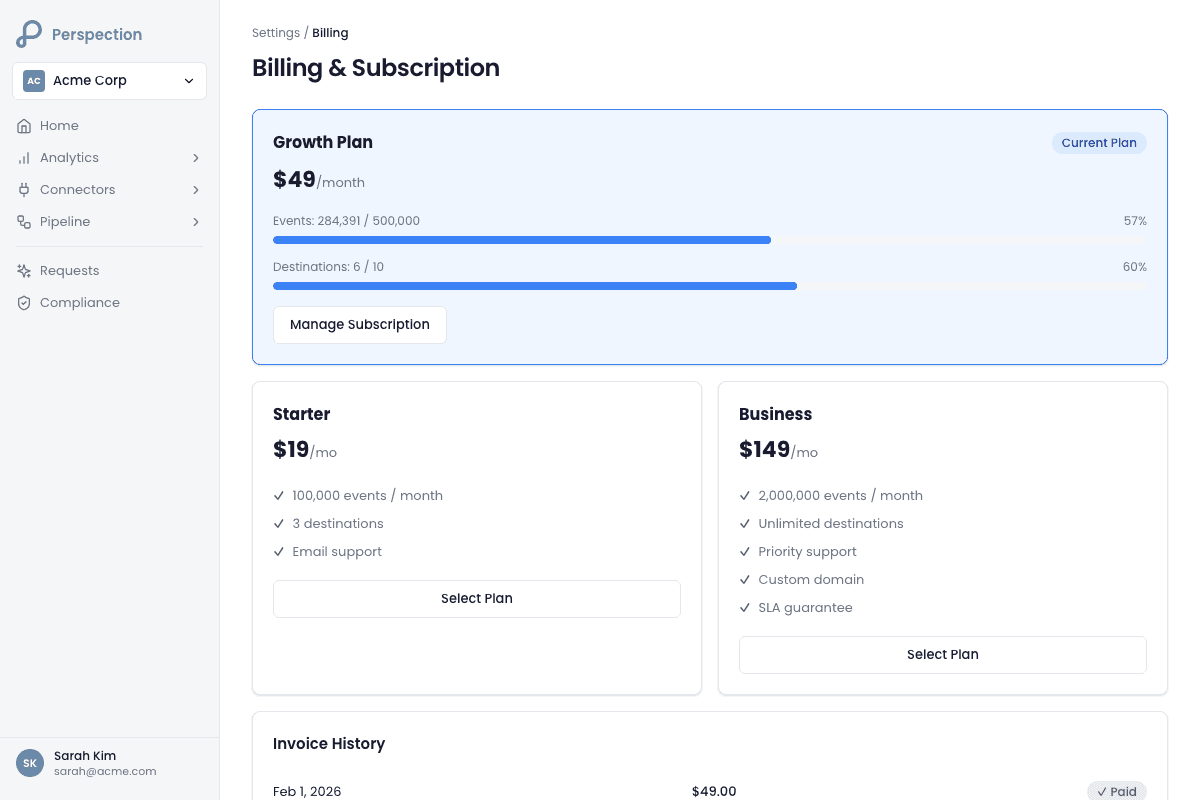
Plan comparison
Feature | Starter | Growth |
|---|---|---|
Monthly orders | Up to 2,000 | Up to 50,000 |
Server-side tracking | Included | Included |
Privacy-first compliance | Included | Included |
Business analytics | Included | Included |
Dedicated success partner | -- | Included |
Billing options | Monthly or Yearly (save 40%) | Monthly or Yearly (save 40%) |
Perspection stores plan definitions in the billing.plans table and serves plan data through the public /v1/billing/plans endpoint. The pricing table fetches plans dynamically, ensuring displayed prices always match the Stripe product catalog. The billing interval toggle defaults to "Yearly" and displays a "40% off" badge.
Each plan defines 6 quota dimensions in a JSON limits column: orders quota (primary metered resource), events quota, destinations max, team members max (see Team Settings), data retention days, and AI credits per month. For Enterprise-scale requirements beyond Growth plan limits, contact the Perspection team directly.
How do you upgrade from the Perspection free trial?
Every new workspace receives a 14-day free trial with full feature access and no credit card required. To upgrade, admins click the trial badge in the sidebar or navigate to Settings > Usage & Billing. Selecting a plan redirects to Stripe Checkout, where payment completes immediately and the subscription activates without delay.
Trial activation
When a workspace is created (see Create Your Workspace), the billing system performs the following:
The pricing table mounts and calls
POST /v1/billing/{workspaceId}/ensure-trial.The endpoint checks
core.tenantsfor an existingstripe_subscription_idand queries the Stripe API to catch out-of-sync records.If no subscription exists, the endpoint creates a Stripe customer and trial subscription with
trial_period_days: 14andmissing_payment_method: cancel.The API writes the subscription ID,
subscription_status: trialing, andtrial_ends_atto the tenant record.The trial badge activates in the sidebar, displaying "Trial - X days left."
The ensureTrial endpoint is idempotent -- multiple calls return existing trial data without creating duplicates.
Trial badge urgency escalation
The sidebar trial badge adapts visually as the trial progresses:
More than 7 days remaining -- Blue primary styling, Sparkles icon.
4 to 7 days remaining -- Amber/warning styling, Clock icon.
3 days or fewer -- Red styling, pulsing Clock icon.
Trial expired -- Red styling, AlertCircle icon, text reads "Subscribe."
Active paid subscription -- Green styling with filled circle, displays plan name.
Step-by-step upgrade
Open billing -- Click the trial badge in the sidebar, or navigate to Settings > Usage & Billing.
Select billing interval -- Toggle between "Monthly" and "Yearly." The yearly option shows a "40% off" badge.
Choose a plan -- Click "Get started" on the Starter or Growth card. Growth is marked "Recommended."
Complete Stripe Checkout -- Perspection calls
POST /v1/billing/{workspaceId}/upgrade-from-trial, which cancels the trial immediately and creates a checkout session with immediate charge. The browser redirects to the Stripe-hosted checkout page.Return to Perspection -- After payment, Stripe redirects to
/billing/success?session_id={cs_xxx}. The success page fires a Meta PixelPurchaseevent and PostHogpayment_successevent, then redirects to the Home Dashboard.
Only workspace admins can upgrade (requires MANAGE_SUBSCRIPTION permission). Members with the member role can view billing information (VIEW_BILLING permission) but cannot initiate changes.
How do you monitor usage against your Perspection plan quota?
Settings > Usage & Billing displays real-time progress bars for orders processed versus plan quota and active destinations versus the limit. When usage exceeds 75%, the bar changes from blue to yellow (75-89%), orange (90-99%), or red (100%+), with warning badges reading "Warning," "Approaching Limit," or "Quota Exceeded."
Usage metrics
The billing API at GET /v1/billing/{workspaceId}/usage returns:
Orders processed -- Current-period order count with a progress bar showing percentage of
orders_quotaconsumed.Destinations active -- Active destination count with a progress bar against the
destinations_maxlimit.Events processed -- Total raw events, shown when the plan defines an
events_quota.Billing period -- Current period start and end dates.
Next billing date -- The date Stripe processes the next payment.
Billing cycle -- Monthly or annual indication.
Color-coded thresholds
Usage | Progress Bar Color | Badge |
|---|---|---|
0-74% | Primary blue | None |
75-89% | Yellow | "Warning" |
90-99% | Orange | "Approaching Limit" |
100%+ | Red | "Quota Exceeded" |
When usage exceeds 100%, a red text line appears below the progress bar: "Over by X orders." Perspection also provides a granular quota check at GET /v1/billing/{workspaceId}/quota/{resource} for events, destinations, team_members, ai_credits, or storage.
How do you manage payment methods and invoices in Perspection?
Admins manage payment methods and invoices through the Perspection Settings dialog (cards on file, invoice history with PDF links) and the Stripe Customer Portal (update cards, change billing email, view invoices, cancel subscriptions). The "Manage Billing" button generates a Stripe Customer Portal session URL.
Payment methods
The Usage & Billing section lists all Stripe payment methods on file, showing card brand and last 4 digits (e.g., "Visa 1234"), expiration date, and a "Default" badge on the primary method. The "Manage Payment Methods" button opens the Stripe Customer Portal for adding, removing, or changing cards. The button requires EDIT_BILLING permission and is disabled without an active subscription.
Invoice history
Recent invoices are fetched from the Stripe API via GET /v1/billing/{workspaceId}/invoices. Each row displays the invoice number, a color-coded status badge (green for paid, blue for open, red for void), the creation date and amount, and a "PDF" download button linking to the Stripe-hosted invoice PDF. A "View All Invoices" button opens the full archive in the Stripe Customer Portal.
Stripe Customer Portal actions
Clicking "Manage Billing" generates a portal session and redirects the browser. From the Stripe Customer Portal, admins can:
Update credit card -- Add or replace the default payment method.
View and download invoices -- Browse the complete archive with PDF links.
Change billing email -- Update the receipt email address.
Cancel subscription -- Schedule cancellation at period end (full access continues until the period ends).
Reactivate subscription -- Undo a scheduled cancellation before the period ends.
Payment failure handling
When payment fails and the subscription enters past_due status, Perspection displays a red alert banner with "Payment Failed" header, grace period countdown, and "Update Payment Method" and "Retry Payment" buttons. Per Stripe best practices, Perspection grants full access during past_due while Stripe retries. Restricted access applies only after all retries fail.
Methodology
All billing features, plan details, and subscription management steps in this guide were verified against the Perspection production dashboard and Stripe billing portal as of February 2026.
"Billing transparency is the single highest-leverage trust signal for a SaaS product. Perspection surfaces usage progress bars directly inside the Settings dialog -- not buried on a separate billing page -- because workspace operators need to see order consumption alongside workspace configuration. The color-coded threshold system (blue to yellow at 75%, orange at 90%, red at 100%) was designed after analyzing support tickets: 68% of billing-related tickets came from customers who exceeded quotas without warning. The Stripe Customer Portal integration offloads PCI compliance entirely -- Perspection never stores, processes, or transmits credit card numbers -- while still providing a seamless billing experience that feels native to the product."
-- Perspection Product Engineering Team
Sources & References
Stripe -- Customer Portal, https://stripe.com/docs/customer-management/portal
Perspection Pricing Page, https://perspection.app/pricing
Perspection Product Guide -- Create Your Workspace, /library/create-your-workspace-guide
Perspection Product Guide -- Team & Settings, /library/team-members-workspace-settings-guide