Consent Enforcement and Compliance
Perspection Consent Mode v2 GDPR Compliance Guide
Configure Perspection consent enforcement with 3 modes, Google Consent Mode v2, compliance dashboards, and audit log exports for GDPR.
Perspection enforces consent on every event before dispatching to advertising platforms and analytics destinations. Perspection supports 3 enforcement modes -- Strict (missing consent equals denied), Standard (missing consent equals granted), and Permissive (audit-only) -- and reads 4 Google Consent Mode v2 signals per event: ad_storage, analytics_storage, ad_user_data, and ad_personalization. The Compliance dashboard provides real-time KPI cards, consent status breakdowns with 4 categories, per-signal grant/deny ratio bars, suppression reason analysis, a paginated audit log with 3 filters, and CSV export of up to 10,000 rows. Enforcement mode changes propagate within 5 minutes through the processing pipeline cache. Perspection records consent decisions for every event regardless of enforcement mode, ensuring full auditability for GDPR, CCPA, and PDPA compliance.
How does Perspection enforce consent for ad platform dispatch?
Perspection evaluates consent signals on every event before dispatching to any destination. The pipeline reads Google Consent Mode v2 signals, applies the workspace's enforcement mode to interpret missing consent, and routes per-destination. Ad platforms require ad_storage, ad_user_data, and ad_personalization to be granted; analytics platforms require only analytics_storage.
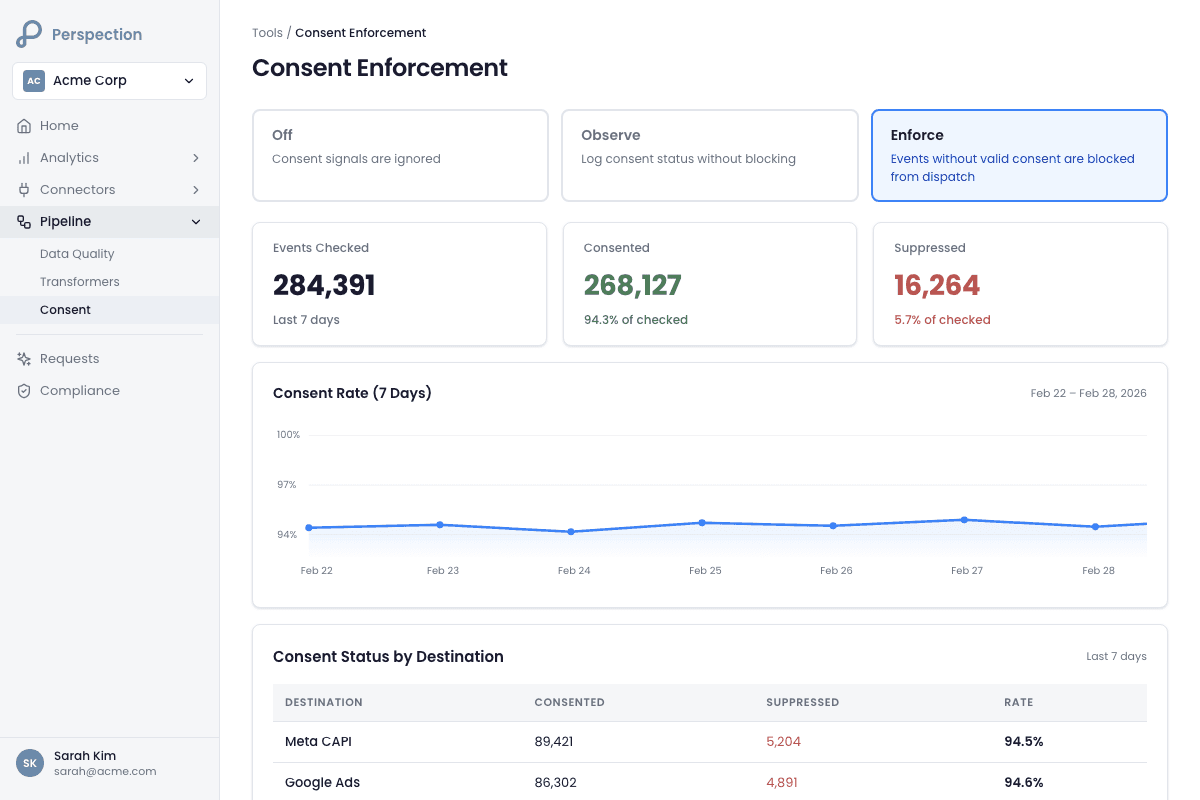
Perspection's consent enforcement operates at the pipeline level, not at the SDK level. The Perspection Web SDK captures consent signals from the visitor's consent management platform (CMP) and attaches the 4 Google Consent Mode v2 signals to every outbound event. The processing pipeline then evaluates each signal against the workspace's enforcement mode and destination requirements before routing events to connected platforms.
Consent evaluation flow
The Perspection Web SDK collects the visitor's consent state from the CMP and attaches 4 Consent Mode v2 signals (ad_storage, analytics_storage, ad_user_data, ad_personalization) to the event payload.
The event arrives at the Perspection ingestion endpoint and enters the processing pipeline.
The processing pipeline reads the workspace's enforcement mode from the tenant configuration (cached with a 5-minute refresh interval).
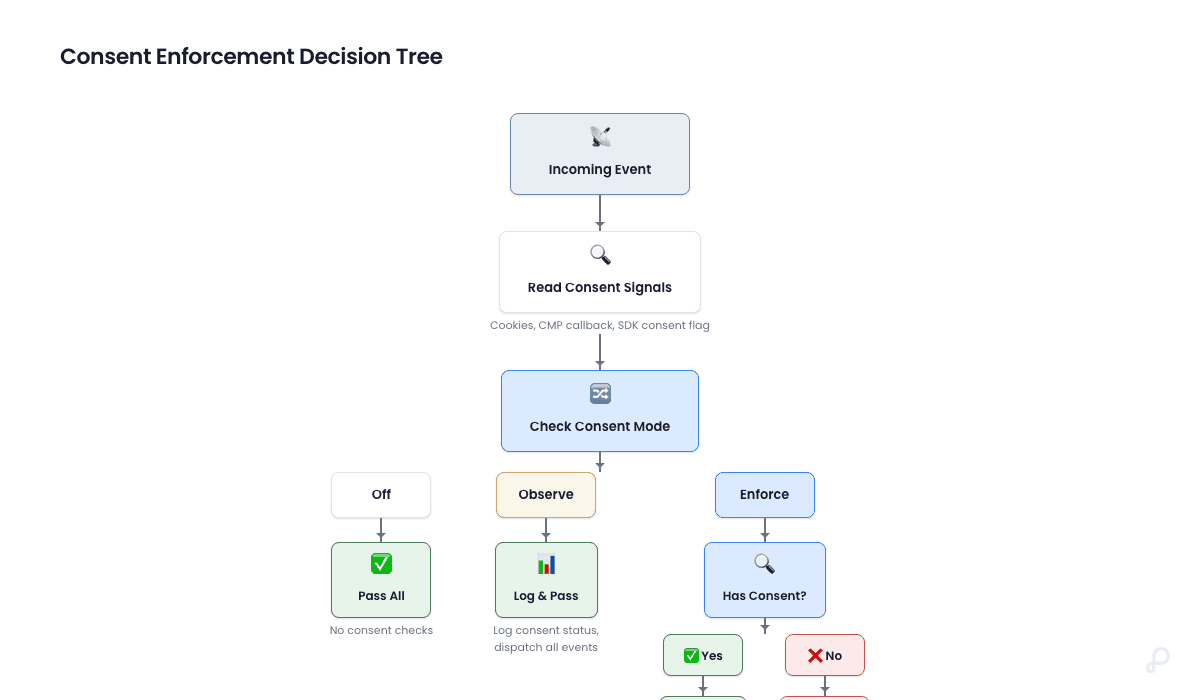
The pipeline evaluates each consent signal. If a signal is explicitly "granted" or "denied," Perspection honors the explicit value regardless of enforcement mode. If a signal is missing or null, the enforcement mode determines the default: Strict treats missing as denied, Standard treats missing as granted, Permissive passes all events through.
The pipeline checks destination-specific requirements. Ad platform destinations require ad_storage, ad_user_data, and ad_personalization to all be granted. Analytics destinations require only analytics_storage to be granted.
Events that fail the consent check for a destination are suppressed for that destination. Perspection records the suppression status, suppression reason, and the consent signal values in the audit log.
Events that pass the consent check are dispatched to the destination. Perspection records the dispatch decision alongside the consent data.
The enforcement mode never overrides an explicit consent decision. If a visitor explicitly denies ad_storage through the CMP, Perspection blocks ad platform dispatch in all 3 enforcement modes. The enforcement mode only determines the behavior when consent signals are absent from the event.
For details on how dispatched events reach Meta CAPI with consent-aware parameters, see Connect Meta CAPI.
What are the three Perspection consent enforcement modes?
Perspection offers 3 enforcement modes. Strict treats missing consent as denied, blocking events without explicit consent -- best for GDPR regions. Standard treats missing consent as granted, enforcing only explicit denials -- the recommended default. Permissive applies no enforcement, passing all events to all destinations while recording consent data for auditing.
Strict mode -- Privacy-first enforcement
Strict mode applies the most conservative interpretation of consent. When an event arrives without consent signals (or with null values for any of the 4 Consent Mode v2 fields), Perspection treats the missing signals as denied. The practical effect: only events with explicit "granted" consent for all required signals reach ad platform destinations.
Strict mode is designed for workspaces with significant traffic from GDPR-regulated regions (EU/EEA) where the legal default requires affirmative opt-in consent before processing personal data for advertising purposes. Workspaces operating under the EU ePrivacy Directive or targeting German, French, or Dutch audiences should consider Strict mode as the baseline configuration.
When to use Strict mode:
The workspace serves visitors primarily in GDPR-regulated markets.
The workspace's legal team requires "consent by default = denied" behavior.
The workspace uses a CMP that reliably attaches consent signals to every page load.
Standard mode -- Balanced enforcement (recommended)
Standard mode treats missing consent fields as granted, enforcing only explicit denials. If a visitor's CMP does not attach consent signals (common during the first page load before the CMP banner renders), Perspection allows events to flow to destinations. If a visitor explicitly denies consent through the CMP, Perspection blocks the corresponding destinations.
Standard mode balances data collection with consent respect. Perspection recommends Standard mode as the default because most CMPs emit consent signals asynchronously, and a brief window exists between page load and CMP initialization where consent signals are undefined. Standard mode prevents that window from blocking all first-page events.
When to use Standard mode:
The workspace serves a global audience across multiple regulatory jurisdictions.
The workspace's CMP may not attach consent signals to every event immediately.
The workspace wants to enforce explicit opt-out while maintaining data flow for uncategorized traffic.
Permissive mode -- Audit-only
Permissive mode applies no enforcement. All events pass through to all destinations regardless of consent status. Perspection still records the consent signals (or lack of consent signals) for every event, preserving a complete audit trail.
Permissive mode is designed for workspaces in pre-launch testing, workspaces operating exclusively in jurisdictions without consent requirements, or workspaces that enforce consent at the CMP/tag manager level and use Perspection purely as a server-side relay.
When to use Permissive mode:
The workspace is testing the Perspection pipeline before enabling enforcement.
The workspace enforces consent at the CMP layer and does not need pipeline-level blocking.
The workspace operates in jurisdictions (e.g., certain APAC markets) without explicit consent mandates.
How to change the enforcement mode
Navigate to Pipeline > Consent in the Perspection dashboard sidebar.
Select the desired enforcement mode from the Enforcement Mode dropdown: Strict, Standard, or Permissive.
Review the mode description card, which displays the behavioral summary and recommended use case.
Click Save Changes to apply the new enforcement mode.
The processing pipeline refreshes the enforcement mode from the tenant configuration cache within 5 minutes. All events processed after the cache refresh follow the new enforcement mode.
The enforcement mode applies globally to all destinations in the workspace. Perspection does not currently support per-destination enforcement mode overrides. To apply different consent logic per destination, use event transformers to modify consent signals before dispatch. For details on event transformation, see Event Transformers.
How does Perspection integrate with Google Consent Mode v2?
Perspection reads 4 Google Consent Mode v2 signals per event: ad_storage, analytics_storage, ad_user_data, and ad_personalization. Each signal is "granted" or "denied." Perspection evaluates all 4 per-destination, blocking ad platforms when any ad-related signal is denied and blocking analytics platforms when analytics_storage is denied.
The 4 Google Consent Mode v2 signals
Google introduced Consent Mode v2 in November 2023, adding 2 new signals (ad_user_data and ad_personalization) to the 2 original signals (ad_storage and analytics_storage). Google requires advertisers to implement all 4 signals to maintain measurement and remarketing capabilities in the EEA. Perspection fully supports all 4 Consent Mode v2 signals.
Signal | Controls | Required By | Effect When Denied |
|---|---|---|---|
ad_storage | Advertising cookies and identifiers (e.g., | Meta CAPI, Google Ads, TikTok Events API | Perspection blocks dispatch to all ad platform destinations |
analytics_storage | Analytics cookies (e.g., Google Analytics | GA4, Amplitude, analytics destinations | Perspection blocks dispatch to analytics destinations |
ad_user_data | Sharing of user-level data (email, phone, address) with advertising platforms | Meta CAPI, Google Ads (required since March 2024) | Perspection blocks dispatch to ad platform destinations |
ad_personalization | Using data for personalized advertising, remarketing audiences | Google Ads, Meta Custom Audiences | Perspection blocks dispatch to ad platform destinations |
Signal evaluation per destination type
Perspection categorizes destinations into 2 groups for consent evaluation:
Ad platform destinations (Meta CAPI, Google Ads, TikTok Events API, Snapchat CAPI, Pinterest CAPI):
Require ad_storage = "granted"
Require ad_user_data = "granted"
Require ad_personalization = "granted"
If any of the 3 ad-related signals is denied (or missing under Strict mode), Perspection blocks the event for all ad platform destinations.
Analytics destinations (GA4, Amplitude, BigQuery, data warehouse exports):
Require analytics_storage = "granted"
Ad-related signals do not affect analytics destination routing.
If analytics_storage is denied (or missing under Strict mode), Perspection blocks the event for analytics destinations.
How consent signals flow from CMP to Perspection
The visitor loads the webpage, and the CMP renders the consent banner.
The visitor accepts or rejects consent categories in the CMP banner.
The CMP writes consent state to the browser (typically via
window.dataLayeror a consent API).The Perspection Web SDK reads the consent state and maps CMP categories to the 4 Consent Mode v2 signal values.
The Perspection Web SDK attaches the 4 signal values to every subsequent event payload as part of the
consentobject.Events arrive at the Perspection ingestion endpoint with consent signals embedded in the event data.
The processing pipeline reads the consent signals and applies the enforcement mode.
Perspection supports any CMP that exposes consent state through the Google Consent Mode API (gtag('consent', 'update', {...})), the TCF v2.2 framework, or a custom JavaScript API. The Perspection SDK auto-detects consent state changes and re-reads signals on every event dispatch.
How do you monitor consent compliance in the Perspection dashboard?
The Compliance page provides real-time consent enforcement visibility across 3 tabs: Consent Overview, Audit Log, and Export. The Overview tab displays 3 KPI cards (events processed, full consent rate, blocked rate), a 4-category consent status breakdown, per-signal grant/deny ratios, and suppression reasons. A time range selector filters across 24 hours, 7 days, or 30 days.
Accessing the Compliance page
Navigate to Compliance in the Perspection dashboard sidebar (located in the secondary navigation group below the separator line).
The Compliance page loads with the Last 7 days time range selected by default.
Use the time range dropdown in the top-right corner to switch between Last 24 hours, Last 7 days, and Last 30 days.
Click the refresh button next to the time range selector to reload all compliance data on demand.
Consent Overview tab -- KPI cards
The Consent Overview tab opens by default and displays 3 summary KPI cards at the top of the page:
Events Processed -- The total number of events that entered the processing pipeline during the selected time range. Perspection displays the count with locale-formatted thousands separators (e.g., "124,382") and a shield icon.
Full Consent Rate -- The percentage of events where all 4 Consent Mode v2 signals were granted. Perspection displays the percentage in green with the absolute count below (e.g., "87%" with "108,212 events with full consent"). A full consent rate below 70% may indicate CMP configuration issues or high opt-out rates in GDPR regions.
Blocked Events -- The percentage of events blocked from at least one destination due to consent denial. Perspection displays the percentage in red if the blocked rate exceeds 10%, or in the default color if the blocked rate is under 10%. The absolute count appears below (e.g., "4.2%" with "5,224 events blocked by consent").
Consent Status Breakdown
Below the KPI cards, the Consent Overview tab displays a detailed breakdown of event consent status across 4 categories, each rendered as a labeled progress bar:
Full Consent (green) -- Events where all 4 Consent Mode v2 signals are granted. Perspection dispatches Full Consent events to all connected destinations. The progress bar shows the percentage with the absolute count below.
Analytics Only (yellow/amber) -- Events where analytics_storage is granted but one or more ad-related signals (ad_storage, ad_user_data, ad_personalization) are denied. Perspection dispatches Analytics Only events to analytics destinations but blocks ad platform destinations.
Blocked (red) -- Events where consent denial blocks dispatch to all destinations. Blocked events have both analytics_storage and ad-related signals denied.
Not Tracked (gray) -- Events that arrived without any consent signals attached. The enforcement mode determines how Perspection handles Not Tracked events: Strict mode blocks Not Tracked events, Standard mode passes Not Tracked events through, and Permissive mode passes Not Tracked events through.
Google Consent Mode v2 signal breakdown
The Consent Overview tab includes a dedicated card titled Google Consent Mode v2 that displays per-signal grant/deny ratios as horizontal progress bars:
Ad Storage -- Shows the percentage of events with ad_storage granted versus denied, with absolute counts for each.
Analytics Storage -- Shows the percentage of events with analytics_storage granted versus denied.
Ad User Data -- Shows the percentage of events with ad_user_data granted versus denied.
Ad Personalization -- Shows the percentage of events with ad_personalization granted versus denied.
Each progress bar renders the granted portion in green and displays the granted percentage on the right side. Below each bar, Perspection shows the absolute count of granted events on the left and denied events on the right.
Suppression reasons analysis
When events have been blocked during the selected time range, the Consent Overview tab displays a Suppression Reasons card with 3 counters:
Ads consent denied -- The number of events blocked from ad platform destinations because ad_storage, ad_user_data, or ad_personalization was denied.
Analytics consent denied -- The number of events blocked from analytics destinations because analytics_storage was denied.
All consent denied -- The number of events blocked from all destinations because all relevant consent signals were denied.
The Suppression Reasons card only appears when at least one suppression reason has a non-zero count. If no events were blocked during the time range, the card is hidden.
For additional analytics on event delivery and click ID coverage, see Analytics and Reporting.
How do you use the Perspection consent audit log?
The audit log provides a paginated record of consent enforcement decisions for every processed event, displaying timestamp, event type, consent region, Consent Mode v2 signal values, and suppression status. It paginates at 20 rows per page and supports 3 filters: event type, consent region (EU GDPR, California CCPA), and a "Blocked Only" toggle.
Accessing the audit log
Navigate to Compliance in the Perspection dashboard sidebar.
Click the Audit Log tab (second tab, between Consent Overview and Export).
The audit log loads the most recent events within the selected time range (controlled by the time range dropdown in the page header).
Audit log table columns
Each row in the audit log represents a single event and displays the following columns:
Column | Description | Visibility |
|---|---|---|
Time | Event timestamp formatted as "MMM d, HH:mm" (e.g., "Feb 27, 14:32") | Always visible |
Event | Event type (e.g., page_view, purchase, add_to_cart, lead) | Always visible |
Region | Consent region badge: "GDPR" for EU events, "CCPA" for California events, dash for other regions | Hidden on mobile, visible on tablet and desktop |
Ad Storage | Consent Mode v2 ad_storage signal: green "Granted" badge or red "Denied" badge, "N/A" if missing | Always visible |
Analytics | Consent Mode v2 analytics_storage signal: green "Granted" badge or red "Denied" badge, "N/A" if missing | Hidden on mobile and tablet, visible on desktop |
Status | Dispatch status: green "Sent" badge for events that reached at least one destination, red "Blocked" badge for fully suppressed events | Always visible |
Audit log filters
The audit log provides 3 filter controls above the table:
Event Type filter -- A dropdown menu with 5 options: All Events (default), Page View, Purchase, Add to Cart, and Lead. Selecting an event type filters the audit log to show only events of the selected type.
Region filter -- A dropdown menu with 3 options: All Regions (default), EU (GDPR), and California (CCPA). Selecting a region filters the audit log to show only events tagged with the selected consent region.
Blocked Only toggle -- A button that, when activated, filters the audit log to show only events with a "Blocked" status. The button switches between outline (inactive) and filled (active) states.
All 3 filters work together. Selecting "Purchase" in the event type filter, "EU (GDPR)" in the region filter, and activating "Blocked Only" displays only purchase events from GDPR regions that were blocked by consent enforcement.
Audit log pagination
The audit log paginates at 20 rows per page. The pagination bar at the bottom of the table displays:
The current range of visible rows (e.g., "Showing 1-20 of 2,847 events").
A page indicator (e.g., "Page 1 of 143").
Previous and Next navigation buttons. The Previous button is disabled on page 1. The Next button is disabled on the last page.
Audit log data model
Each audit log entry contains the following fields (as returned by the Compliance API):
event_id -- Unique identifier for the event.
event_type -- The event name (e.g., page_view, purchase).
event_time -- ISO 8601 timestamp of when the event occurred.
ad_storage -- Consent Mode v2 ad_storage signal: "granted", "denied", or null.
analytics_storage -- Consent Mode v2 analytics_storage signal: "granted", "denied", or null.
ad_user_data -- Consent Mode v2 ad_user_data signal: "granted", "denied", or null.
ad_personalization -- Consent Mode v2 ad_personalization signal: "granted", "denied", or null.
suppressed -- Boolean indicating whether the event was blocked from at least one destination.
suppression_reason -- Text description of why the event was blocked (e.g., "consent_denied_ads").
consent_region -- Regulatory region classification: "GDPR", "CCPA", or null.
ads_sendable -- Boolean indicating whether the event passed ad platform consent requirements.
analytics_sendable -- Boolean indicating whether the event passed analytics consent requirements.
ads_sent -- Boolean indicating whether the event was actually dispatched to ad platform destinations (null if not applicable).
analytics_sent -- Boolean indicating whether the event was actually dispatched to analytics destinations (null if not applicable).
How do you export the Perspection consent audit log?
The Export tab generates a CSV file with up to 10,000 rows of consent enforcement data for compliance review and regulatory audits. Set a start and end date, then click Download CSV. Each row includes event ID, event type, timestamp, all 4 Consent Mode v2 signal values, suppression status, consent region, and destination routing decisions.
How to export audit log data
Navigate to Compliance in the Perspection dashboard sidebar.
Click the Export tab (third tab, after Consent Overview and Audit Log).
Set the Start Date using the date picker. The default start date is 7 days before the current date.
Set the End Date using the date picker. The default end date is the current date.
Review the Export includes summary, which lists the 5 data categories included in the CSV: event ID/type/timestamp, Consent Mode v2 signals, suppression status/reason, consent region, and destination routing decisions.
Click Download CSV to generate and download the export file.
The browser downloads a CSV file named
compliance-audit-{start-date}-to-{end-date}.csv(e.g.,compliance-audit-2026-02-01-to-2026-02-27.csv).
Export specifications
Parameter | Value |
|---|---|
File format | CSV (comma-separated values) |
Maximum rows | 10,000 per export |
Date range | Custom start and end date (YYYY-MM-DD format) |
File naming |
|
Authentication | Clerk JWT (same as dashboard login) |
API endpoint |
|
CSV columns included in the export
Event ID -- The unique identifier for each event.
Event Type -- The event name (page_view, purchase, add_to_cart, lead, etc.).
Timestamp -- ISO 8601 timestamp of the event.
ad_storage -- Consent Mode v2 ad_storage signal value: "granted", "denied", or empty.
analytics_storage -- Consent Mode v2 analytics_storage signal value: "granted", "denied", or empty.
ad_user_data -- Consent Mode v2 ad_user_data signal value: "granted", "denied", or empty.
ad_personalization -- Consent Mode v2 ad_personalization signal value: "granted", "denied", or empty.
Suppression Status -- Whether the event was blocked ("suppressed" or "sent").
Suppression Reason -- Why the event was blocked (e.g., "consent_denied_ads", "consent_denied_analytics", "consent_denied_all"), or empty if the event was sent.
Consent Region -- Regulatory region classification: "GDPR", "CCPA", or empty.
Destination Routing Decisions -- Which destinations received the event and which destinations blocked the event.
When to use audit log exports
GDPR Article 30 compliance -- The GDPR requires data controllers to maintain records of processing activities, including the legal basis for processing. The Perspection audit log export provides event-level evidence that consent was evaluated before dispatching personal data to third-party advertising platforms.
CCPA/CPRA consumer requests -- When a California consumer submits a "right to know" request, the audit log export provides a searchable record of how the consumer's events were processed and which platforms received the consumer's data.
Internal compliance audits -- Quarterly or annual compliance reviews can use the export to verify that the consent enforcement mode is functioning as configured and that suppression rates align with expectations.
Ad platform audit requests -- Meta, Google, and TikTok periodically audit advertisers' consent practices. The Perspection audit log export provides per-event evidence of consent collection and enforcement.
Methodology
All consent enforcement modes, compliance dashboard features, and audit log capabilities in this guide were verified against the Perspection production dashboard as of February 2026.
"Consent enforcement is the most misunderstood layer in the server-side tracking stack. Most teams assume consent is a binary gate -- either all events pass or all events are blocked. The reality is that consent operates per-signal and per-destination. A visitor who grants analytics_storage but denies ad_storage should still generate GA4 data while being excluded from Meta CAPI retargeting audiences. Perspection's 4-signal evaluation with destination-level routing handles that nuance automatically, and the audit log provides the evidence trail that regulators and ad platforms increasingly demand." -- Perspection Engineering Team
Sources & References
Google -- Consent Mode v2 Overview, https://developers.google.com/tag-platform/security/guides/consent
ICO -- Guide to GDPR, https://ico.org.uk/for-organisations/guide-to-data-protection/guide-to-the-general-data-protection-regulation-gdpr/
PDPA Singapore, https://www.pdpc.gov.sg/Overview-of-PDPA
Perspection Product Guide -- Connect Meta CAPI, /library/connect-meta-conversions-api-guide
Perspection Product Guide -- Event Transformers, /library/event-transformers-field-mapping-guide