Install Tracking on Shopify
Install Perspection Tracking on Shopify | Setup Guide
Connect Perspection to Shopify in 2 minutes via OAuth or manual setup. Track 10 browser events, 16 webhook topics, and SHA-256 hashed PII.
Perspection connects to Shopify through two installation methods: OAuth App (approximately 2 minutes) and manual setup (approximately 5 minutes). Both methods produce identical tracking coverage across 10 browser-side events via the Shopify Web Pixel and 16 server-side webhook topics via the Shopify Admin API. The Perspection Web Pixel (v3.0.0) performs SHA-256 PII hashing client-side using the Web Crypto API and enforces consent via Shopify's visitorConsentCollected API.
How do you connect Perspection to Shopify?
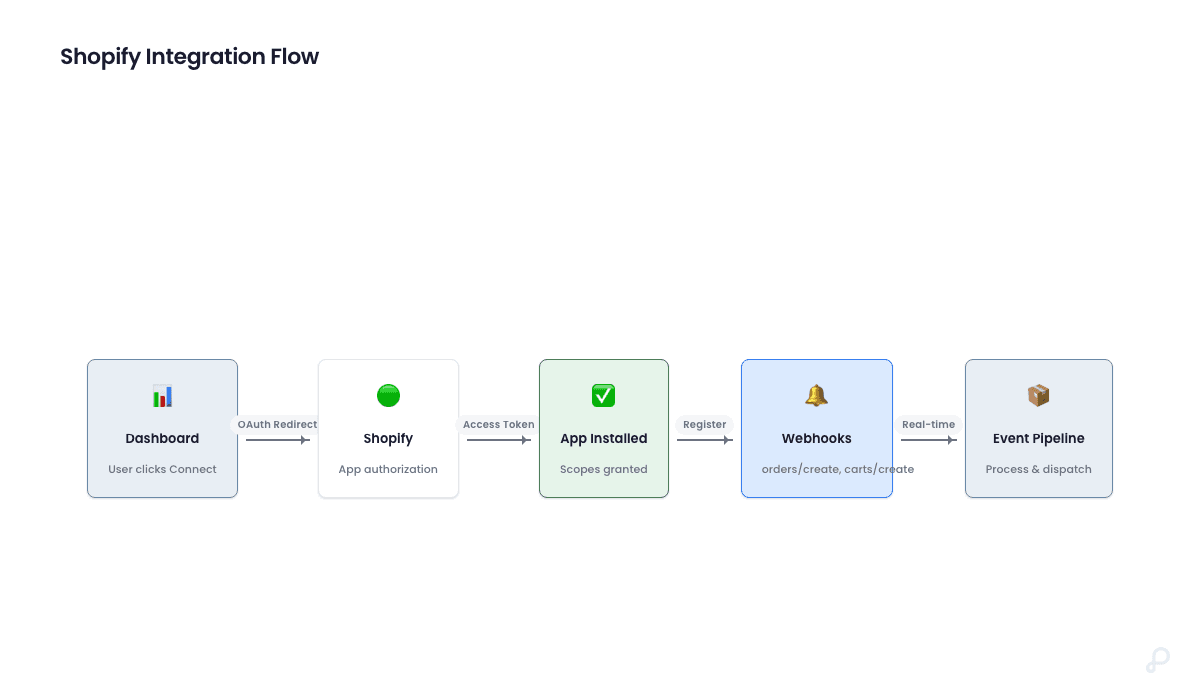
Perspection offers two methods for connecting to a Shopify store: OAuth App (approximately 2 minutes, auto-registers 16 webhooks) and manual setup (approximately 5 minutes, per-topic webhook creation). Both methods require adding the Web Pixel code as a Custom Pixel under Settings > Customer Events and deliver identical tracking coverage.
OAuth installation (recommended)
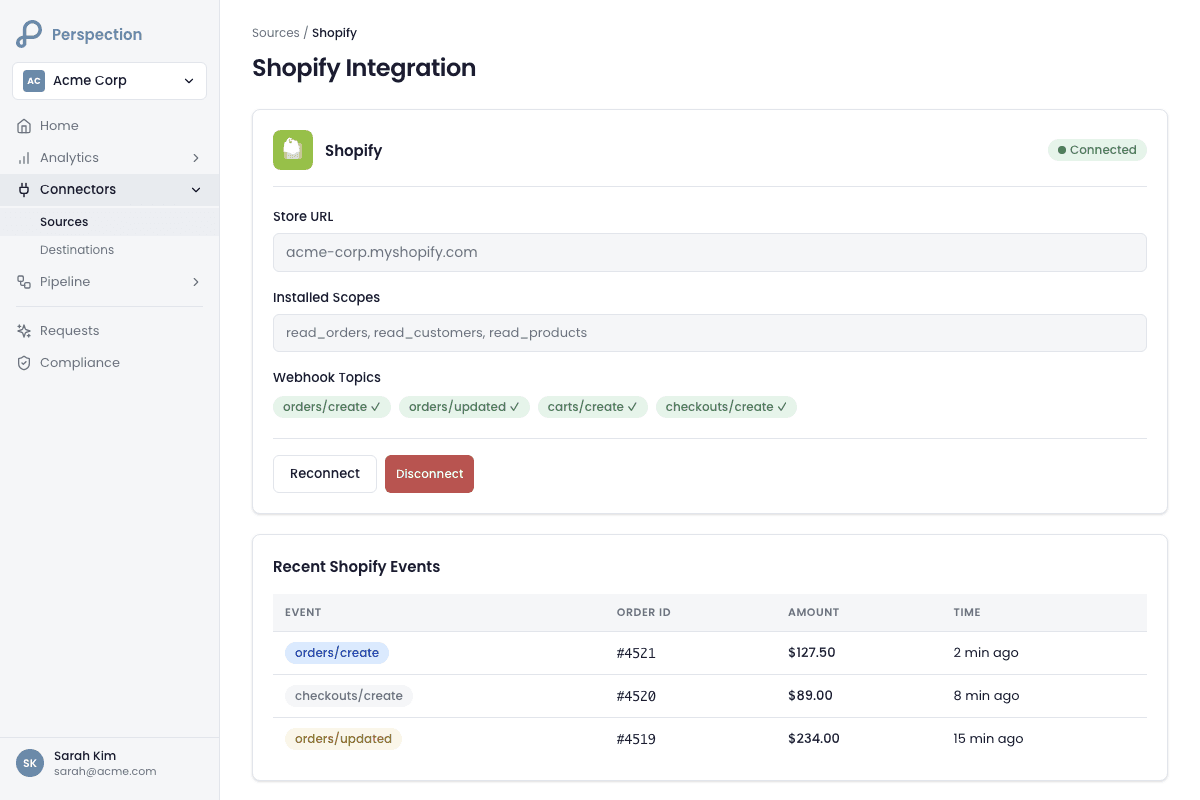
Open the Perspection dashboard and navigate to Connectors > Sources > Shopify.
Enter the Shopify store's myshopify.com subdomain (for example,
mystorefor mystore.myshopify.com).Click "Connect Shopify Store" to open the Shopify authorization page in a new tab.
Authorize Perspection to access the store with read-only scopes:
read_orders,read_customers,read_products,read_checkouts, andread_fulfillments.Wait for the OAuth callback to complete. Perspection automatically registers all 16 webhook subscriptions via the GraphQL Admin API and stores encrypted credentials (AES-256) in the control plane database.
Return to the Perspection dashboard and proceed to Step 3 (Web Pixel installation).
Navigate to Shopify Admin > Settings > Customer Events.
Click "Add custom pixel" and name the pixel "Perspection Tracking."
Set Permission to "Not required" and Data sale to "Data collected does not qualify as data sale."
Paste the Perspection pixel code (generated automatically for the workspace) into the code editor.
Click "Save" and then "Connect" to activate the pixel.
Manual installation
Open the Perspection dashboard and navigate to Connectors > Sources > Shopify > Manual Setup tab.
Copy each webhook URL from the Perspection dashboard. Perspection provides pre-configured URLs for all 16 webhook topics, organized into Essential (6 webhooks), Recommended (8 webhooks), and Optional (2 webhooks) categories.
Navigate to Shopify Admin > Settings > Notifications and scroll to the Webhooks section.
Click "Create webhook" for each event topic, paste the corresponding Perspection URL, and select JSON format.
After completing all webhook registrations, navigate to Shopify Admin > Settings > Customer Events.
Follow steps 8 through 11 from the OAuth section above to install the Web Pixel.
What is the difference between OAuth and manual Shopify installation?
OAuth and manual installation produce identical tracking results. OAuth automates all 16 webhook subscriptions in a single atomic transaction with automatic rollback on failure. Manual installation lets merchants choose exactly which topics to register, starting with 6 Essential webhooks. Both methods require manually adding the Web Pixel code in Shopify Customer Events.
Feature | OAuth App | Manual Setup |
|---|---|---|
Setup time | Approximately 2 minutes | Approximately 5 minutes |
Webhook registration | Automatic (16 topics) | Manual (choose per topic) |
Credential storage | AES-256 encrypted via PGP | Not applicable (webhook URLs contain API key) |
OAuth scopes required | 5 read-only scopes | None |
Disconnect cleanup | Automatic webhook deletion | Manual webhook removal |
Web Pixel installation | Manual (required) | Manual (required) |
App Store support | Yes (auto-provisions workspace) | No |
Perspection's OAuth flow also supports Shopify App Store installation. When a merchant installs Perspection from the Shopify App Store without an existing workspace, Perspection automatically provisions a new workspace and starts a 14-day trial with 100,000 monthly events.
Related: Create Your Workspace covers workspace provisioning.
What events does Perspection track on Shopify?
Perspection tracks 10 browser-side events through the Shopify Web Pixel and 16 server-side webhook topics through the Admin API, providing complete funnel coverage from first page view to post-purchase fulfillment. Browser events cover page views, product and collection views, cart activity, search, checkout, and purchase. Server-side webhooks cover orders, customers, carts, checkouts, fulfillments, refunds, and products.
Browser-side events (Web Pixel)
Event Name | Shopify Subscription | Data Captured |
|---|---|---|
page_view | page_viewed | URL, title, path, referrer, referrer source, UTM parameters, click IDs |
product_viewed | product_viewed | Product ID, title, type, vendor, variant details, price, currency |
collection_viewed | collection_viewed | Collection ID, title |
cart_viewed | cart_viewed | Cart ID, total amount, currency, item count |
search_submitted | search_submitted | Search query, result count |
add_to_cart | product_added_to_cart | Product and variant details, price, currency, quantity |
remove_from_cart | product_removed_from_cart | Product and variant details, price, currency, quantity |
checkout_started | checkout_started | Currency, total price, subtotal, tax, shipping, line items array |
payment_info_submitted | payment_info_submitted | Currency, total value, SHA-256 hashed billing address |
purchase | checkout_completed | Transaction ID, currency, value, subtotal, tax, shipping, discount, line items, SHA-256 hashed customer data |
The Web Pixel also subscribes to visitorConsentCollected from Shopify's Customer Privacy API, tracking consent changes for marketing, analytics, preferences, and sale-of-data categories.
Server-side events (Webhooks)
The 16 webhook topics are organized into three priority tiers:
Essential (6 topics): orders/create, orders/paid, orders/cancelled, refunds/create, customers/create, customers/update
Recommended (8 topics): carts/create, carts/update, checkouts/create, checkouts/update, fulfillments/create, fulfillments/update, orders/updated, products/update
Optional (2 topics): products/create, orders/fulfilled
Additionally, the OAuth flow registers app/uninstalled as a 17th topic for app lifecycle management. Manual installations do not require the app/uninstalled webhook.
How does the Perspection Shopify Web Pixel work?
The Perspection Shopify Web Pixel (v3.0.0) runs as a Custom Pixel inside Shopify's Customer Events sandbox, independent of the standard browser SDK. It performs SHA-256 PII hashing client-side before any data leaves the browser, includes an in-memory retry queue with exponential backoff, a weighted match quality scorer, and a diagnostic reporter for SDK health telemetry.
PII hashing architecture
The Web Pixel hashes all personally identifiable information client-side before transmission. Perspection's PII hasher normalizes each field before hashing:
Email: Lowercased and trimmed, then SHA-256 hashed
Phone: Stripped of non-digit characters (except leading +), then SHA-256 hashed
Name fields (first, last): Lowercased, trimmed, non-alphabetic characters removed, then SHA-256 hashed
Address fields (city, state, zip, country): Lowercased and trimmed (zip has non-alphanumeric characters removed), then SHA-256 hashed
The match quality scorer assigns a weighted score (maximum 100) to each event based on available hashed fields. The score and key count are attached as _match_score and _match_keys_count metadata, enabling downstream match quality analysis.
Related: Event Match Quality explains how match scores influence destination delivery.
Click ID and UTM extraction
Every browser event extracts UTM parameters and advertising platform click IDs from the page URL. The Web Pixel captures 7 click ID types:
gclid (Google Ads)
gbraid (Google App campaigns, iOS)
wbraid (Google Web-to-App)
fbclid (Meta/Facebook)
ttclid (TikTok)
msclkid (Microsoft Ads)
li_fat_id (LinkedIn)
UTM parameters are cached per session using Shopify's clientId as the session key, with a 30-minute cache duration. Session-scoped caching prevents UTM pollution when multiple customers share the same storefront instance. The cache automatically evicts sessions older than 30 minutes and caps total cached sessions at 100.
Retry queue and diagnostics
When an event POST to the Perspection ingestion endpoint fails, the Web Pixel queues the event for retry with exponential backoff (2s, 4s, 8s). After 3 failed retries, the event is dropped and a diagnostic report is filed. The diagnostic reporter batches up to 10 reports and flushes either when 5 reports accumulate or on a 30-second interval. Diagnostic events include init_success, pii_hashing_error, event_dropped, and other SDK health signals.
How does Perspection handle Shopify GDPR compliance?
Perspection enforces GDPR and CCPA compliance on Shopify through three mechanisms: client-side PII hashing via SHA-256, consent enforcement via Shopify's visitorConsentCollected API, and server-side data processing that keeps all events within the workspace's designated infrastructure. The OAuth flow also registers mandatory Shopify GDPR webhooks for customer data requests and deletion.
Consent enforcement logic
The Web Pixel evaluates consent before sending each event. Perspection classifies events into two consent categories:
Marketing events (require both analytics AND marketing consent): product_viewed, collection_viewed, cart_viewed, search_submitted, add_to_cart, remove_from_cart, checkout_started, payment_info_submitted, purchase
Analytics events (require analytics consent only): page_view and other non-commercial events
When consent is required, if consent.analytics or consent.marketing evaluates to false, the Web Pixel blocks the event entirely and logs the block reason to the diagnostic reporter. When privacy regulations apply, the Web Pixel additionally checks consent.sale_of_data and blocks events when a visitor has opted out of data sale.
How do you verify the Perspection Shopify integration?
Verification requires confirming both webhook delivery and Web Pixel event transmission. For webhooks, check Shopify Admin > Settings > Notifications > Webhooks to confirm all topics show active status with the correct Perspection URL. For the Web Pixel, use the Perspection Installation Verification tool, which detects events tagged installationSource: shopify. Testing involves browsing, adding to cart, and completing a purchase.
Step-by-step verification
Navigate to Shopify Admin > Settings > Notifications and scroll to the Webhooks section. Confirm that all registered webhook topics display an "Active" status and point to the correct Perspection ingestion endpoint.
Open the Perspection dashboard and navigate to the Shopify integration page. Use the built-in "Installation Verification" tool to confirm that Perspection can detect incoming events.
Visit the Shopify storefront in a new browser tab. Browse several pages to generate page_view events.
View a product detail page to generate a product_viewed event.
Add a product to the cart to generate an add_to_cart event.
Proceed through checkout to generate checkout_started and payment_info_submitted events.
Complete a test purchase to generate both a checkout_completed Web Pixel event and an orders/create webhook event.
Return to the Perspection dashboard and verify that both browser-side events and server-side webhook events appear in the Live Event Stream.
Troubleshooting common issues
No Web Pixel events appearing: Confirm the Custom Pixel status is "Connected" (not just "Saved") in Shopify Admin > Settings > Customer Events. Shopify requires clicking both "Save" and "Connect" as separate actions.
No webhook events appearing: Verify the webhook URL format matches the expected pattern: https://ingest.perspection.app/api/v1/inbound-webhooks/shopify/{topic}?apiKey={pk_live_xxx}. Confirm the API key in the URL matches the workspace's publishable API key.
Events appearing in the Perspection dashboard but not reaching advertising destinations: Proceed to configure destinations. The Shopify integration only collects and ingests events. Dispatching events to Meta CAPI, Google Ads, or TikTok requires destination configuration.
Related: Connect Meta CAPI covers destination setup for Meta Conversions API.
Methodology
All Shopify integration steps in this guide were verified against the Perspection production dashboard and a live Shopify development store as of February 2026. Event types and webhook topics reflect the actual Perspection-Shopify connection behavior.
"The combination of client-side PII hashing and server-side webhook verification creates a defense-in-depth data collection model. By hashing email and phone SHA-256 inside Shopify's sandbox before transmission, Perspection never handles raw PII on the wire -- the ingestion endpoint receives pre-hashed values that are directly compatible with Meta's Advanced Matching and Google's Enhanced Conversions, eliminating the need for a separate server-side hashing step." -- Perspection Engineering Team
Sources & References
Shopify Admin API -- Webhooks Reference, https://shopify.dev/docs/api/admin-rest/2024-01/resources/webhook
Shopify Web Pixel API, https://shopify.dev/docs/api/web-pixels-api
Shopify GDPR Mandatory Webhooks, https://shopify.dev/docs/apps/webhooks/configuration/mandatory-webhooks
Perspection Product Guide -- Connect Meta CAPI, /library/connect-meta-conversions-api-guide
Perspection Product Guide -- Event Match Quality, /library/event-match-quality-guide