Create Your Workspace
Create a Perspection Workspace - Setup Guide 2026
Create a Perspection workspace in under 3 minutes. Activate a 14-day trial and start tracking events.
Creating a Perspection workspace takes fewer than 3 minutes and requires no credit card. The guided wizard collects 5 pieces of information -- workspace name, business type, website domain, timezone, and company size -- then provisions the workspace database and a dedicated data pipeline. Every new workspace receives a 14-day trial with full access to server-side tracking, identity resolution, and all advertising platform connectors. After workspace creation, a 3-step setup checklist and an interactive demo tour guide new users through installation and first-event verification.
How do you create a Perspection workspace?
Perspection workspace creation uses a 3-phase wizard: Basic Information (5 questions), Billing (plan selection or trial activation), and Installation (source and destination configuration). The wizard authenticates users through Clerk, collects workspace metadata with real-time validation, provisions the workspace database, and generates a publishable API key. Workspace provisioning completes in under 5 seconds, after which Perspection automatically activates a 14-day trial.
The workspace creation wizard launches as a full-screen dialog from the sidebar workspace switcher. Perspection uses animated step transitions with a 3-step progress indicator at the top: Basic Information, Billing, and Installation.
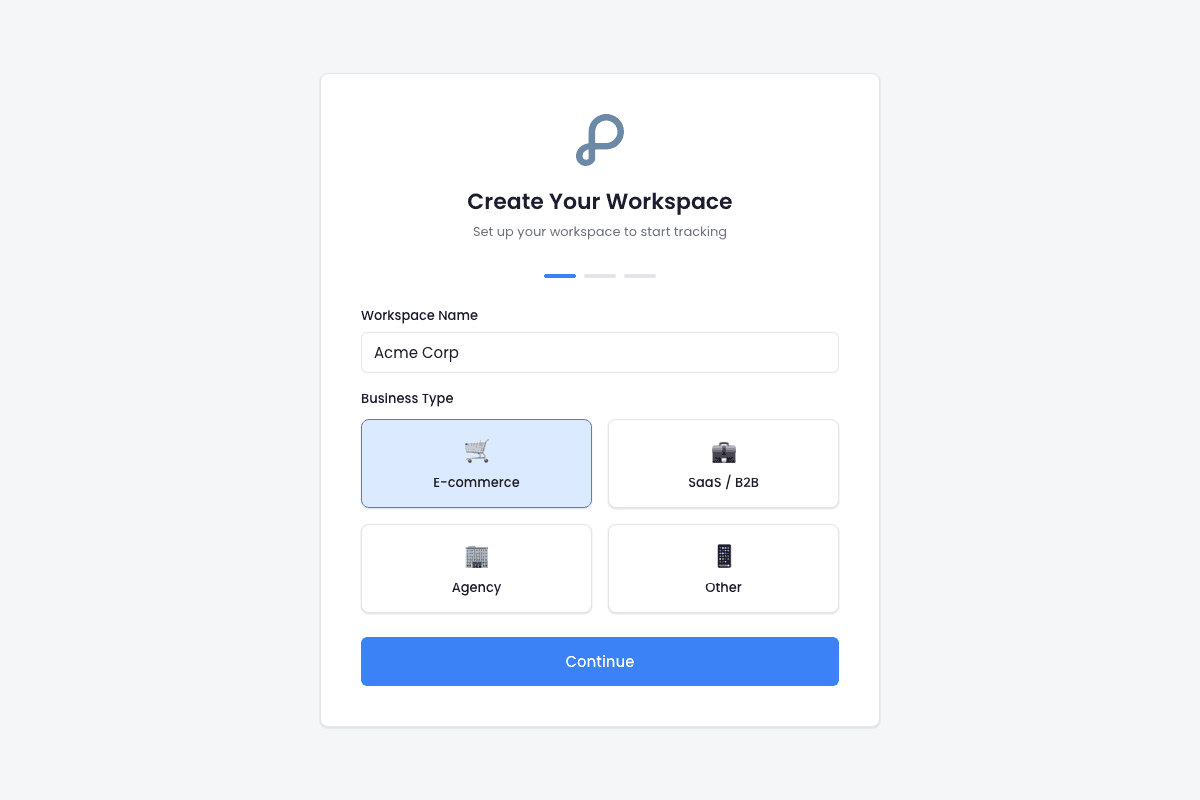
Phase 1: Basic Information (5 sequential questions)
Workspace Name -- Enter a name between 2 and 100 characters for the business or project. The input field defaults to "My Workspace" and validates in real time. Example: "Acme Corp."
Business Type -- Select from a grid of 10 business categories: E-commerce, SaaS, Marketplace, Lead Generation, Healthcare, Education, Finance, Nonprofit, Media, or Other. Perspection uses the business type selection to tailor analytics insights for the workspace.
Website Domain -- Enter the primary domain where events will be tracked (e.g., "acme.com"). The domain field uses a globe icon prefix and validates format on input.
Timezone -- Select the timezone for analytics reporting and date range calculations. Perspection pre-fills the timezone from the browser's
Intl.DateTimeFormatAPI. All analytics dashboards, event timestamps, and scheduled reports use the selected timezone.Company Size -- Optionally select from 5 sizes: Solo (just me), Small (2-10 people), Medium (11-50 people), Large (51-200 people), or Enterprise (200+ people). The company size step includes a "Skip" button because the field is optional.
After the user selects a company size or clicks "Skip" on question 5, Perspection creates the workspace by calling the API with all collected metadata. The API returns a unique workspace ID and a publishable API key (pk_* prefix). The browser then redirects to the Choose Your Plan page.
Phase 2: Billing - Choose How to Start
After workspace provisioning, Perspection presents two paths:
Start 14-Day Trial -- Full access with no credit card required. The trial is auto-provisioned via the
ensureTrialAPI endpoint the moment the plan selection page loads.Upgrade Now -- Opens the pricing table to select and subscribe to a paid plan through Stripe checkout.
Below the two cards, Perspection displays the remaining trial days and a reassurance message: "Cancel anytime. No commitment required."
Phase 3: Getting Started - Choose Your Setup Path
After plan selection, Perspection displays a Getting Started page with two options:
"We'll set it up for you" -- Routes to the Requests page where the Perspection team handles workspace configuration, SDK installation, and destination setup.
"I'll set it up myself" -- Routes directly to the workspace Home dashboard where the setup checklist guides users through self-service configuration.
Both paths lead to a fully functional workspace. Users can switch between assisted and self-service setup at any time.
How does the Perspection 14-day trial work?
Every new Perspection workspace receives a 14-day trial that activates automatically during workspace creation -- no credit card required. The trial grants full access to all platform features including server-side tracking, identity resolution, all advertising connectors, analytics dashboards, and compliance audit logs. Trial status appears as a sidebar badge showing exact days remaining.
Trial activation flow
The user completes the 5-question Basic Information wizard and Perspection provisions the workspace.
The Choose Your Plan page loads and calls the
ensureTrialAPI endpoint, which creates a trial subscription record in the billing system.The API returns a trial status object containing the subscription state (
trialing), trial end date, and days remaining (14).Perspection caches the subscription access data in the client (
has_full_access: true,access_level: trial) so the dashboard immediately reflects trial status without additional API calls.
The trial creation is idempotent -- if a trial already exists for the workspace, the ensureTrial endpoint returns the existing trial data without creating a duplicate.
What happens during the trial
Full feature access -- Trial workspaces have identical capabilities to paid workspaces. No features are gated or limited during the 14-day period.
No credit card on file -- Perspection does not collect payment information to start a trial. Users can add billing details at any point from Settings or the Billing page.
Trial badge visibility -- The Getting Started page displays a "Trial activated" badge with a green checkmark and the text "[X] days of full access." The workspace sidebar also indicates trial status.
Upgrade path -- Users can upgrade to a paid plan at any time during the trial through the Choose Your Plan page or via Settings. If a user upgrades, the billing cycle begins immediately and the trial converts to a paid subscription.
Trial expiration -- When the 14-day trial ends without a paid subscription, the workspace transitions to a restricted state. Users can restore full access by subscribing to a plan.
How do you navigate the Perspection dashboard?
The Perspection dashboard uses a collapsible sidebar on desktop and a bottom navigation bar on mobile. The sidebar organizes 10 navigation items into 2 groups: primary navigation (Home, Analytics, Connectors, Pipeline) and secondary navigation (Requests, Compliance). A workspace switcher at the top enables multi-workspace management, and a user profile menu at the bottom provides account settings.
Sidebar navigation structure
The sidebar contains the following sections, listed in display order:
Primary Navigation
Home -- The workspace landing page showing event activity, key metrics, and the setup checklist widget.
Analytics (expandable) -- Contains 2 sub-pages:
Overview -- High-level event counts, revenue tracking, and trend charts.
Data View -- Granular event browser with filtering, sorting, and export capabilities.
Connectors (expandable) -- Contains 2 sub-pages:
Sources -- Displays the tracking code snippet, SDK configuration, and connected data sources.
Destinations -- Lists connected advertising platforms and data warehouses with delivery status indicators.
Pipeline (expandable) -- Contains 3 sub-pages:
Data Quality -- Event validation rules, schema enforcement, and data quality scores.
Transformers -- Event transformation and enrichment rules.
Consent -- Consent mode configuration and enforcement settings.
Secondary Navigation (below a separator line)
Requests -- Submit setup help requests or data analysis requests to the Perspection team.
Compliance -- Consent audit logs, data subject request management, and compliance reporting.
Workspace management features
Workspace Switcher -- Located at the top of the sidebar, below the Perspection logo. The workspace switcher displays the current workspace name and allows users to switch between multiple workspaces or create a new workspace.
Sidebar Collapse -- The sidebar can collapse to icon-only mode using the toggle button next to the Perspection logo. In collapsed mode, hovering over the sidebar reveals the toggle button in place of the logo. The sidebar uses a rail element for hover-to-expand behavior.
User Profile -- Located at the bottom of the sidebar footer. Displays the signed-in user's name and provides access to account settings and sign-out.
Mobile navigation
On mobile devices, Perspection replaces the sidebar with a bottom navigation bar. The setup checklist appears as a floating pill widget that opens a swipeable drawer when tapped.
What does the Perspection setup checklist track?
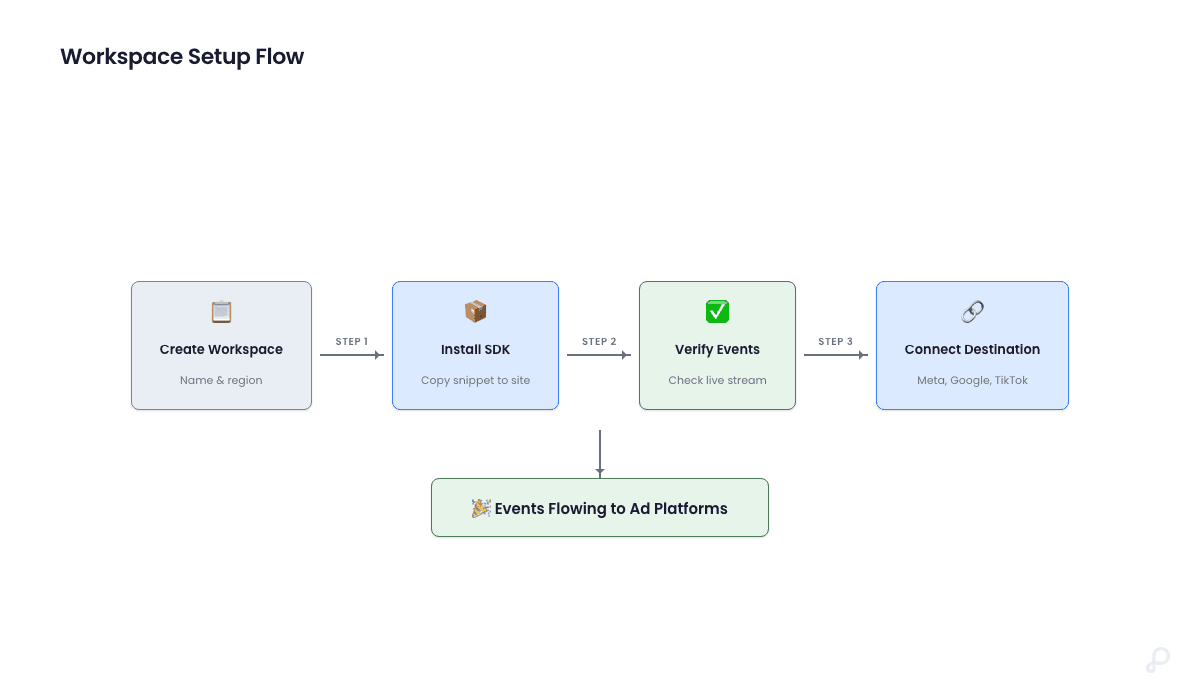
The Perspection setup checklist is a floating widget that tracks 3 tasks: copy tracking code, verify first event, and connect a destination. The checklist appears on every page as a pill-shaped button showing completion progress (e.g., "1/3"). All 3 tasks auto-complete when Perspection detects the corresponding action -- no manual checkboxes required.
The 3 setup checklist tasks
Copy tracking code -- Auto-completes when the user visits the Connectors > Sources page. The Sources page displays the SDK snippet and API key for the workspace. Completing the tracking code step confirms the user has accessed the installation instructions. For detailed installation instructions, see Install Tracking on Your Website.
Verify first event -- Auto-completes when Perspection detects the first event arriving from the workspace's tracking code. The Home page monitors event ingestion and updates the checklist status in real time.
Connect destination -- Auto-completes when the user creates at least one destination (e.g., Meta CAPI, Google Ads, or TikTok Events API). The Connectors > Destinations page provides setup wizards for each advertising platform. For Meta CAPI setup, see Connect Meta CAPI.
Checklist behavior and features
Floating pill widget -- The checklist pill appears in the bottom-left corner of the dashboard (desktop) or as a floating button above the bottom nav bar (mobile). The pill displays a progress count (e.g., "2/3") and uses Perspection's brand color for incomplete steps and green for completed steps.
Progress indicator -- The popover header shows a circular progress ring and the text "[X] tasks remaining."
Auto-completion -- All 3 tasks use automatic detection. Manual crossoff is disabled. The checklist footer displays the note: "Tasks auto-complete as you go."
View Demo button -- If the user has not completed the demo tour, the checklist popover displays a "View Demo" button labeled "~2 min." The demo tour walks through 5 slides: Server-Side Tracking, Business Analytics, Compliance Dashboard, Unstructured Data Analysis, and a final "Ready to Start?" call to action.
Dismiss option -- The checklist includes a "Don't show again" link at the bottom. Dismissing the checklist hides the widget permanently for the workspace. The dismissed state is stored server-side and persists across sessions.
Completion celebration -- When all 3 tasks are complete, the checklist displays a green gradient banner with the message "Setup Complete! You're ready to track customer data."
Automatic hiding -- The checklist widget automatically hides when all steps are complete, when the user has previously dismissed the checklist, or when the user is on the Choose Plan or Getting Started onboarding pages.
For information about managing subscriptions after setup, see Manage Billing and Subscriptions.
Methodology
All workspace configuration details in this guide were verified against the Perspection production dashboard (dashboard.perspection.com) as of February 2026. Step sequences and UI elements reflect the live wizard flow experienced by new users during signup and onboarding.
"The biggest mistake companies make with server-side tracking setup is treating workspace configuration as an afterthought. Perspection's guided wizard collects all critical metadata upfront -- workspace name, business type, domain, and timezone -- so the data pipeline is correctly provisioned from the start and teams do not discover configuration gaps months later when purchase events are already flowing." - Perspection Engineering Team
Sources & References
Perspection Help Center -- Getting Started, https://perspection.app/library
Perspection Product Guide -- Install Tracking on Your Website, /library/install-tracking-website-guide
Perspection Product Guide -- Manage Billing and Subscriptions, /library/billing-subscriptions-guide