Install Tracking on Your Website
Install Perspection Web SDK on Your Website
Install the Perspection Web SDK in under 5 minutes. Copy one script tag, verify events, and start tracking page views, clicks, and conversions.
Installing the Perspection Web SDK requires copying a single auto-generated script tag from the Perspection dashboard and pasting the script tag into the <head> section of any website. The Perspection SDK automatically tracks page views, link clicks, form submissions, and session activity without additional code. The SDK supports two installation methods -- direct HTML snippet and Google Tag Manager Custom HTML tag -- with both methods delivering SHA-256 client-side PII hashing and ad-platform click ID capture for Meta CAPI, Google Ads, and TikTok Events API. Installation takes under 5 minutes, and the Perspection dashboard provides real-time verification polling every 5 seconds to confirm events are flowing.
How do you install the Perspection Web SDK?
The Perspection Web SDK is installed by navigating to Connectors, selecting Sources, choosing Custom Website, and copying the auto-generated script tag that contains the workspace tenant ID, publishable API key, and ingestion endpoint. The snippet is pasted into the website HTML <head> section before the closing </head> tag.
The Perspection dashboard generates a workspace-specific SDK snippet that contains three critical configuration values: the workspace tenant_id, the api_key_publishable (a pk_* prefixed publishable key following the Stripe/Segment key pattern), and the ingestion endpoint URL.
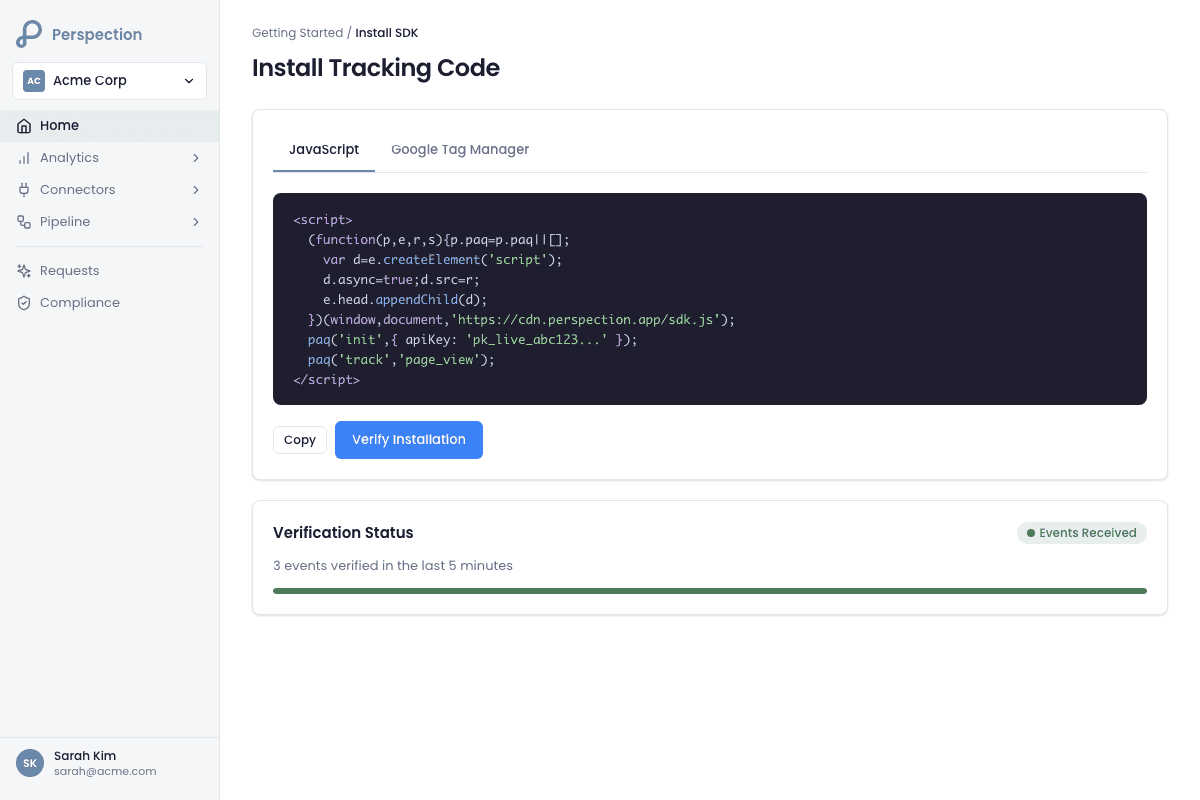
Step-by-step: Direct HTML installation
Log in to the Perspection dashboard at
app.perspection.comand open the workspace. (If no workspace exists yet, see Guide 1: Create Your Workspace.)Navigate to Connectors in the left sidebar, then select the Sources tab.
Choose Custom Website from the source list.
The dashboard calls the SDK snippet generation API and displays the installation code pre-populated with the workspace API key and ingestion endpoint.
Click Copy SDK Snippet to copy the code to the clipboard.
Open the website HTML source (or the theme editor in platforms like Wix, Weebly, Squarespace, or WordPress) and locate the
<head>section.Paste the Perspection snippet before the closing
</head>tag.Save the file and deploy the website changes.
What the generated snippet looks like
For workspaces without a first-party custom domain configured, the Perspection API generates the following snippet structure:
For workspaces with a verified first-party custom domain (such as events.yourdomain.com), the snippet uses the serverContainerUrl parameter instead of the endpoint parameter, routing all SDK requests and the SDK script file through the first-party subdomain. Setting up a first-party domain is covered in Guide 24: First-Party Tracking Domain.
What does the Perspection SDK track automatically?
The Perspection SDK automatically tracks 5 categories of browser behavior: page views, click events, form submissions with PII detection, session tracking with a 30-minute timeout, and user identification. No additional code is required. The SDK also captures ad-platform click IDs (gclid, fbclid, ttclid, msclkid, gbraid, wbraid, li_fat_id) and UTM parameters on every event.
Automatic tracking events
The Perspection SDK begins capturing the following events the moment window.perspection.init() executes:
Page views -- Recorded on every page load and client-side navigation, including the page URL, page title, referrer URL, and referrer source classification (Google, Facebook, TikTok, etc.).
Click events -- Captured on links and buttons across the page without requiring manual event binding.
Form submissions -- Detected when forms are submitted, with automatic PII field detection and SHA-256 hashing applied before the data leaves the browser.
Session tracking -- Sessions are created and maintained with a 30-minute inactivity timeout window, matching the Google Analytics 4 session definition.
User identification -- When a user's identity is available through login or form completion, the SDK associates the session with the identified user record.
Click ID capture -- The SDK extracts advertising click IDs from URL parameters on every event:
gclid(Google Ads),gbraidandwbraid(Google App/Web-to-App),fbclid(Meta/Facebook),ttclid(TikTok),msclkid(Microsoft Ads), andli_fat_id(LinkedIn).UTM parameter extraction -- Standard UTM parameters (
utm_source,utm_medium,utm_campaign,utm_term,utm_content,utm_id) are parsed from the URL and attached to every event in the session.
Custom event tracking methods
Beyond automatic tracking, the Perspection SDK exposes 4 JavaScript methods on the window.perspection global object:
track(eventName, properties) -- Send a custom event with arbitrary properties:
identify(userId, traits) -- Associate the current session with a known user:
setUserProperties(properties) -- Update properties on the current user profile without requiring a user ID.
reset() -- Clear the current user identity, typically called on logout to prevent identity leakage between users sharing a device.
How do you install Perspection via Google Tag Manager?
The Perspection GTM integration uses a single Custom HTML tag that wraps window.dataLayer.push() to intercept all GTM events, loads the SDK asynchronously, fires an automatic page view, and flushes queued events. Configure with the "Initialization - All Pages" trigger. One Custom HTML tag replaces separate page view, purchase, and contact extraction tags.
Google Tag Manager is the preferred installation method for marketing teams that manage tracking through a tag management interface rather than direct code access.
Step-by-step: GTM installation
Open Google Tag Manager and navigate to the website container.
Click Tags in the left sidebar.
Click the New button to create a new tag.
Click Tag Configuration and select Custom HTML.
Name the tag
Perspection Analytics.Return to the Perspection dashboard, navigate to Connectors > Sources > Google Tag Manager, and click Copy GTM Tag Code.
Paste the copied code into the HTML field in the GTM Custom HTML tag configuration.
Click the Triggering section and select Initialization - All Pages (recommended for fastest loading, as the Initialization trigger fires before All Pages and other tag triggers).
Click Save to save the tag configuration.
Click Preview in the top-right corner of GTM to open Tag Assistant.
Enter the website URL and click Connect to test the tag in preview mode.
Verify that "Perspection Analytics" appears under "Tags Fired" on the Initialization event.
Open the browser console (F12) and confirm the message
[Perspection] SDK initializedappears.Return to GTM and click Submit in the top-right corner.
Add a version name (for example, "Added Perspection Analytics") and click Publish.
How the GTM tag works internally
The Perspection GTM tag executes the following sequence when the Custom HTML tag fires:
The tag wraps
window.dataLayer.push()with a monitoring function that intercepts everydataLayer.push()call and extracts objects containing aneventproperty.Events pushed to the dataLayer before the SDK loads are queued in an in-memory
pendingEventsarray.The tag dynamically creates a
<script>element, sets thesrcattribute to the SDK URL (for example,https://ingest.perspection.app/sdk.js), marks the script asasync, and appends the script todocument.head.On script load, the tag calls
window.perspection.init()with the workspacetenant_id,endpoint,apiKey, andinstallationSource: 'gtm'.The tag fires a
page_viewevent withwindow.location.pathname,document.title, anddocument.referrer.The tag iterates through
pendingEvents, sending each queued event to Perspection, then clears the queue.
Important: Trigger configuration
Do NOT use a Click trigger (such as "All Clicks" or "Just Links") for the Perspection tag. Click triggers cause Cannot parse target errors in GTM because the Custom HTML tag expects a DOM context that does not exist on click events. Always use a page-based trigger: Initialization - All Pages or All Pages.
Automatic dataLayer monitoring
Because the Perspection GTM tag wraps window.dataLayer.push(), any event pushed to the dataLayer by other tags, plugins, or the website code is automatically captured and forwarded to Perspection. No manual GTM variable mapping or additional trigger configuration is required.
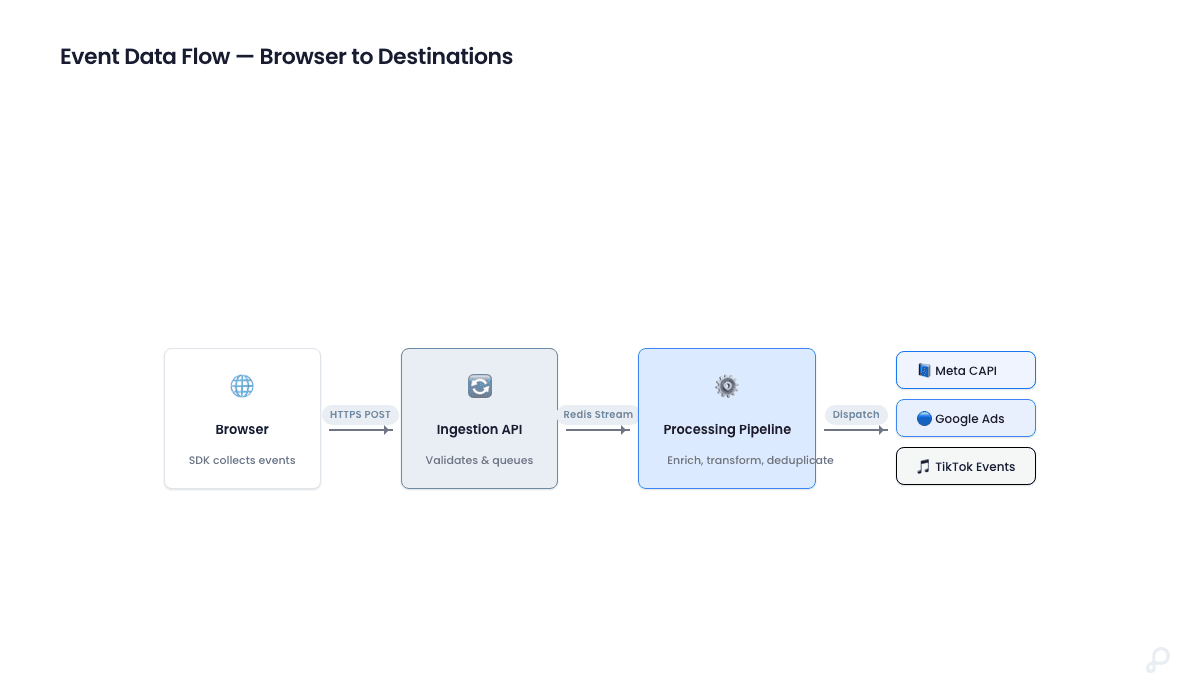
The Perspection SDK intercepts the push, extracts the event name and parameters, sends the event to the ingestion endpoint, and routes the event to configured advertising destinations (Meta CAPI, Google Ads, TikTok Events API).
How does Perspection hash PII on the client side?
Perspection uses the Web Crypto API to SHA-256 hash all PII within the browser before data leaves the client. The SDK normalizes emails to lowercase, phone numbers to E.164 format, and names to lowercase alphabetic characters. The resulting 64-character hex hash replaces raw PII in the event payload, so emails, phone numbers, and names never reach Perspection servers.
PII fields hashed client-side
The Perspection SDK applies SHA-256 hashing to 8 PII fields before transmission:
Field | Normalization | Hash Output |
|---|---|---|
Email ( | Lowercase, trim whitespace | 64-char hex SHA-256 |
Phone ( | Strip non-digits, prepend | 64-char hex SHA-256 |
First name ( | Lowercase, remove non-alpha characters | 64-char hex SHA-256 |
Last name ( | Lowercase, remove non-alpha characters | 64-char hex SHA-256 |
City ( | Lowercase, trim whitespace | 64-char hex SHA-256 |
State ( | Lowercase, trim whitespace | 64-char hex SHA-256 |
Zip code ( | Remove non-alphanumeric characters | 64-char hex SHA-256 |
Country ( | Lowercase, trim whitespace | 64-char hex SHA-256 |
The SDK includes a pre-hash check using a regex pattern (/^[a-f0-9]{64}$/i) to detect values that are already hashed, preventing double-hashing when upstream systems have pre-hashed the data.
Enhanced Match Quality scoring
After hashing, the Perspection SDK calculates an Enhanced Match Quality (EMQ) score using a weighted formula. The scoring weights are:
Email: 40 points
Phone: 30 points
First name: 5 points
Last name: 5 points
Zip code: 5 points
City: 3 points
Country: 3 points
State: 2 points
The maximum possible score is 100. The _match_score and _match_keys_count values are attached to the event payload, enabling downstream ad platforms (Meta CAPI, Google Ads, TikTok) to perform higher-quality identity matching. For a deeper explanation of how match scoring affects ad platform conversion attribution, see Guide 16: Event Match Quality.
Why client-side hashing matters for compliance
Client-side hashing satisfies the GDPR principle of data minimization (Article 5(1)(c)) because raw PII never enters the Perspection data pipeline. The Perspection server receives only SHA-256 hashes, which are classified as pseudonymized data rather than personal data under most interpretations of GDPR Article 4(5). The hashing approach also satisfies the Shopify Protected Customer Data policy (enforced since December 2025), which restricts third-party pixel access to raw checkout fields.
How do you verify the Perspection SDK installation?
The Perspection dashboard provides three verification mechanisms: automated polling that checks for events every 5 seconds, a manual "Send Test Event" button that dispatches a synthetic event through the API, and a Live Event Stream view that displays events in real time via WebSocket. Verification completes when the first event arrives.
Step-by-step: Verify the installation
After pasting the SDK snippet (direct HTML) or publishing the GTM container, return to the Perspection dashboard.
The Verify Installation card appears automatically below the snippet code, displaying a spinning indicator and the message "Waiting for first event..."
Open the website in a new browser tab and navigate to any page. The SDK fires a
page_viewevent automatically.Return to the Perspection dashboard. The verification component polls the events count endpoint every 5 seconds. When the first event arrives, the status changes from "Waiting" to "Connected - Collecting Events" (amber badge) and then to "SDK Successfully Installed!" (green badge with event count).
Click View Live Events to open the analytics overview and see the full event stream in real time.
Using the Test Event Sender
The Perspection dashboard also includes a Send Test Event button that generates a synthetic event without requiring a visit to the website:
Click the Send Test Event button in the installation wizard.
The dashboard sends a POST request to
/api/v1/eventswith the payload{ event: 'test_event', properties: { _test: true, source: 'dashboard_test_sender', test_type: 'sdk_verification' } }.A green confirmation message appears with the event ID if the event was accepted.
Test events are tagged with
_test: trueand can be filtered out of production analytics.
Troubleshooting verification failures
If events do not appear after 60 seconds:
Open the browser developer tools (F12) on the website and check the Console tab for
[Perspection]log messages. If no Perspection messages appear, the SDK script is not loading.Check the Network tab for blocked requests to
ingest.perspection.app. Ad blockers and privacy extensions (uBlock Origin, Brave Shields, Safari ITP) can block third-party tracking scripts.If an ad blocker is blocking the SDK, configure a first-party custom domain via CNAME (see Guide 24: First-Party Tracking Domain). A first-party domain routes the SDK script and all event requests through a subdomain of the website (for example,
events.yourdomain.com), bypassing ad blocker domain lists and extending cookie persistence beyond Safari ITP 7-day limits.For GTM installations, verify that the Perspection tag uses a page-based trigger (Initialization - All Pages or All Pages). Click-based triggers cause
Cannot parse targeterrors.If duplicate events appear, check for multiple installations of the Perspection snippet or an outdated GTM tag version. The current Perspection GTM tag handles dataLayer monitoring automatically -- manual event forwarding tags from previous versions should be removed.
Methodology
All SDK installation steps and configuration options in this guide were verified against the Perspection production dashboard and live SDK behavior as of February 2026. Code snippets reflect the actual output of the Perspection SDK snippet generator.
"The single most impactful optimization for SDK installation success rate is configuring a first-party tracking domain before deploying the snippet to production. Safari ITP caps third-party cookie lifetime at 7 days, and approximately 40% of global web traffic uses Safari. A CNAME-based first-party domain extends cookie persistence to the full domain lifetime, eliminates ad blocker interference, and increases event delivery rates from roughly 70% to over 95% of actual site visits. The Perspection SDK snippet generator automatically switches to first-party mode when a verified custom domain exists -- no code changes are required on the website after the initial domain configuration."
Sources & References
Perspection Help Center -- SDK Installation, https://perspection.app/library
Google Tag Manager -- Custom HTML Tag Guide, https://support.google.com/tagmanager/answer/6107167
Web Crypto API -- SubtleCrypto.digest(), https://developer.mozilla.org/en-US/docs/Web/API/SubtleCrypto/digest
Perspection Product Guide -- First-Party Tracking Domain, /library/first-party-tracking-domain-guide
Perspection Product Guide -- Event Match Quality, /library/event-match-quality-guide