How to Use Perspection Event Transformers and Field Mapping to Control Data Before Dispatch
Perspection Event Transformers & Field Mapping Guide
Learn how to configure Perspection PII Redactors, Field Remappers, Event Filters, and per-destination event mapping using Visual and JSON modes.
Perspection event transformers intercept events after the processing pipeline enriches the events and before the dispatch worker sends the events to advertising platforms. Perspection provides three transformer types -- PII Redactor, Field Remapper, and Event Filter -- each assignable to specific destinations rather than applied globally. PII Redactors strip sensitive fields like email hashes and phone numbers using dot-notation paths. Field Remappers rename or restructure properties to match destination-specific schemas. Event Filters enforce allow lists and deny lists with glob pattern support (e.g., debug_*) to block unwanted events. Each transformer carries an execution_order field that determines processing sequence when multiple transformers are chained on the same destination. Additionally, Perspection offers per-destination event mapping through a MappingConfigEditor with both a Visual rule builder and a raw JSON editor, enabling teams to rename event names, remap individual properties, and mark events to ignore -- all without writing code.
What are Perspection event transformers?
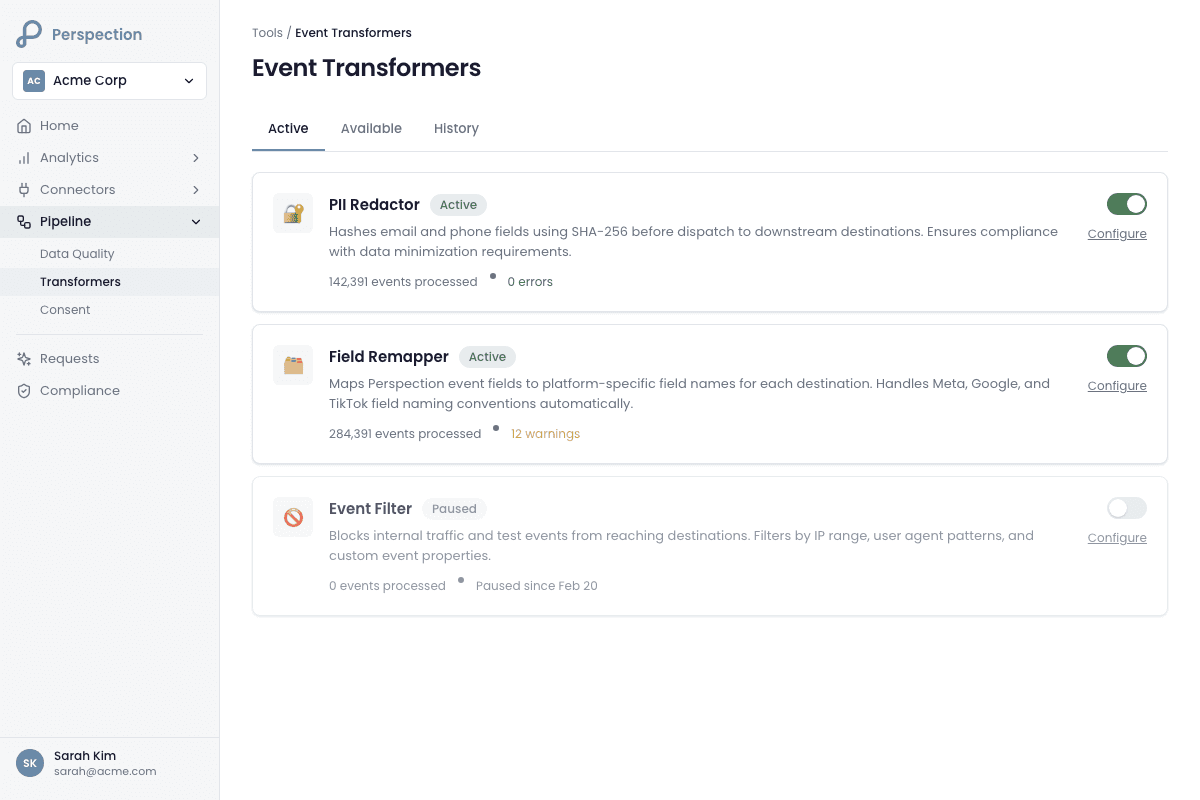
Perspection event transformers are configurable processing units that modify, filter, or redact event data after pipeline enrichment and before the dispatch worker sends events to connected destinations such as Meta CAPI, Google Ads, TikTok Events API, and Google Analytics 4. Perspection supports three transformer types: PII Redactor, Field Remapper, and Event Filter.
The three transformer types
Perspection categorizes transformers into three distinct types, each solving a different data governance problem:
PII Redactor -- Removes sensitive personally identifiable information fields from event payloads before the event payloads leave Perspection infrastructure. PII Redactor transformers accept a list of dot-notation field paths (such as
user_data.email_hash,user_data.phone_hash, orproperties.email) and strip each specified field from every event routed through the assigned destination.Field Remapper -- Renames or restructures event properties using source-to-destination field mappings. Field Remapper transformers accept an array of mapping pairs, where each pair defines a
frompath (e.g.,properties.product_id) and atopath (e.g.,content_ids). Field Remapper transformers solve the schema mismatch problem when different advertising platforms expect different property names for the same underlying data.Event Filter -- Controls which events reach a destination by enforcing allow lists and deny lists. Event Filter transformers support glob patterns, meaning a single deny entry like
debug_*blocksdebug_click,debug_pageview,debug_session, and every other event name matching thedebug_prefix. When the allow list is populated, only events matching the allow list pass through. When the allow list is empty, all events pass through unless the deny list explicitly blocks the events.
Destination-scoped assignment, not global
Unlike platform-wide rules that affect every outbound event, Perspection transformers are assigned to specific destinations. A PII Redactor assigned to a Google Analytics 4 destination does not affect events flowing to a Meta CAPI destination. Destination-scoped assignment gives data teams granular control: a team can redact email hashes before sending events to a third-party analytics tool while preserving email hashes for Meta CAPI, where hashed email improves Event Match Quality.
Execution order and chaining
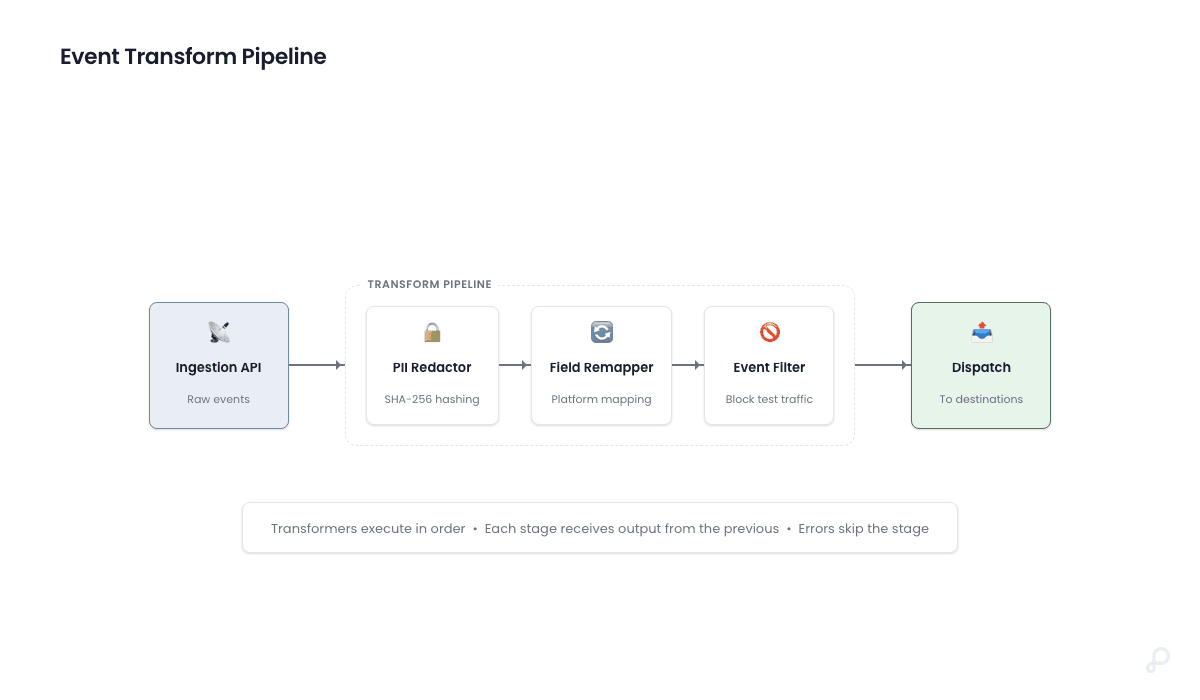
Each transformer carries an execution_order integer field. When multiple transformers are assigned to the same destination, Perspection executes the transformers in ascending execution_order sequence. A common chaining pattern applies a PII Redactor at execution_order 1, followed by a Field Remapper at execution_order 2, followed by an Event Filter at execution_order 3. The PII Redactor strips sensitive fields first, the Field Remapper renames the remaining fields to match the destination schema, and the Event Filter drops any events the destination should not receive.
Where transformers fit in the Perspection pipeline
Perspection processes events through a multi-stage pipeline:
Ingestion -- The Perspection SDK or server-side endpoint collects the raw event.
Processing -- The processing worker enriches, validates, and identity-resolves the event.
Transformation -- Active transformers assigned to each destination modify the event payload.
Dispatch -- The dispatch worker sends the transformed event to each connected destination.
Transformers operate at stage 3, after enrichment completes but before the dispatch worker transmits the event. Understanding the pipeline sequence matters because transformers receive already-enriched events containing identity-resolved user data, device graph attributes, and UTM parameters.
How do you create a PII Redactor in Perspection?
To create a PII Redactor, navigate to Pipeline > Transformers, click Add Transformer, select PII Redactor, enter a name, type one dot-notation field path per line in the Fields to Redact textarea, and click Create Transformer. Perspection immediately strips every listed field from events dispatched through any assigned destination.
Step-by-step: Create a PII Redactor
Log into the Perspection dashboard and select the workspace requiring PII redaction.
Navigate to Pipeline > Transformers in the left sidebar.
Click the Add Transformer button in the upper-right corner.
In the Add Transformer dialog, enter a descriptive name such as "Redact PII for GA4" or "Strip emails before TikTok."
Select PII Redactor from the Type dropdown. The description beneath the dropdown reads: "Remove sensitive fields (email, phone, etc.) before dispatch."
In the Fields to Redact textarea, enter one dot-notation field path per line. Common field paths include:
user_data.email_hashuser_data.phone_hashproperties.emailproperties.phoneuser_data.first_nameuser_data.last_name
Click Create Transformer. Perspection creates the PII Redactor in an active state.
Assign the PII Redactor to a destination
After creating the PII Redactor, the transformer card appears in the Transformers grid with an "Active" badge and a "Not assigned to any destination" label.
Click the Assign button beneath the Destinations section of the transformer card.
In the Assign to Destination dialog, select the target destination from the dropdown (e.g., "Google Analytics 4 (ga4)").
Click Assign. The destination name appears as a badge on the transformer card.
Repeat the assignment process to apply the same PII Redactor to additional destinations. To remove an assignment, click the X icon on the destination badge.
PII Redaction and data quality
PII Redactors interact directly with data quality rules. When a PII Redactor strips a field that a destination requires for attribution (such as user_data.email_hash for Meta CAPI), the destination receives the event without the stripped field, potentially lowering Event Match Quality scores. Data teams should balance privacy obligations against attribution accuracy by assigning PII Redactors only to destinations where the redacted fields are not required for conversion matching.
PII Redaction and consent enforcement
PII Redactors complement Perspection consent management by providing a technical enforcement layer. Even when consent signals indicate a user has opted out of data sharing, a PII Redactor guarantees that the specified fields never leave Perspection infrastructure for the assigned destinations -- regardless of upstream consent logic failures.
How do you remap event fields before dispatch?
To remap event fields, create a Field Remapper transformer, define source-to-destination mapping pairs using dot-notation paths, assign it to the target destination, and save. Perspection reads values from source paths and writes them to destination paths, translating between platform schemas without modifying the original tracking implementation.
Step-by-step: Create a Field Remapper
Navigate to Pipeline > Transformers and click Add Transformer.
Enter a name such as "Remap product fields for Meta" or "Translate properties to GA4 schema."
Select Field Remapper from the Type dropdown. The description reads: "Rename or restructure fields using dot-notation paths."
Click Add Field Mapping to add the first mapping pair.
In the left input field, enter the source path (e.g.,
properties.product_id). In the right input field, enter the destination path (e.g.,content_ids).Add additional mapping pairs by clicking Add Field Mapping again. Common mapping pairs include:
Source Path | Destination Path | Use Case |
|---|---|---|
|
| Meta CAPI content identification |
|
| Meta CAPI content naming |
|
| Meta CAPI content categorization |
|
| Platform-standard value field |
|
| ISO 4217 currency code |
|
| Meta CAPI item count |
Click Create Transformer.
Assign the Field Remapper to the appropriate destination using the Assign button.
When to use Field Remapper versus per-destination event mapping
Perspection offers two mechanisms for renaming fields: Field Remapper transformers and per-destination event mapping (covered in section 5 of the current guide). The choice depends on the use case:
Field Remapper transformers operate at the transformer level, execute in a defined order alongside PII Redactors and Event Filters, and can be reused across multiple destinations. Field Remapper transformers are best for standardizing property names across several destinations simultaneously.
Per-destination event mapping operates within the destination configuration, supports both event name translation and property remapping, and provides a Visual rule builder alongside a JSON editor. Per-destination event mapping is best for destination-specific translations that differ from destination to destination.
Editing and deleting Field Remapper mapping pairs
To modify an existing Field Remapper, click the Edit button on the transformer card. The Edit Transformer dialog loads the current mapping pairs, allowing teams to update source paths, destination paths, or remove individual pairs using the trash icon. Click Save Changes to persist the updates. Perspection applies the updated mappings to the next dispatched event.
How do you filter events using allow and deny lists?
Create an Event Filter transformer, populate the Allow List with permitted event names (leave empty to allow all), add event names or glob patterns (e.g., debug_*) to the Deny List, and assign to the target destination. Perspection evaluates the Deny List after the Allow List, so denied names are blocked even if they match an allow pattern.
Step-by-step: Create an Event Filter
Navigate to Pipeline > Transformers and click Add Transformer.
Enter a name such as "Block debug events from Meta" or "Only send purchases to TikTok."
Select Event Filter from the Type dropdown. The description reads: "Allow or deny events by name pattern before dispatch."
Configure the Allow List and Deny List:
Allow List configuration:
Enter one event name per line in the Allow List textarea.
When the Allow List contains entries, only events matching those entries pass through to the destination. All other events are blocked.
When the Allow List is empty, all events pass through (subject to Deny List rules).
Example Allow List for a purchase-only destination:
Deny List configuration:
Enter one event name or glob pattern per line in the Deny List textarea.
Events matching any Deny List entry are blocked regardless of Allow List configuration.
Glob patterns use the
*wildcard to match any sequence of characters.Example Deny List for blocking internal and debug events:
Click Create Transformer.
Assign the Event Filter to the target destination.
Glob pattern reference
Event Filter glob patterns follow standard glob syntax:
Pattern | Matches | Does Not Match |
|---|---|---|
|
|
|
|
|
|
|
|
|
Common Event Filter configurations
Configuration 1: Purchase-funnel only for Meta CAPI
Allow List:
page_view,view_content,add_to_cart,initiate_checkout,add_payment_info,purchaseDeny List: (empty)
Assigned to: Meta (Facebook) destination
Configuration 2: Block debug and staging events globally
Allow List: (empty -- all events pass)
Deny List:
debug_*,staging_*,internal_*,test_*Assigned to: All production destinations
Configuration 3: Conversion events only for TikTok
Allow List:
purchase,add_to_cart,complete_registrationDeny List: (empty)
Assigned to: TikTok Events API destination
Enabling and disabling Event Filters without deletion
Each transformer card includes an Active/Inactive toggle switch. Toggling the switch to inactive disables the Event Filter without deleting the Event Filter or removing destination assignments. Disabling an Event Filter is useful for temporarily allowing all events through during debugging sessions without losing the carefully configured allow and deny lists.
How do you configure per-destination event mapping in Perspection?
Per-destination event mapping uses the MappingConfigEditor, accessible within each destination's configuration card under the Event Mapping section. It offers two modes: Visual mode provides a point-and-click rule builder for mapping event names and properties, while JSON mode exposes the raw configuration schema for control over defaults, ignore_events arrays, and nested data mappings.
Accessing the MappingConfigEditor
Navigate to Connectors > Destinations in the Perspection dashboard.
Locate the destination requiring event mapping (e.g., Meta CAPI, Google Ads, or TikTok Events API).
On the destination configuration card, click the Event Mapping collapsible section to expand the MappingConfigEditor.
The MappingConfigEditor displays a mode toggle with two options: Visual and JSON.
Visual mode: The rule builder
Visual mode provides a structured interface for creating event mapping rules without writing JSON. Each rule defines a source-to-destination event translation:
Adding a mapping rule:
Click Add Mapping Rule (or Add Rule if rules already exist).
In the left input field, enter the source event name as the Perspection SDK sends the source event name (e.g.,
product_viewed).In the right input field, enter the destination event name as the advertising platform expects the destination event name (e.g.,
view_itemfor Google Ads orViewContentfor Meta CAPI).
Adding property mappings within a rule:
Click Add Property beneath the event name mapping.
In the left input field, enter the source property path using dot-notation (e.g.,
properties.price).In the right input field, enter the destination property key (e.g.,
value).Add additional property mappings by clicking Add Property again.
Example Visual mode configuration for Meta CAPI:
Source Event | Destination Event | Source Property | Destination Property |
|---|---|---|---|
|
|
|
|
|
|
|
|
|
|
|
|
|
|
|
|
|
|
|
|
|
|
|
|
JSON mode: Advanced configuration
JSON mode exposes the complete Perspection mapping schema, providing access to three top-level configuration keys:
Schema reference:
mappings-- An object where each key is a source event name. Each source event name maps to an object containing:name(string, optional): The destination event name. Whennameis omitted, the source event name passes through unchanged.ignore(boolean, optional): Whenignoreis set totrue, Perspection drops the event entirely for the assigned destination.data.map(object, optional): An object where each key is a destination property name and each value is an object containing akeyfield specifying the dot-notation source path.
defaults(object, optional) -- Default values applied to all events. Thedefaultsobject is preserved in Visual mode but only editable in JSON mode.ignore_events(array, optional) -- An array of event names to ignore globally for the assigned destination. Theignore_eventsarray is preserved in Visual mode but only editable in JSON mode.
Switching between Visual and JSON modes
The MappingConfigEditor supports bidirectional mode switching:
Visual to JSON: Clicking the JSON tab serializes the current Visual rules into formatted JSON, including any preserved
defaultsandignore_eventsvalues from the original configuration.JSON to Visual: Clicking the Visual tab parses the JSON and populates the rule builder. When the JSON contains syntax errors, the MappingConfigEditor displays an error message ("Invalid JSON -- cannot switch to visual mode. Please fix your JSON first.") and blocks the mode switch.
Saving event mapping configuration
Click the Save Mapping button to persist the event mapping configuration. Perspection validates the configuration and applies the mapping rules to the next dispatched event. When the save succeeds, a confirmation toast appears: "Mapping configuration saved."
Methodology
All event transformer configuration options and field mapping capabilities in this guide were verified against the Perspection production dashboard as of February 2026.
"The most common mistake teams make is applying PII Redactors too broadly. Stripping
user_data.email_hashbefore sending events to Meta CAPI drops the Event Match Quality score from 80-100 down to 30-40, because hashed email is Meta's highest-weight matching parameter. Instead, create separate PII Redactors for analytics destinations like Google Analytics 4 where hashed PII provides no attribution value, and leave the hashed fields intact for advertising platforms that use the hashed fields for conversion matching."
Additional best practices:
Name transformers descriptively -- Use names like "Redact PII for GA4" or "Block debug events from Meta" rather than generic names like "Transformer 1." Descriptive names prevent confusion when managing 5-10 transformers across multiple destinations.
Test with the Event Filter inactive toggle -- Before deploying a restrictive Event Filter allow list, disable the Event Filter temporarily and verify that expected events reach the destination. Re-enable the Event Filter only after confirming the correct events appear in the destination platform's event manager.
Use JSON mode for
ignore_events-- Theignore_eventsarray in the event mapping configuration provides a destination-level event blocklist that persists independently of Event Filter transformers. Useignore_eventsfor permanent blocks (likedebug_click) and Event Filter transformers for configurable, toggle-able blocks.Chain transformers in logical order -- Place PII Redactors first (lowest execution_order), Field Remappers second, and Event Filters last. PII Redactors should strip sensitive data before Field Remappers rename the remaining fields, and Event Filters should evaluate events after all field transformations complete.
Audit transformer assignments quarterly -- When adding new destinations, review existing transformer assignments to determine whether the same PII Redactors, Field Remappers, or Event Filters should apply to the new destination. Unassigned transformers provide no protection.
Sources and References
Perspection Help Center, https://perspection.app/library
Perspection Product Guide -- Data Quality Contracts, /library/data-quality-contracts-guide
Perspection Product Guide -- Consent Enforcement, /library/consent-enforcement-compliance-guide
Perspection Product Guide -- Connect Meta CAPI, /library/connect-meta-conversions-api-guide
GDPR Article 25 (Data Protection by Design and by Default) -- Legal basis for PII redaction at the infrastructure level before data leaves the data processor's environment.
IAB Transparency & Consent Framework v2.2 -- Industry standard for consent signal propagation that Perspection consent management implements alongside transformer-based PII redaction.