Perspection Destination Health and Failed Events: A Complete Guide to Monitoring, DLQ Management, and Event Recovery
Perspection Destination Health DLQ Guide
Monitor Perspection destination health, manage failed events in the DLQ, retry with 5 strategies, and trace pipeline events.
Perspection Destination Health monitoring provides real-time visibility into every event dispatched to advertising platforms and e-commerce integrations. The Destination Health section on the Connectors > Destinations page contains 3 tabs -- Overview, Quality Insights, and Failed Events -- plus a DLQ summary card that auto-refreshes every 30 seconds. The Dead Letter Queue captures every failed event and offers 5 retry strategies: immediate, fixed_delay, exponential_backoff, linear_backoff, and custom. Bulk retry supports up to 1,000 event IDs per request. The Pipeline Visualization traces each event through 5 stages -- Validation, Deduplication, Normalization, Enrichment, and Dispatch -- with per-stage latency in milliseconds and error messages at the exact failure point. Together, Destination Health and the Dead Letter Queue give e-commerce teams the tools to detect failures in seconds, recover lost conversions automatically, and quantify the revenue impact of every recovered event.
How does Perspection monitor destination health?
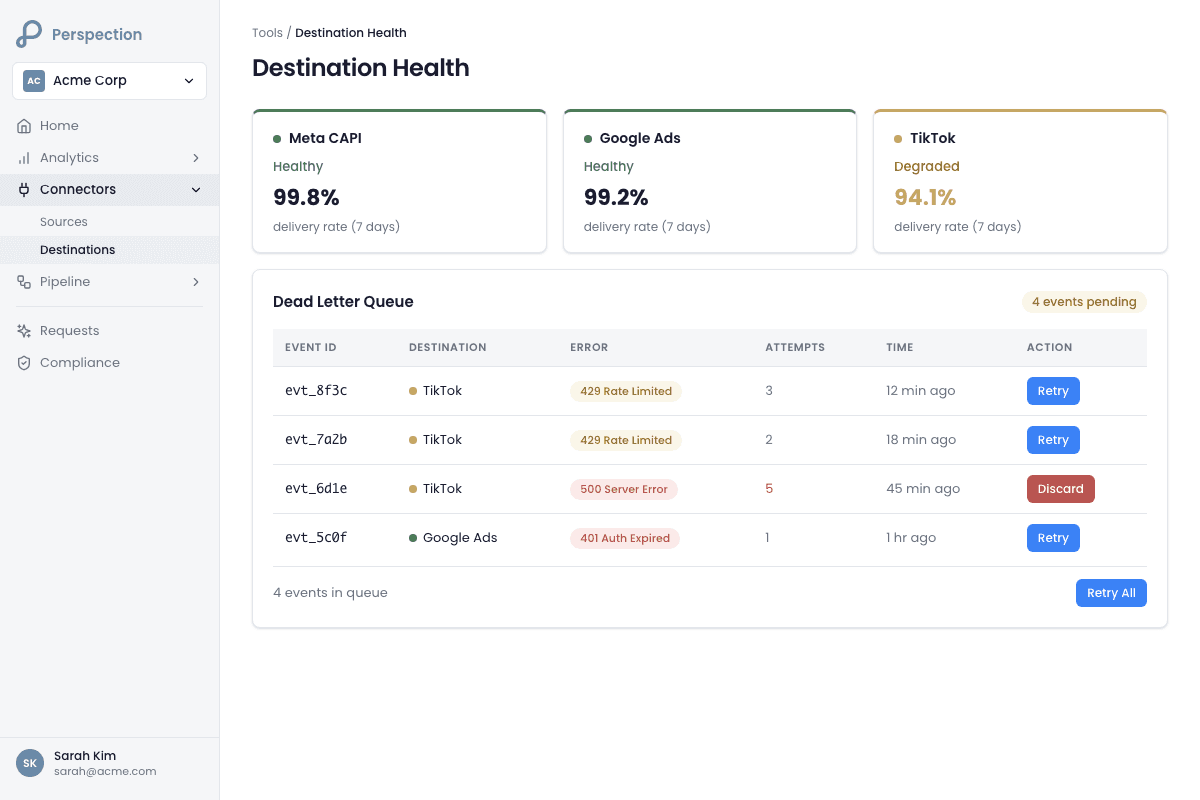
Perspection monitors destination health through a 3-tab dashboard on the Connectors > Destinations page. The Overview tab displays per-destination health cards with 4 statuses -- Healthy, Degraded, Down, and Paused -- plus total events, success rate, P95 latency, failed count, and discarded count. The tab auto-refreshes every 30 seconds.
Navigating to Destination Health
Log into the Perspection dashboard.
Select the workspace containing the destinations to monitor.
Click Connectors in the left navigation sidebar.
Click Destinations to open the destinations management page.
Scroll to the Destination Health section below the destination configuration cards.
The 3 Destination Health Tabs
The Destination Health section is built as a tabbed interface with 3 views:
Tab 1: Overview
The Overview tab renders a responsive grid of Destination Health Cards -- one card per configured destination (Meta CAPI, Google Ads, TikTok Events API, GA4 Measurement Protocol, Pinterest, LinkedIn, Snapchat, or any custom destination). Each Destination Health Card displays:
Destination name and health status badge (Healthy = green, Degraded = amber, Down = red, Paused = gray).
Total Events -- The aggregate count of events dispatched to the destination over the selected time window (default: 7 days).
Success Rate -- The percentage of events delivered successfully. The success rate number renders in green when above 95%, amber between 80% and 95%, and red below 80%.
P95 Latency -- The 95th-percentile response time in milliseconds for dispatch API calls to the destination.
Failed Events -- The count of events that received an error response from the destination platform.
Discarded Events -- The count of events intentionally skipped (consent-suppressed, duplicate-filtered, or schema-invalid).
Trend Chart -- A sparkline chart showing delivery volume and success rate over the time window.
Warning Alert -- When a destination enters "Degraded" or "Down" status, the Destination Health Card displays an amber or red alert banner with the time of last successful delivery or last failure.
Last Success Timestamp -- Shown in relative format ("2m ago", "3h ago", "1d ago") in the card footer.
Below the card grid, the Overview tab displays a 4-column summary: Total destinations count, Healthy count (green), Degraded count (amber), and Down count (red). The Overview tab header shows the last-updated timestamp and a "Refresh" button for manual data reload.
Tab 2: Quality Insights
The Quality Insights tab surfaces Event Match Quality (EMQ) scoring per destination. EMQ scores rate data completeness on a 0-to-100 scale across 15 parameters including email hash, phone hash, Facebook Browser ID, Facebook Click ID, and client IP address. For detailed EMQ methodology, see the Perspection Event Match Quality Guide.
Tab 3: Failed Events
The Failed Events tab provides a DLQ summary specific to the Destinations context, showing total failed events, retryable count, poison pill count, recovery progress with success rate, action buttons for bulk retry and CSV export, and a "Failures by Destination" breakdown card listing each destination's failure count with error type badges. The Failed Events tab links directly to the full DLQ management page for deeper investigation.
Health Status Definitions
Status | Condition | Visual Indicator |
|---|---|---|
Healthy | Success rate above 95%, no consecutive failures | Green badge |
Degraded | Success rate between 80% and 95%, or intermittent failures detected | Amber badge |
Down | Success rate below 80%, or destination returning consistent errors | Red badge |
Paused | Destination manually paused by workspace administrator | Gray badge |
For a broader view of workspace-level metrics that complement Destination Health monitoring, see the Perspection Home Dashboard Guide.
What does the Perspection Dead Letter Queue (DLQ) show?
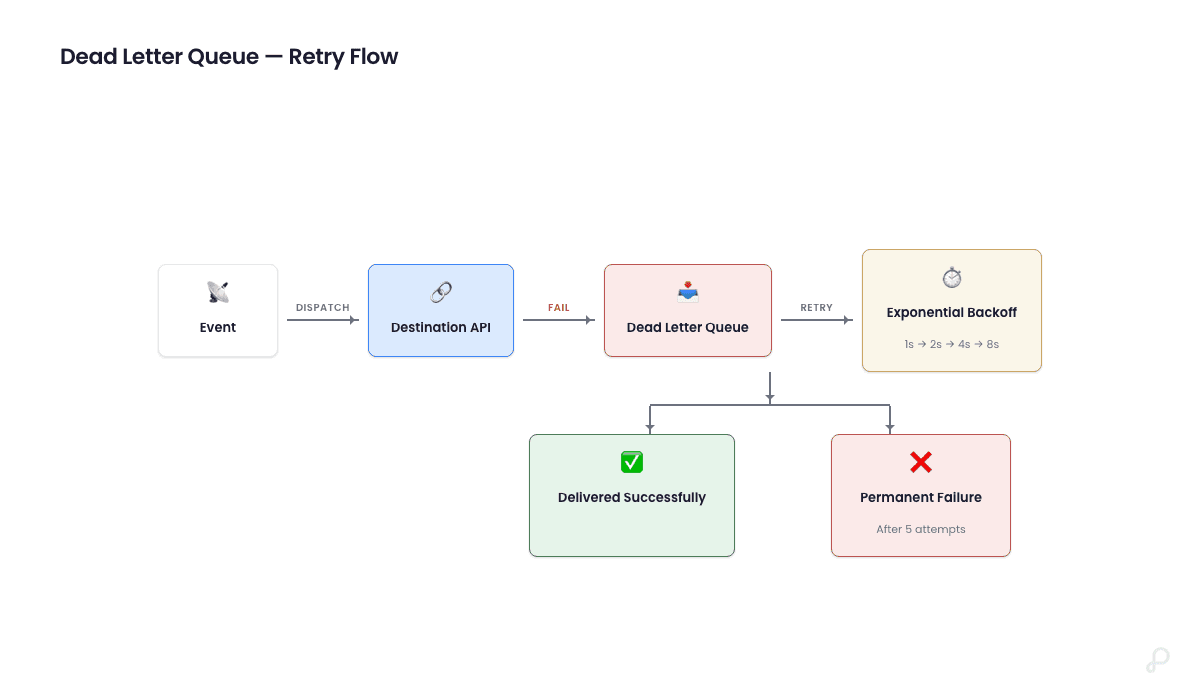
The Perspection Dead Letter Queue captures every failed dispatch event through a DLQ summary card on the Destinations page. The card refreshes every 30 seconds showing total failed events, retryable count, poison pill count, color-coded recovery bar, top 3 failure stages, oldest failure timestamp, 7-day failure rate, retry success rate, recovered event count, and recovered revenue.
DLQ Summary Card Metrics
The DLQ summary card renders at the top of the Destinations page and pulls data from 4 parallel API calls:
Total Failed -- The aggregate count of all events currently in the Dead Letter Queue for the workspace.
Retryable -- The count of events eligible for automatic or manual retry (events that have not exceeded the maximum retry limit and have not been marked as poison). Displayed in amber.
Poison Pills -- The count of events permanently marked as unrecoverable. Poison pills are events that will never succeed regardless of retry attempts -- for example, events with invalid authentication credentials, malformed payloads, or schema validation failures. Displayed in red.
Recovery Status -- A progress bar showing the percentage of failed events that are recoverable. The progress bar color changes dynamically:
Green -- More than 80% of failed events are recoverable.
Amber -- Between 50% and 80% of failed events are recoverable.
Red -- 50% or fewer of failed events are recoverable.
Top Failure Stages -- Up to 3 badge components showing which pipeline stages generate the most failures and the failure count per stage (e.g., "dispatch_queuing: 42", "enrichment: 7", "validation: 3").
Oldest Failure -- The timestamp of the oldest unresolved event in the Dead Letter Queue, formatted as "MMM d, HH:mm" (e.g., "Feb 14, 09:23").
7-Day Failure Rate -- The percentage of all events that failed over the last 7 days. Displayed inside an amber warning banner when the failure rate exceeds 0%.
Retry Success Rate -- The percentage of retried events that were eventually delivered successfully. Displayed below the 7-day failure rate.
Recovered Events -- The total count of events that were successfully recovered through retry. Displayed inside a green success banner with a checkmark icon.
Recovered Revenue -- The total dollar value of conversion revenue associated with recovered events. Only displayed when the recovered revenue value exceeds $0.
DLQ Analytics API
The DLQ analytics engine supports 5 time ranges (1 hour, 6 hours, 24 hours, 7 days, 30 days) and 2 granularity levels (hourly, daily). The analytics response includes volume metrics (total failures, retries, recoveries, poison messages), performance metrics (average recovery time, success rate, first-attempt success rate), error analysis (top error categories, top failing destinations, error trend percentage), circuit breaker metrics, business impact (estimated revenue impact, customer impact events), and processing efficiency (average queue processing time, peak queue depth, throughput per minute).
What retry strategies does Perspection offer for failed events?
Perspection offers 5 DLQ retry strategies: immediate (zero delay), fixed_delay (consistent interval), exponential_backoff (doubling intervals), linear_backoff (proportional increments), and custom (user-defined). All strategies support optional jitter to prevent thundering herd problems and preserve the original event payload with full audit trail logging.
The 5 Retry Strategies
Strategy | Behavior | Default Initial Delay | Delay Formula | Best For |
|---|---|---|---|---|
| Retry with zero wait time | 0 seconds | 0 | Token refresh failures, transient 500 errors |
| Same delay between every retry | 60 seconds | initial_delay | DNS resolution issues |
| Delay doubles with each attempt | 60 seconds | initial_delay x 2^(attempt-1) | Rate limits (HTTP 429), server errors |
| Delay increases proportionally | 60 seconds | initial_delay x attempt | Moderate load scenarios |
| User-defined delay configuration | Configurable | User-defined | Platform-specific requirements |
Retry Strategy Configuration Parameters
Every retry strategy accepts the following parameters:
initial_delay_seconds -- The base delay before the first retry attempt. Default: 60 seconds.
max_delay_seconds -- The maximum delay cap, regardless of the backoff formula. Default: 3,600 seconds (1 hour).
backoff_multiplier -- The multiplier applied per attempt for exponential and custom strategies. Default: 2.0.
jitter_enabled -- When enabled, adds a random delay (up to 10% of the computed delay or 30 seconds, whichever is smaller) to prevent multiple failed events from retrying simultaneously. Default: enabled.
jitter_max_seconds -- The maximum jitter value. Default: 30 seconds.
max_retry_attempts -- The maximum number of retry attempts before the event is marked as permanently failed. Configurable between 1 and 10. Default: 3.
scheduled_at -- An optional ISO 8601 timestamp to schedule the retry for a specific future time instead of using the computed delay.
force_retry -- A boolean flag that overrides the maximum retry limit and allows retrying events that have already exceeded the maximum attempts.
Intelligent Error Categorization
Perspection automatically categorizes each failure and recommends the optimal retry strategy based on the error type:
Error Category | HTTP Status | Recommended Strategy | Auto-Retry | Poison |
|---|---|---|---|---|
Rate Limit | 429 | exponential_backoff | Yes | No |
Server Error | 500-599 | exponential_backoff | Yes | No |
Network Timeout | N/A | exponential_backoff | Yes | No |
Connection Refused | N/A | exponential_backoff | Yes | No |
DNS Resolution | N/A | fixed_delay | Yes | No |
Authentication | 401 | immediate (manual) | No | Yes |
Authorization | 403 | immediate (manual) | No | Yes |
Invalid Payload | 400-499 | N/A (requires fix) | No | Yes |
Schema Validation | N/A | N/A (requires fix) | No | Yes |
Events categorized as "poison" are automatically flagged and excluded from automatic retry cycles. Poison events require manual investigation -- typically a credential refresh, payload correction, or destination reconfiguration -- before retrying.
For destination-specific retry behavior (such as the Meta CAPI 5-second timeout and 200 requests-per-second rate limit), see the Perspection Meta Conversions API Guide.
How do you bulk retry failed events in Perspection?
To bulk retry, navigate to the DLQ page, filter target events, choose a retry strategy, and submit the replay request. The endpoint accepts up to 1,000 event IDs per request in configurable batch sizes (default 100), supports dry-run mode to preview scope before committing, and is rate-limited to 10 replays per minute per workspace.
Step-by-Step: Bulk Retry from the Destinations Page
Navigate to Connectors > Destinations in the Perspection dashboard.
Scroll to the Destination Health section and click the Failed Events tab.
Review the Failed Events Summary card showing total failed, retryable, and poison pill counts.
Click the Retry All button to retry all retryable events, or click View Full DLQ to access advanced filtering.
Step-by-Step: Bulk Retry from the Full DLQ Page
Navigate to the DLQ page from the workspace navigation (or click "View All" on the DLQ summary card).
Apply filters to narrow the event selection:
Status -- Filter by
failed,queued_for_retry, orrecovered.Error Category -- Filter by
rate_limit,server_error,network_timeout,authentication,invalid_payload,schema_validation,connection_refused, ordns_resolution.Destination Type -- Filter by Meta CAPI, Google Ads, TikTok, GA4, or other configured destinations.
Date Range -- Specify
start_dateandend_datein ISO 8601 format.Search Term -- Free-text search across error messages, event IDs, and payload content.
Poison Filter -- Include or exclude poison pill events.
Sort the filtered results by
created_at(oldest first),priority(highest first),next_retry_at(soonest first), orfirst_failed_at.Select the events to retry (up to 1,000 per batch).
Choose the retry strategy:
immediate,fixed_delay,exponential_backoff,linear_backoff, orcustom.Optionally set a
scheduled_attimestamp (ISO 8601 format) to defer the retry to a specific future time.Optionally enable dry_run mode to see how many events would be queued without actually triggering retries.
Submit the replay request.
Bulk Retry Response
After submitting a bulk retry request, the Perspection API returns:
replay_id -- A unique identifier for tracking the replay batch.
total_selected -- The number of events matching the filter criteria.
events_queued -- The number of events successfully queued for retry.
already_recovered -- The number of events skipped because the events were already recovered.
poison_skipped -- The number of poison pill events skipped.
errors_count -- The number of events that encountered errors during the replay scheduling process.
estimated_completion -- The projected completion time based on the queue size.
DLQ Management Actions
Beyond bulk retry, the Dead Letter Queue supports 3 additional management actions per event:
Retry Single Event -- Retry one specific event with a chosen strategy. Uses the
PUT /v1/tenants/:tenantId/dlq/events/:eventId/retryendpoint.Mark as Poison -- Manually flag an event as a poison pill with a required reason (up to 500 characters) and configurable quarantine duration (1 to 168 hours). Marking an event as poison prevents all future automatic retries.
Delete Event -- Permanently and irreversibly remove an event from the Dead Letter Queue.
How do you trace a failed event through the Perspection pipeline?
Open the Pipeline Visualization on the Home Dashboard or click an event ID from the DLQ. The visualization displays 5 stages -- Validation, Deduplication, Normalization, Enrichment, and Dispatch -- with real-time WebSocket updates. Each stage shows a status badge, processing latency in milliseconds, and error details for failed stages. The Event Journey Detail modal adds a waterfall timing chart.
The 5 Pipeline Stages
Every event ingested by Perspection passes through 5 sequential stages in the processing pipeline:
Validation -- Schema validation and tenant verification. The Validation stage confirms the event payload conforms to the Perspection event schema and that the API key maps to a valid workspace. Common failures: malformed JSON, missing required fields, invalid API key.
Deduplication -- Duplicate event detection. The Deduplication stage checks the event against a Redis-backed deduplication cache to prevent the same event from being processed more than once. The Deduplication stage may produce a "Skipped" status with a reason such as "duplicate event detected."
Normalization -- Platform-specific transformations. The Normalization stage converts event properties into the format required by each configured destination. The Normalization stage maps Perspection event names to platform-specific event names (e.g.,
purchaseto MetaPurchase,add_to_cartto Google Adsadd_to_cart).Enrichment -- Identity resolution and attribution. The Enrichment stage performs identity stitching (linking anonymous device IDs to known user identities), applies attribution models, and attaches context from the identity graph. The Enrichment stage is typically the longest-running stage due to database lookups.
Dispatch -- Queue for destination delivery. The Dispatch stage places the fully processed event into the dispatch queue for delivery to each configured destination. The Dispatch stage represents the handoff from the processing worker to the dispatch worker. Most DLQ entries originate from the Dispatch stage when the destination platform returns an error.
Pipeline Visualization Component
The Pipeline Visualization component connects to the Perspection WebSocket server using the subscribe-pipeline event and displays up to 5 recent event journeys simultaneously. For each event journey, the Pipeline Visualization shows:
Event ID -- The unique identifier displayed in monospace font.
Progress Percentage -- A progress bar showing the percentage of stages completed (e.g., "60% Complete" when 3 of 5 stages have finished). The progress bar turns green at 100%, red if any stage fails, and blue while processing continues.
Stage Timeline -- A vertical timeline with circular stage indicators connected by lines. Each indicator uses color-coded borders: green for completed, red for failed, amber for skipped, blue for in-progress (with an animated ping effect), and gray for pending.
Processing Latency -- Each completed stage displays the processing time as a badge (e.g., "12ms").
Error Details -- Failed stages display an error panel with red border containing the error message and error code.
Skip Reasons -- Skipped stages display the reason in amber text.
Event Journey Detail Modal
Clicking on a specific event opens the Event Journey Detail modal, which provides granular processing data. The Event Journey Detail modal connects via the subscribe-event-journey WebSocket event for live updates and includes:
Journey Summary Grid -- 4 summary cards: Progress percentage, Total Processing Time in milliseconds, Completed stage count, and Failed stage count.
Waterfall Timing Chart -- A horizontal bar chart where each bar represents one pipeline stage. The bar width corresponds to the stage's processing duration relative to the total pipeline duration. The bar left offset represents when the stage started relative to the first stage. Bar colors match stage status: green for completed, red for failed, amber for skipped, blue for in-progress.
Detailed Stage List -- Each stage card shows the stage name, status badge, start timestamp formatted to millisecond precision (HH:mm:ss.SSS), processing time, retry count (when retries occurred), and an expandable "View Stage Data" section displaying the raw stage data as formatted JSON.
Live Connection Indicator -- A footer element showing "Live updates" (with animated green dot) when the WebSocket connection is active or "Disconnected" (with red dot) when the connection drops.
Tracing a Failed Event End-to-End
To trace a failed event from the DLQ through the pipeline:
Open the DLQ page and identify the failed event by event ID, error message, or destination.
Note the stage_name field on the DLQ entry -- the stage_name indicates which pipeline stage generated the failure.
Navigate to the Home Dashboard and scroll to the Pipeline Visualization section.
Locate the event by event ID in the recent journeys list, or trigger a new event and watch the new event process in real time.
Click the event to open the Event Journey Detail modal.
Examine the waterfall chart to identify processing bottlenecks and the exact stage where the failure occurred.
Expand the failed stage's error details to read the error message, error code, and raw stage data.
Use the error information to determine the appropriate retry strategy or corrective action.
For information on how event transformations work before dispatch (and how to customize event mappings per destination), see the Perspection Event Transformers Guide.
How does the Perspection circuit breaker protect destinations?
The Perspection circuit breaker monitors consecutive failures per destination and halts dispatch when failures exceed a configurable threshold (default 5). It operates in 3 states -- Closed (normal), Open (halted), and Half-Open (testing recovery) -- requiring 3 consecutive successes to return to Closed. This prevents cascade failures and protects destination API rate limits.
Circuit Breaker States
State | Behavior | Transition Trigger |
|---|---|---|
Closed | Normal operation. Events dispatch to the destination. Consecutive failures are counted. | Transitions to Open after 5 consecutive failures (default threshold). |
Open | Dispatch halted. All events for the destination route directly to the DLQ. Recovery timeout: 300 seconds (5 minutes). | Transitions to Half-Open after the recovery timeout expires. |
Half-Open | Limited dispatch. Up to 5 test events are sent to the destination to probe recovery. | Transitions to Closed after 3 consecutive successes, or back to Open after any failure. |
Circuit Breaker Metrics
The DLQ analytics response includes circuit breaker data:
circuit_breaker_activations -- The number of distinct destinations that triggered an Open state during the analytics time window.
avg_circuit_breaker_duration_minutes -- The average time destinations remained in the Open state before recovering.
When the DLQ analytics detects circuit breaker activations, the Perspection API automatically generates recommendations such as "Multiple circuit breakers activated -- review destination health and error thresholds."
Methodology
All destination health monitoring features and DLQ retry strategies in this guide were verified against the Perspection production dashboard as of February 2026. Refresh intervals, retry strategy algorithms, circuit breaker thresholds, and error categorization rules reflect the production implementation.
"The Dead Letter Queue is not a failure log -- the Dead Letter Queue is a revenue recovery engine. Every event in the DLQ represents a conversion signal that an advertising platform did not receive. In production, the combination of intelligent error categorization and exponential backoff recovers 85-92% of transient failures automatically without any human intervention. The remaining 8-15% are poison pills -- authentication expirations, schema mismatches, or permission revocations -- that require a one-time manual fix. The DLQ summary card was designed to surface the revenue impact number front and center because that is the metric that motivates teams to investigate and resolve failures within hours instead of days. Every hour a purchase event sits unrecovered in the DLQ is an hour where Meta, Google Ads, or TikTok cannot optimize campaigns using that conversion signal."
-- Perspection Product Engineering Team
Sources and References
Perspection Help Center, https://perspection.app/library
Perspection Product Guide -- Connect Meta CAPI, /library/connect-meta-conversions-api-guide
Perspection Product Guide -- Event Transformers, /library/event-transformers-field-mapping-guide
Perspection Product Guide -- Home Dashboard, /library/home-dashboard-guide