Perspection Analytics Overview and Data View: The Complete Guide to Reports, KPIs, and BigQuery Data Exploration
Perspection Analytics Data View Reports Guide
Explore Perspection Analytics Overview KPIs, friction detection, Data View exploration, filter presets, and CSV/JSON/Excel data exports.
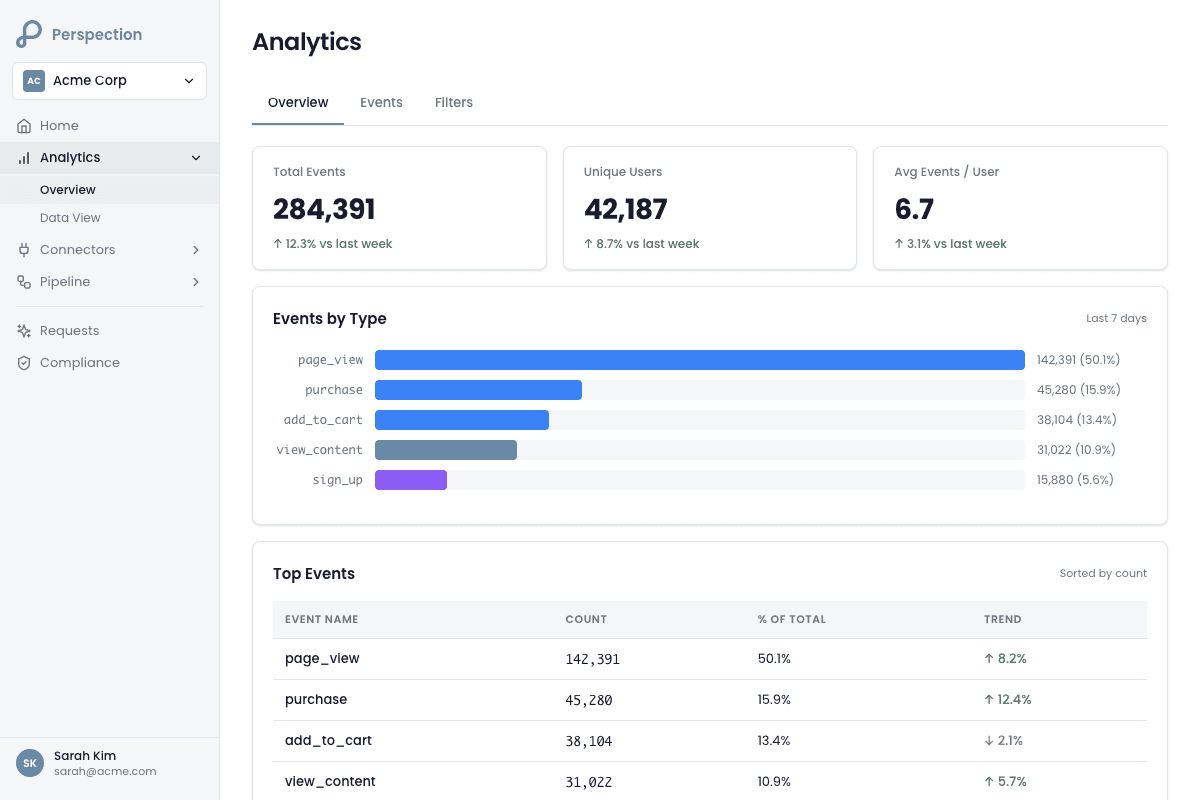
The Perspection Analytics section divides reporting into two complementary interfaces. The Analytics Overview provides 5 KPI metric cards -- Total Events, Total Revenue, Unique Users, Conversion Rate, and Data Quality -- alongside a Performance Trend chart, Session Engagement metrics, a Friction Detector, and a Top Pages table with scroll-depth tracking. The Data View provides a BigQuery-backed data mart explorer with Daily and Monthly tabs, a data mart selector dropdown, multi-column filtering with popover controls, global search, date range filtering, URL-persisted filter state via the nuqs library, savable filter presets, column visibility toggling, and 3-format export (CSV, JSON, Excel). The Analytics Overview defaults to a 30-day date range with two comparison modes -- "First half vs Last half" and "Week over Week" -- while the Data View fetches live data from BigQuery with a 15-minute client-side cache and paginated results at 25, 50, or 100 rows per page.
What analytics does the Perspection Overview tab provide?
The Analytics Overview tab displays 5 KPI cards: Total Events (with daily average), Total Revenue (with AOV), Unique Users, Conversion Rate, and Data Quality (average EMQ score out of 100). Each card shows a color-coded growth badge comparing performance via two selectable modes -- "First half vs Last half" or "Week over Week" -- within 30-day default range.
The 5 KPI Metric Cards
The Analytics Overview tab renders KPI cards using the PremiumMetricCard component, with each card featuring an icon, value, growth badge, and accent color gradient. The 5 KPI cards display the following data:
Total Events -- Aggregates all tracked user interactions (page views, clicks, purchases, custom events) across the selected date range. The Total Events card displays a daily average as a subtitle (e.g., "1,247 daily avg"). The Total Events card uses a blue accent color. Hovering over the Total Events label shows a tooltip: "Total tracked user interactions across all event types during the selected period."
Total Revenue -- Sums all completed purchase amounts during the selected period. The Total Revenue card prefixes values with a dollar sign and formats values to 2 decimal places. The subtitle displays the Average Order Value calculated as total revenue divided by total purchases (e.g., "$48.92 AOV"). The Total Revenue card uses an emerald accent color.
Unique Users -- Counts distinct users tracked by the Perspection SDK across the selected period. The Unique Users card uses a violet accent color and displays a growth badge comparing against the previous period.
Conversion Rate -- Calculates the purchase conversion rate using the formula: (total purchases / total unique sessions) x 100. The Conversion Rate card displays the value as a percentage with 2 decimal places (e.g., "3.42%"). The Conversion Rate card uses an amber accent color.
Data Quality -- Displays the average Event Match Quality (EMQ) score out of 100. The Data Quality card pulls the EMQ score from the
useTodayPerformancehook separately from the other 4 KPIs. A score of 85/100 indicates most events carry strong identity signals such as email, phone, and click IDs. The Data Quality card uses a rose accent color. For a detailed breakdown of how Perspection calculates Event Match Quality scores, see the Perspection Event Match Quality Guide.
Comparison Modes
The Analytics Overview tab supports 2 comparison modes, selectable from a dropdown in the section header:
First half vs Last half (default) -- Splits the selected date range at the midpoint. The Analytics Overview tab compares KPIs from the first half of the period against the second half. The growth badge label reads "vs prev half."
Week over Week -- Compares the most recent 7 days against the preceding 7 days (or fewer if the selected range is shorter than 14 days). The growth badge label reads "WoW."
Growth badges render as pill-shaped indicators with color coding: emerald for positive growth, rose for negative growth, and muted gray for neutral changes (less than 0.5% absolute change). Each badge displays the percentage change with one decimal place (e.g., "+12.3% vs prev half").
Performance Trend Chart
Below the KPI grid, the Analytics Overview tab renders a dual-axis area chart using Recharts. The Performance Trend chart plots Events on the left Y-axis (blue gradient fill) and Revenue on the right Y-axis (emerald gradient fill). The X-axis formats dates as abbreviated month and day (e.g., "Feb 14"). Interactive tooltips display the exact event count and revenue for each date. The chart renders with monotone curve interpolation and hidden dot markers that appear only on hover.
Date Range Picker
The Analytics Overview tab displays a date range picker in the page header that defaults to the last 30 days. The date range picker appears only when the Overview tab is active -- switching to the Daily Metrics or Monthly Trends tabs hides the date range picker. Changing the date range immediately re-fetches all analytics data and recalculates comparison metrics.
For context on how the Analytics Overview relates to the daily operational metrics on the Home Dashboard, see the Perspection Home Dashboard Guide.
How does the Perspection friction detector identify problem pages?
The Friction Detector flags pages where bounce rate or exit rate exceeds 50%, sorted by highest friction score, displaying up to 5 pages needing attention. Each entry shows page path, view count, and color-coded indicators (rose for bounce, amber for exit). When no pages exceed the 50% threshold, a green confirmation card appears.
How the Friction Detector Calculates Friction
The Friction Detector aggregates page-level metrics across the entire selected date range rather than analyzing single-day snapshots. The aggregation process works as follows:
The Analytics Overview tab iterates through each day in the selected period and collects the
page_metricsarray from each day's data response.For each unique page path, the Friction Detector accumulates total page views by summing across days.
Bounce rates and exit rates are averaged across the days where the page appeared (weighted averaging by occurrence, not by view count).
Average scroll depth percentages are similarly averaged across days.
The Friction Detector filters the aggregated page data to include only pages where bounce rate exceeds 50% OR exit rate exceeds 50%.
The filtered results are sorted by the maximum of (bounce rate, exit rate) in descending order and limited to the top 5.
Friction Detector Display
The Friction Detector card renders alongside the Session Engagement card in a 2-column grid on desktop, stacking to single-column on mobile. Each friction page entry displays:
Page Path -- The URL path (e.g., "/products/widget-pro") truncated for long paths.
View Count -- Total page views formatted with locale-aware thousands separators.
Bounce Rate (if above 50%) -- Displayed in rose color with the label "bounce" beneath the percentage.
Exit Rate (if above 50%) -- Displayed in amber color with the label "exit" beneath the percentage.
A page can display both a bounce rate indicator and an exit rate indicator simultaneously if both metrics exceed the 50% threshold. The Friction Detector card uses an amber-tinted background with an AlertTriangle icon and a header reading "Friction Detected" along with a count of pages needing attention.
Session Engagement Metrics
The Session Engagement card displays alongside the Friction Detector and reports 4 engagement metrics from the most recent day with data in the selected period:
Avg Duration -- Average session duration in seconds, formatted as minutes and seconds (e.g., "2m 34s" or "45s" for durations under 60 seconds). Displays a Clock icon.
Pages/Session -- Average number of pages viewed per session, formatted to one decimal place. Displays an Eye icon.
Bounce Rate -- The overall bounce rate percentage for the most recent day, displayed in rose color with a MousePointer icon to indicate single-page sessions.
Engaged Sessions -- The percentage of sessions that viewed 2 or more pages or lasted 10 or more seconds, calculated as (engaged sessions / total sessions) x 100. Displays a Zap icon.
How do you browse Perspection data marts in Data View?
The Data View is a BigQuery-backed data mart explorer with Daily and Monthly tabs. Each tab provides a data mart selector, paginated dynamic-column table, multi-column filtering, global search, date range filtering, column visibility controls, and CSV/JSON/Excel export. Data fetches from BigQuery with a 15-minute client-side cache and configurable page sizes of 25, 50, or 100 rows.
Data Mart Selection
The Data View renders a data mart selector at the top of each tab. The selector is built as a borderless, large-font dropdown that displays the selected data mart name as a page-level heading. Clicking the selector reveals a dropdown listing all available data marts for the active tab, with each option showing both the data mart name and description.
The current production data marts are:
Daily Metrics (Daily tab, default) -- Daily aggregated metrics including events, revenue, conversions, traffic sources, and destinations. The Daily Metrics data mart queries the
marts.daily_metricsBigQuery table usingevent_dateas the date column. The data mart refreshes hourly with a 48-hour lookback window.Monthly Metrics (Monthly tab, default) -- Monthly aggregated metrics with month-over-month and year-over-year growth analysis. The Monthly Metrics data mart queries the
marts.monthly_metricsBigQuery table usingmonth_dateas the date column. The data mart refreshes daily at 02:00 UTC with a 3-month lookback window.
Dynamic Table Rendering
The DataMartTable component uses TanStack Table (React Table v8) to render columns dynamically from the BigQuery schema. The table renders type-aware cells based on the BigQuery column type:
TIMESTAMP / DATETIME -- Formatted as locale strings (e.g., "Feb 14, 2026, 02:30:45 PM") in monospace font.
DATE -- Formatted as date-only locale strings (e.g., "Feb 14, 2026") in monospace font.
INTEGER / FLOAT / NUMERIC -- Formatted with locale-aware thousands separators and up to 4 decimal places. Year columns bypass thousands separators to display as "2026" rather than "2,026."
BOOLEAN -- Rendered as color-coded badges ("true" in primary color, "false" in secondary color).
JSON / RECORD / STRUCT -- Rendered as expandable "View JSON" details elements with syntax-formatted code blocks.
STRING -- Displayed as-is for values under 100 characters; truncated with an ellipsis and a title tooltip for longer values.
NULL values -- Displayed as italicized "null" in muted foreground color.
Sorting and Pagination
Every column supports ascending and descending sort. Clicking a column header toggles through three states: unsorted (displays an up-down arrow icon), ascending (displays an up arrow), and descending (displays a down arrow). The table paginates results with a default page size of 50 rows. The pagination controls display the current page number, total page count, previous/next buttons, and a page size selector with options for 25, 50, or 100 rows per page.
Filtering Architecture
The Data View supports 3 layers of filtering that work together:
Global Search -- A search input in the toolbar that filters across all visible columns. The search input includes a clear button when a search term is active.
Date Range Filter -- A date range picker in the toolbar that filters rows based on the first DATE, TIMESTAMP, or DATETIME column detected in the schema. The date range filter operates client-side on the currently loaded data.
Column Filters -- A column filter popover accessible from the toolbar that lists all filterable columns (STRING and BOOLEAN types, excluding ID columns and timestamp columns). Each filterable column displays unique values with occurrence counts, sorted by frequency. Users select multiple values per column using checkboxes. Active column filters appear as removable chips below the toolbar.
All three filter layers compose together: global search narrows within date-filtered data, and column filters narrow within search-filtered data. The filter status bar displays the count of filtered rows versus total rows (e.g., "Showing 342 of 1,000 rows (filtered)").
How do you save and load filter presets in Perspection?
The Data View supports savable filter presets that store search term, date range, and column filter selections under a user-defined name. Save presets via the Presets dropdown by entering a name (3-50 characters) and optionally setting a default. The dropdown lists all saved presets with last-updated dates and a star icon for defaults.
Saving a Filter Preset
To save the current filter configuration as a preset:
Configure the desired filters in the Data View -- set the search term, date range, and column filter selections.
Click the "Presets" button in the toolbar (identified by a Bookmark icon).
Select "Save current filters" from the dropdown menu.
Enter a descriptive preset name in the Save Filter Preset dialog (e.g., "Mobile Traffic Last 30 Days"). The name must be between 3 and 50 characters.
Optionally check "Set as default preset for this data mart" to load the preset automatically when opening the data mart.
Click "Save Preset." The dialog displays a preview of the current filters being saved, including the search term, date range, and the number of column filter selections per column.
Loading a Filter Preset
To load a previously saved preset:
Click the "Presets" button in the toolbar.
Select the desired preset from the dropdown list. Each preset displays the preset name, a star icon if the preset is marked as default, and the date the preset was last updated.
The Data View immediately applies all stored filters -- search term, date range, and column selections -- replacing the current filter state.
URL State Persistence
The Data View persists all filter state in the URL using the nuqs library for type-safe query parameter management. The URL encodes the following parameters:
tab-- Active tab ("daily" or "monthly"), defaults to "daily."mart-- Selected data mart ID, defaults to "daily_events."search-- Global search term, cleared from URL when empty.from/to-- Date range boundaries in ISO 8601 format.cols-- Column filters encoded as JSON (e.g.,{"device":["mobile","desktop"]}).sort/order-- Sort column and direction ("asc" or "desc").page/pageSize-- Pagination state, defaults to page 1 with 50 rows.
URL updates are debounced at 150 milliseconds using shallow routing (no server re-render). Default values are automatically cleared from the URL to maintain clean, shareable links. Sharing a Data View URL with another team member reproduces the exact same filtered view.
How do you export data from Perspection?
The Data View supports 3 export formats -- CSV, JSON, and Excel (.xlsx) -- via the toolbar download button. Exports include only rows visible after applying search, date range, and column filters. CSV uses papaparse for RFC 4180 compliance, JSON produces pretty-printed output with 2-space indentation, and Excel uses SheetJS with auto-sized columns. Each filename includes a timestamp.
Exporting from Data View
To export data from the Data View:
Navigate to Analytics > Data View and select the desired data mart.
Apply any filters (search, date range, column filters) to narrow the dataset to the rows needed for export.
Click the download button (arrow-down icon) in the toolbar.
Select the export format from the dropdown:
Export as CSV -- Generates a comma-separated values file with headers. Null values export as empty strings. Dates export in ISO 8601 format. Objects and arrays export as JSON strings.
Export as JSON -- Generates a JSON array with 2-space indentation for readability. The JSON export preserves original data types (numbers, booleans, nested objects).
Export as Excel -- Generates an .xlsx workbook with a single named worksheet. Column widths auto-size based on content length (capped at 50 characters). The Excel export handles the same type formatting as CSV (ISO dates, stringified objects).
The browser downloads the file immediately. The filename follows the pattern
{data_mart_id}_{ISO_timestamp}.{extension}.
Export Scope and Limits
The Data View export includes all rows matching the current filters, not just the visible page. The export operation runs on TanStack Table's filtered row model, meaning the export captures all filtered rows across all pages. The export processes data client-side -- the Perspection API returns the full filtered dataset, and the export utilities format the data in the browser.
Exporting from Analytics Overview
The Analytics Overview does not include a direct CSV/JSON/Excel export button for KPI data. However, the Baseline Comparison card (visible on the Home Dashboard) offers a dedicated "Export Data" button that downloads a CSV file containing conversion recovery comparison data for the 7-day period. The baseline export calls the /api/v1/tenants/{tenantId}/analytics/baseline/export?period=7d endpoint. For full details on the baseline comparison export, see the Perspection Home Dashboard Guide.
Column Visibility and Export
The column visibility controls in the Data View toolbar (accessible via the Columns button with a Settings2 icon) allow users to hide specific columns from the table display. The Columns dropdown includes a search field for finding columns by name, checkboxes for toggling individual column visibility, and a "Show all columns" reset button. The tenant_id column is hidden by default. Column visibility settings affect the visual display but do not alter the export output -- exports include all columns from the data source regardless of visibility settings.
How does Perspection manage consent compliance in analytics data?
The Analytics Overview and Data View display only data that passed consent enforcement in the processing pipeline. Events without valid consent are filtered before aggregation. The Data Quality KPI -- scoring events out of 100 based on identity signal strength -- indirectly reflects consent status because events with denied marketing consent carry fewer identity signals, lowering EMQ scores.
For a comprehensive explanation of how Perspection enforces consent rules across the event pipeline, see the Perspection Consent Compliance Guide.
Methodology
All analytics features and data views described in this guide were verified against the Perspection production dashboard at dashboard.perspection.app as of February 2026.
"The Analytics Overview and Data View serve fundamentally different decision-making speeds. The Analytics Overview answers the question 'How is my business performing right now?' in under 3 seconds with 5 KPIs and a friction detector that surfaces problem pages automatically. The Data View answers the question 'What happened to segment X on date Y?' by giving analysts direct access to BigQuery data marts with full filtering and export capabilities. The Friction Detector alone has helped Perspection customers identify checkout pages with 60%+ bounce rates that were costing thousands in lost conversions per week -- often caused by slow-loading payment widgets or missing trust signals that only become visible when scroll depth data is combined with exit rate data."
-- Perspection Product Engineering Team
Sources and References
Perspection Help Center, https://perspection.app/library
Perspection Product Guide -- Home Dashboard, /library/home-dashboard-guide
Perspection Product Guide -- Event Match Quality, /library/event-match-quality-guide
Perspection Product Guide -- Consent Enforcement, /library/consent-enforcement-compliance-guide