The Perspection Home Dashboard: A Complete Guide to Real-Time E-Commerce Metrics
Perspection Home Dashboard Metrics Guide
Learn how the Perspection Home Dashboard displays conversion events, revenue, pipeline health, and baseline recovery in real time.
The Perspection Home Dashboard is the operational command center for e-commerce data teams. The Home Dashboard displays 4 primary business KPIs -- Conversion Events, Total Revenue, Average Order Value, and Unique Users -- with day-over-day trend percentages, plus 4 collapsible technical metrics. The Home Dashboard also surfaces a dual-axis Performance Trends chart, a Conversion Recovery baseline comparison card, and a 3-tab live event stream powered by Socket.io WebSocket connections with JWT authentication. Every metric on the Home Dashboard refreshes automatically: business KPIs every 60 seconds, the Performance Trends chart every 60 seconds, and baseline comparison data every 30 seconds.
What metrics does the Perspection Home Dashboard display?
The Home Dashboard displays 8 metrics in 2 tiers. The primary tier shows 4 business KPIs: Conversion Events (with day-over-day trend), Total Revenue (with multi-currency breakdown), Average Order Value, and Unique Users. The secondary tier -- inside a collapsible Technical Metrics accordion -- shows Total Events, Page Views, Active Sessions, and Conversion Rate.
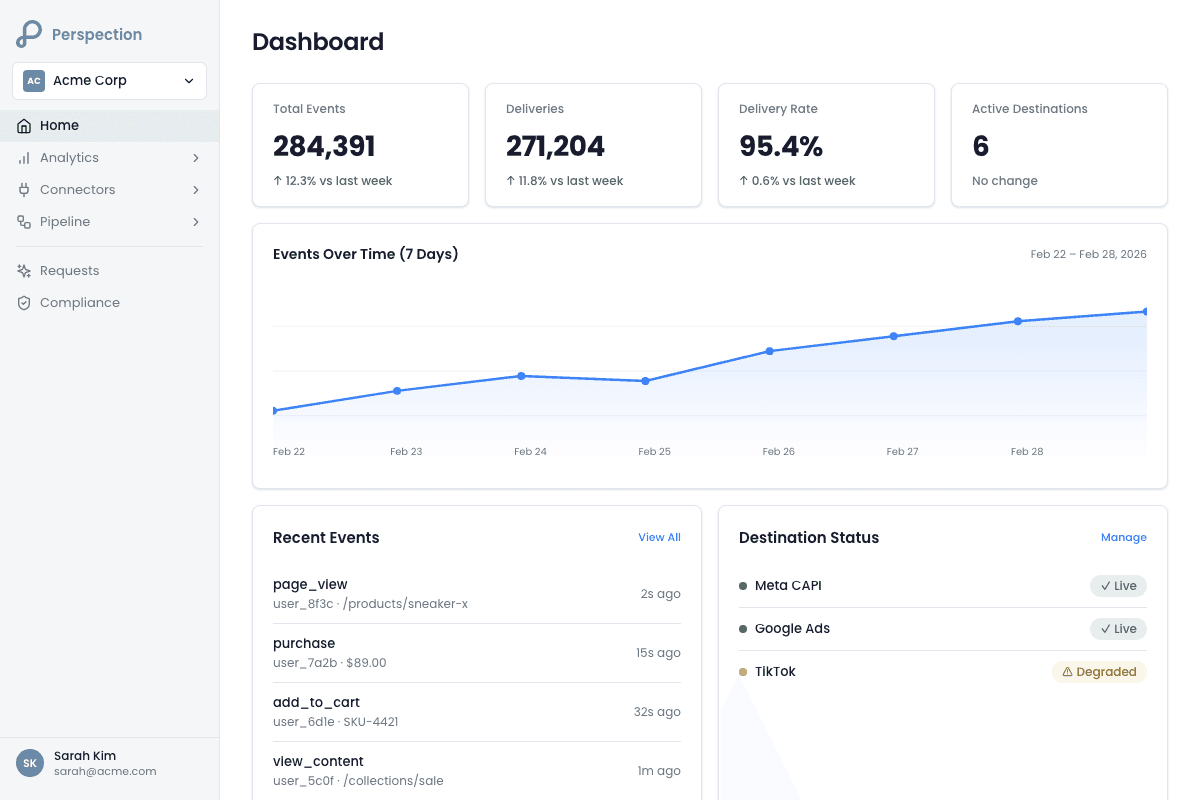
Primary Business KPIs
The Home Dashboard positions business-critical numbers at the top of the page, immediately below the workspace breadcrumb and any active billing banners. Each KPI card renders inside a hover-enabled card component and includes the following data points:
Conversion Events -- Displays the count of completed purchase events for the current day. The Conversion Events card compares the current count against the previous day's count and calculates a trend percentage. A green upward arrow indicates growth; a red downward arrow indicates decline. The description reads "Completed purchases today."
Total Revenue -- Displays the aggregate revenue from purchase events. The Total Revenue card formats values with the workspace's primary currency symbol (supporting USD, EUR, GBP, JPY, KRW, SGD, and 4 additional currencies). When a workspace processes purchases in more than one currency, the Total Revenue card displays a "Currency Breakdown" section below the primary value, listing each currency's revenue and its individual day-over-day trend.
Average Order Value (AOV) -- Displays the mean revenue per purchase event, formatted as currency. The AOV card compares against the previous day's average and shows both the percentage change and the absolute delta.
Unique Users -- Displays the count of daily active users tracked by the Perspection SDK. The Unique Users card uses the "info" color variant (blue accent) to visually differentiate the Unique Users card from the revenue-focused green-accented cards.
Technical Metrics Accordion
Below the primary KPIs, the Home Dashboard renders a collapsible accordion labeled "Technical Metrics" with a subtitle reading "Events, Page Views, Sessions, Conversion Rate." The accordion is collapsed by default, keeping the Home Dashboard focused on business outcomes. Expanding the Technical Metrics accordion reveals a second 4-column grid:
Total Events -- All events tracked today, including page views, clicks, add-to-cart actions, and custom events.
Page Views -- The subset of events classified as page view events.
Active Sessions -- The count of unique sessions recorded today.
Conversion Rate -- The purchase conversion rate, calculated as (Conversion Events / Unique Users) x 100, displayed as a percentage with one decimal place.
Data Refresh Behavior
The Home Dashboard fetches KPI data through the useTodayPerformance hook, which queries the /v1/dashboard/tenants/{tenantId}/analytics/stats?timeRange=24h endpoint. The useTodayPerformance hook refreshes automatically every 60 seconds and re-fetches on window focus. Clicking the refresh icon in the "Today's Performance" header invalidates all cached analytics queries and reconnects the WebSocket, forcing an immediate data update.
How do you read the Perspection Performance Trends chart?
The Performance Trends chart is a dual-axis line chart plotting Conversion Events (left Y-axis) and Purchase Value (right Y-axis) over a selectable window of 7, 14, or 30 days. It uses monotone interpolation, date-formatted X-axis labels, and interactive tooltips displaying the exact conversion count and currency-formatted revenue per date.
Chart Layout and Axes
The Performance Trends chart occupies two-thirds of the Performance Trends section width on desktop (the remaining one-third is the Conversion Recovery card). On mobile, the Performance Trends chart stacks below the Conversion Recovery card at full width.
The chart renders two data series as lines with dot markers:
Conversion Events line (left Y-axis) -- Uses the primary chart color (
--chart-1). The left Y-axis formats values with K/M suffixes for large numbers and adds 20% padding above the maximum value to prevent data points from touching the chart ceiling.Purchase Value line (right Y-axis) -- Uses the secondary chart color (
--chart-2). The right Y-axis formats values using the workspace's currency symbol and applies the same 20% ceiling padding.
Time Period Selection
The Performance Trends chart header includes a toggle group with 3 options:
7 Days -- Shows the last 7 calendar days.
14 Days -- Shows the last 14 calendar days. The 14-day view is the default selection.
30 Days -- Shows the last 30 calendar days.
Changing the time period triggers a new API call to the events chart endpoint. The Performance Trends chart displays a skeleton loading state during data fetches and shows a "No data available" placeholder when no events exist for the selected period.
Interpreting the Dual-Axis Correlation
The dual-axis design enables teams to spot revenue-per-event trends without opening a separate analytics tool. When the Conversion Events line rises but the Purchase Value line remains flat, the Average Order Value may be declining. When both lines rise in parallel, the overall revenue growth is driven by volume increases rather than price increases. The Performance Trends chart tooltip displays the formatted date (e.g., "Feb 14, 2026"), the exact conversion event count, and the currency-formatted purchase value for each data point.
What does the Perspection Conversion Recovery card show?
The Conversion Recovery card compares conversion events Perspection sent to advertising platforms against conversions the old pixel (Meta, Google Ads, TikTok, or GA4) self-reported during the same 7-day period. The card calculates a "recovered" count -- conversions Perspection captured that the old pixel missed -- and displays a match rate percentage verified through the advertising platform's reporting API.
How the Conversion Recovery Card Works
The Conversion Recovery card queries the /api/v1/tenants/{tenantId}/analytics/baseline endpoint with a 7-day period. The baseline comparison requires a Baseline Pixel ID configured in the destination settings of the Perspection workspace. Without a configured baseline, the Conversion Recovery card displays the total conversions sent and prompts the user to "Add your old pixel ID in destination settings to see recovery comparison."
When a baseline is configured, the Conversion Recovery card displays:
Total Conversions Sent -- The hero number showing how many conversion events Perspection dispatched during the 7-day period.
Recovered Count -- Shown in parentheses next to the total (e.g., "+23 recovered"), representing the additional conversions Perspection captured beyond what the old pixel reported.
Progress Bar -- A visual comparison bar where the gray segment represents the old pixel's reported conversions and the blue segment represents the recovered conversions.
Old Pixel vs. Perspection Comparison -- Below the progress bar, the Conversion Recovery card shows the old pixel's count (with the platform logo for Meta, Google Ads, TikTok, or GA4) alongside the Perspection total.
Match Rate -- A verified match rate percentage displayed at the bottom of the Conversion Recovery card, confirmed via the advertising platform's API (e.g., "94.2% match rate - Via Meta API").
Setting Up Baseline Comparison
To activate the Conversion Recovery card:
Navigate to the workspace's Connectors page by clicking "Add Baseline Pixel" on the Conversion Recovery card (or navigating to Connectors > Destinations).
Open the destination configuration for the target advertising platform (Meta CAPI, Google Ads, TikTok, or GA4).
Enter the Baseline Pixel ID -- the pixel ID from the old tracking implementation.
Save the destination configuration. The Conversion Recovery card begins collecting comparison data immediately and displays results after the first 7-day period completes.
Exporting Baseline Data
The Conversion Recovery card includes an "Export Data" button that downloads a CSV file containing the raw conversion comparison data. The export calls the /api/v1/tenants/{tenantId}/analytics/baseline/export?period=7d endpoint and generates a file named conversions-export-{tenantId}-7d.csv.
For a deeper understanding of the analytics that power the Conversion Recovery card, refer to the Perspection Analytics Overview Guide.
How does the Perspection live event stream work?
The live event stream is a real-time WebSocket-powered feed using Socket.io with Clerk JWT authentication. It provides 3 tabs: Live Event Stream (raw events as captured), Processed Events (after deduplication and enrichment), and Sent Data (dispatch status per destination with delivery confirmations, retry counts, and error messages).
Tab 1: Live Event Stream
The Live Event Stream tab connects to the Perspection WebSocket server using the subscribe-jwt event, passing the user's Clerk JWT token for authentication. The WebSocket connection maintains a 10-second heartbeat interval and reconnects automatically with a 3-second retry delay for up to 5 attempts.
Each row in the Live Event Stream table displays:
Timestamp -- Relative time (e.g., "2 minutes ago") plus the absolute clock time.
Event Name -- Color-coded badges: green for purchase/conversion events, red for error/failed events, blue for click/view events.
User/Session -- The user ID (if identified) and truncated session ID.
Value -- Revenue or value associated with the event, formatted as currency.
Source/Medium -- UTM source and medium parameters, with intelligent mapping of Meta platform codes (fb, ig, an) to friendly names and referrer fallback.
Device -- Desktop, Mobile, or Tablet icon with a hover tooltip showing the browser name, OS version, and device model (parsed from the user agent string).
Consent -- Analytics (A) and Marketing (M) consent status indicators, color-coded green for granted and red for denied.
The Live Event Stream table supports filtering by event name, PII presence (has email, has phone), and event value. Expanding any row reveals the full event details, properties JSON, context JSON, and consent data in a 3-column layout on desktop or a tabbed interface on mobile. The Live Event Stream retains up to 1,000 recent events and supports loading older events in batches of 100.
Tab 2: Processed Events
The Processed Events tab displays the same events after the Perspection processing pipeline has deduplicated and enriched the events. The Processed Events tab uses the same table component as the Live Event Stream tab but fetches from the processed event type, showing events with identity resolution data, normalized properties, and platform-specific transformations applied.
Tab 3: Sent Data
The Sent Data tab displays the dispatch status for every event sent to configured destinations. Each row in the Sent Data table groups dispatches by event ID and shows:
Timestamp -- When the event was created.
Event Name -- The event type with the same color-coded badge system.
Destinations -- A row of destination chips, each displaying the platform logo (Meta, GA4, TikTok, Google Ads), a color-coded status dot (green for delivered, amber for pending/queued/processing, red for failed/dead-letter, gray for suppressed), and the destination name. Hovering over a destination chip reveals delivery time, retry count, and error messages.
Error -- The first error message from any failed dispatch, if applicable.
The Sent Data tab supports filtering by destination type (GA4, Meta CAPI, TikTok, Google Ads, Pinterest, LinkedIn, Snapchat), dispatch status (delivered, pending, failed, queued, processing, dead letter, suppressed), time range (24 hours, 7 days, 30 days), and destination name search. The Sent Data tab paginates results with configurable page sizes of 10, 25, 50, or 100.
For information on optimizing event match quality before dispatch, see the Perspection Event Match Quality Guide.
How do you trace an event through the Perspection pipeline?
The Pipeline Visualization traces events through 5 stages: Validation, Deduplication, Normalization, Enrichment, and Dispatch. Each stage shows a status badge (Completed, Failed, Skipped, In Progress, or Pending) and processing latency. The Event Journey Detail modal adds a waterfall timing chart showing each stage's start time and duration relative to total processing time.
The 5 Pipeline Stages
The Perspection processing pipeline processes every event through the following stages in sequence:
Validation -- Schema validation and tenant verification. The Validation stage confirms the event payload conforms to the expected schema and that the tenant API key maps to a valid workspace.
Deduplication -- Duplicate event detection. The Deduplication stage checks the event against a Redis-backed deduplication cache to prevent the same event from being processed more than once. The Deduplication stage may produce a "Skipped" status with a reason (e.g., "duplicate event detected").
Normalization -- Platform-specific transformations. The Normalization stage converts event properties into the format required by each configured destination (Meta CAPI, Google Ads, TikTok Events API, GA4 Measurement Protocol).
Enrichment -- Identity resolution and attribution. The Enrichment stage performs identity stitching (linking anonymous device IDs to known user identities), applies attribution models, and attaches additional context from the identity graph.
Dispatch -- Queue for destination delivery. The Dispatch stage places the fully processed event into the dispatch queue for delivery to each configured destination. The Dispatch stage represents the handoff from the processing worker to the dispatch worker.
Pipeline Visualization Component
The Pipeline Visualization component connects to the Perspection WebSocket server using the subscribe-pipeline event and displays the 5 most recent event journeys. For each event journey, the Pipeline Visualization component shows:
Event ID -- The unique identifier for the event being processed, displayed in monospace font.
Progress Percentage -- A progress bar showing the percentage of stages completed (e.g., "60% Complete" when 3 of 5 stages have finished). The progress bar turns green at 100%, red if any stage failed, and blue while in progress.
Stage Timeline -- A vertical timeline with circular stage indicators connected by lines. Each indicator uses color-coded borders: green for completed, red for failed, amber for skipped, blue for in-progress (with an animated ping effect), and gray for pending.
Processing Latency -- Each completed stage displays the processing time in milliseconds as a badge (e.g., "12ms").
Error Details -- Failed stages display an error panel with the error message, error code, and a red border.
Skip Reasons -- Skipped stages display the reason for skipping in an amber-colored text block.
Event Journey Detail Modal
Clicking on a specific event opens the Event Journey Detail modal, which provides a deeper analysis of the event's processing path. The Event Journey Detail modal includes:
Journey Summary Grid -- 4 summary cards showing Progress percentage, Total Processing Time in milliseconds, Completed stage count, and Failed stage count.
Waterfall Timing Chart -- A horizontal bar chart where each bar represents one pipeline stage. The bar width corresponds to the stage's processing duration relative to the total duration. The bar position (left offset) represents when the stage started relative to the first stage. Color coding matches the stage status: green for completed, red for failed, amber for skipped, blue for in-progress.
Detailed Stage List -- Each stage card displays the stage name, status badge, start timestamp formatted to millisecond precision (HH:mm:ss.SSS), processing time, retry count (if retries occurred), and expandable raw stage data in JSON format.
The Event Journey Detail modal maintains a live WebSocket connection via the subscribe-event-journey event, updating in real time as stages complete. A connection indicator at the bottom of the Event Journey Detail modal shows "Live updates" when connected or "Disconnected" when the WebSocket connection drops.
For monitoring destination-level delivery health and dead letter queue management, see the Perspection Destination Health Guide.
What quick action shortcuts does the Perspection Home Dashboard offer?
The Perspection Home Dashboard displays 3 quick action shortcuts in a responsive 3-column grid: Add Source (link to Connectors > Sources), Add Destination (link to Connectors > Destinations), and Make a Request (link to the Requests page for support inquiries).
Between the Technical Metrics accordion and the Performance Trends section, the Home Dashboard displays 3 quick action shortcuts in a responsive 3-column grid:
Add Source -- Links to the Connectors > Sources page for configuring new data sources (website SDK, Shopify, WooCommerce, server-side endpoints).
Add Destination -- Links to the Connectors > Destinations page for configuring new advertising platform destinations (Meta CAPI, Google Ads, TikTok, GA4).
Make a Request -- Links to the Requests page for submitting feature requests or support inquiries directly from the Home Dashboard.
Each shortcut card renders with a hover animation, color-coded icon, and directional arrow that appears on hover.
Methodology
All dashboard metrics and UI elements described in this guide were verified against the Perspection production dashboard at dashboard.perspection.app as of February 2026.
"The Home Dashboard was designed around a single principle: business metrics first, technical metrics on demand. Most e-commerce operators check their dashboard 8 to 12 times per day. The top 4 KPIs answer the question 'Is today better than yesterday?' in under 2 seconds. The collapsible Technical Metrics accordion keeps the engineering data accessible without overwhelming marketing teams. The Conversion Recovery card is the single most important proof-of-value element -- showing exactly how many conversions Perspection recovered that the old pixel missed gives teams a concrete ROI number to justify the platform."
-- Perspection Product Engineering Team
Sources and References
Perspection Help Center, https://perspection.app/library
Perspection Product Guide — Event Match Quality, /library/event-match-quality-guide
Perspection Product Guide — Analytics Overview, /library/analytics-overview-data-view-guide
Perspection Product Guide — Destination Health, /library/destination-health-failed-events-guide