How to Connect Google Ads Enhanced Conversions with Perspection
Google Ads Enhanced Conversions Setup | Perspection
Connect Perspection to Google Ads for server-side enhanced conversions. Configure OAuth, GCLID matching, and conversion verification.
Browser-based Google Ads conversion tags lose 15-30% of purchase events due to ad blockers, ITP cookie expiration, and cross-device session fragmentation. Perspection eliminates conversion loss by sending purchase data server-side through the Google Ads API v16, matching conversions deterministically via GCLID and probabilistically via hashed PII (email, phone, name, address). Setup requires 6 credentials from Google Ads and Google Cloud Console, takes under 15 minutes, and begins recovering lost conversions immediately upon activation.
Why does server-side Google Ads conversion tracking improve attribution?
Server-side Google Ads conversion tracking bypasses browser limitations that cause 15-30% of purchase events to go unreported. Perspection sends conversion data directly to the Google Ads API v16 from a secure server environment, using GCLID click identifiers for deterministic attribution and hashed personally identifiable information for probabilistic matching when GCLID is unavailable.
Traditional Google Ads conversion tracking relies on the gtag.js snippet firing in a user's browser after a purchase. Three systemic problems degrade the accuracy of browser-based tracking:
Ad blockers and privacy extensions prevent Google's conversion tag from loading entirely, dropping the conversion from Google Ads reporting. Approximately 32% of desktop users globally run ad-blocking software.
Intelligent Tracking Prevention (ITP) in Safari and similar mechanisms in Firefox cap first-party cookie lifetimes at 7 days, severing the connection between ad click and purchase for users who convert after the cookie expires.
Cross-device journeys break attribution when a user clicks a Google Ad on mobile but completes the purchase on desktop, because browser-based tags cannot link the two sessions.
Perspection solves all three problems by operating at the server layer. Perspection's browser SDK captures the GCLID (Google Click Identifier) from the landing page URL at the moment of ad click and stores the GCLID in a first-party cookie and in the event payload. When the user completes a purchase, Perspection's processing pipeline enriches the conversion event with identity data, then Perspection's dispatch worker uploads the conversion directly to the Google Ads uploadClickConversions endpoint. Because the API call originates from Perspection's server infrastructure, ad blockers, cookie restrictions, and cross-device gaps cannot interfere with conversion delivery.
Perspection supports three Google click identifier types: GCLID (standard Google Ads click), gbraid (iOS app campaigns under App Tracking Transparency), and wbraid (web campaigns affected by iOS privacy changes). Perspection extracts all three click identifiers using a triple-fallback pattern: JSONB click_ids column, individual database columns, and event properties.
For a detailed comparison of how Perspection handles server-side tracking across platforms, see Guide 5: Connecting Meta Conversions API, which covers the equivalent server-side approach for Meta advertising.
How do you connect Perspection to Google Ads?
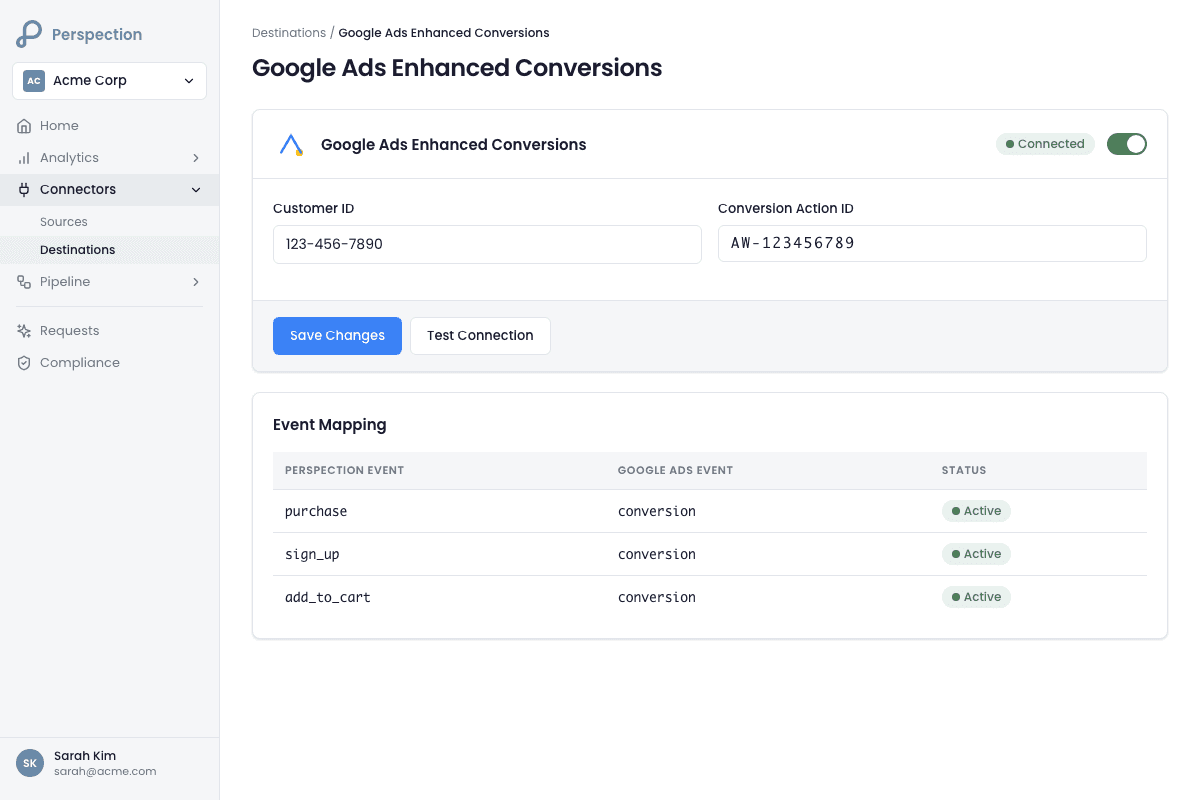
Connecting Perspection to Google Ads requires navigating to Connectors, selecting the Google Ads destination card, entering 6 required credential fields (Customer ID, Conversion Action ID, Developer Token, OAuth Client ID, OAuth Client Secret, and Refresh Token), saving the configuration, and running the built-in connection test to confirm API access.
Follow these steps to connect Perspection to Google Ads Enhanced Conversions:
Log in to the Perspection dashboard at
dashboard.perspection.appand select the workspace where Google Ads conversions should be sent.Navigate to Connectors in the left sidebar, then select the Destinations tab.
Locate the Google Ads destination card, labeled "Enhanced Conversions" beneath the Google Ads logo.
Click the Google Ads card to expand the configuration form.
Enter all 6 required credential fields (detailed in the next section).
Optionally enter the Manager Account ID (MCC) if the Google Ads account is managed through a Google Ads Manager Account.
Optionally enter a Baseline Conversion Action ID to enable Perspection's before-and-after comparison reporting, which measures how many conversions Perspection recovers compared to existing browser-based tracking.
Click Save to store the configuration.
Click Test to validate API connectivity. Perspection will attempt to fetch the Google Ads customer record using the provided credentials and return a success or failure message with latency in milliseconds.
Once the test passes, toggle the Live switch to activate event dispatch.
After activation, Perspection begins dispatching conversion events to Google Ads in real time. The destination card displays a health status badge: Live (healthy), Degraded (intermittent errors), or Down (persistent failures).
What credentials does Perspection require for Google Ads?
Perspection requires 6 credentials to connect to Google Ads: Customer ID (10-digit account identifier), Conversion Action ID (from the specific conversion action), Developer Token (from the Google Ads API Center), OAuth Client ID (from Google Cloud Console), OAuth Client Secret (from the same OAuth client), and Refresh Token (generated via OAuth 2.0 Playground or a custom OAuth flow).
Required Credentials
Customer ID (
customer_id)Format:
XXX-XXX-XXXX(10 digits with hyphens). Perspection strips the hyphens automatically before sending API requests.Where to find: Open Google Ads at
ads.google.com. The Customer ID appears in the top-right corner of the Google Ads dashboard.Important: The Customer ID must belong to the account that owns the conversion actions. For MCC (Manager Account) setups, enter the child account's Customer ID here and the Manager Account ID in the optional field.
Conversion Action ID (
conversion_action_id)Format: Numeric string (e.g.,
123456789).Where to find: In Google Ads, navigate to Tools & Settings then Conversions. Click the specific conversion action. The Conversion Action ID appears in the browser URL as
ctId=XXXXXXXXX.Requirement: The Conversion Action must be configured as a "Website" conversion source with "Enhanced conversions" enabled in Google Ads settings. Perspection maps the Conversion Action ID to the full resource path
customers/{customer_id}/conversionActions/{conversion_action_id}automatically.
Developer Token (
developer_token)Format: Alphanumeric string (e.g.,
aBcDeFgHiJkLmNoP).Where to find: In Google Ads, navigate to Tools & Settings then API Center. The Developer Token appears under API Access. If the API Center is not visible, the Google Ads account manager must enable API access.
Access levels: Google grants Developer Tokens at Basic or Standard access levels. Basic access (default for new applications) supports up to 15,000 operations per day and is sufficient for most Perspection deployments.
OAuth Client ID (
client_id)Format:
XXXXX.apps.googleusercontent.com.Where to find: Open the Google Cloud Console at
console.cloud.google.com. Navigate to APIs & Services then Credentials. Under OAuth 2.0 Client IDs, click the relevant client or create a new one of type "Web application."Prerequisite: The Google Cloud project must have the Google Ads API enabled under APIs & Services then Enabled APIs.
OAuth Client Secret (
client_secret)Format:
GOCSPX-XXXXXXXX.Where to find: In the same OAuth 2.0 Client ID entry in Google Cloud Console, the Client Secret appears alongside the Client ID.
OAuth Refresh Token (
refresh_token)Format:
1//XXXXXXXX.How to generate: Use the Google OAuth 2.0 Playground with the following steps: a. Click the gear icon and check "Use your own OAuth credentials." b. Enter the OAuth Client ID and Client Secret from steps 4 and 5. c. In the scope input, enter
https://www.googleapis.com/auth/adwords. d. Click "Authorize APIs" and grant consent. e. Click "Exchange authorization code for tokens." f. Copy the Refresh Token from the response.Lifetime: Google OAuth Refresh Tokens do not expire unless the user revokes access, the token remains unused for 6 months, or the Google Cloud project is in "Testing" mode (where tokens expire after 7 days). Set the OAuth consent screen to "Production" for persistent tokens.
Optional Credentials
Manager Account ID (
manager_customer_id)When needed: Only required when the Google Ads account is accessed through a Google Ads Manager (MCC) account. Perspection sends the Manager Account ID in the
login-customer-idHTTP header on every API call. If the Manager Account ID is not provided, Perspection defaults to using the Customer ID as the login customer.
Baseline Conversion Action (
baseline_conversion_action_id)Purpose: Enter the Conversion Action ID of the existing browser-based conversion tracking. Perspection uses the Baseline Conversion Action to generate comparative analytics showing how many additional conversions Perspection recovered versus the browser-based baseline.
How does Perspection match conversions using GCLID?
Perspection extracts GCLID, gbraid, and wbraid click identifiers from landing page URLs at the moment of ad click, stores the click identifiers in a click_ids vault, and sends the click identifiers alongside conversion_date_time, conversion_value, currency_code, and order_id to the Google Ads uploadClickConversions endpoint for deterministic click-to-conversion attribution.
Perspection's GCLID matching operates through a multi-stage pipeline:
Click ID capture: When a user lands on the advertiser's website from a Google Ad, the landing page URL contains a
gclidparameter (e.g.,?gclid=EAIaIQobChM...). Perspection's browser SDK extracts the GCLID from the URL and stores the GCLID in a first-party cookie. Perspection also capturesgbraidandwbraidparameters for iOS privacy-affected campaigns.Click ID persistence: Perspection stores the extracted click identifiers in a JSONB
click_idscolumn in the events database. The click_ids vault uses sparse storage, meaning only non-null click identifiers are stored, reducing storage overhead.Click ID extraction at dispatch: When a conversion event reaches Perspection's dispatch worker, the Google Ads connector extracts click identifiers using a triple-fallback pattern:
First priority: JSONB
click_idscolumn (current format)Second priority: Individual database columns (legacy format, maintained during migration)
Third priority: Event
propertiesobject (SDK-originated events)
Conversion upload: Perspection constructs a conversion payload containing the GCLID, conversion action resource path, conversion timestamp (formatted per Google's specification), conversion value, currency code, and order ID. Perspection sends the conversion payload to
https://googleads.googleapis.com/v16/customers/{customer_id}:uploadClickConversionswith partial failure enabled, allowing individual conversions in batch uploads to succeed independently.Enhanced conversion fallback: When no click identifier is available (e.g., the user cleared cookies between ad click and purchase), Perspection falls back to Enhanced Conversions matching using hashed PII. Perspection hashes email, phone number, first name, last name, street address, city, state, postal code, and country using SHA-256 before sending user identifiers to Google Ads. Google Ads uses the hashed PII to probabilistically match conversions to ad clicks.
For advertisers running first-party domain tracking, GCLID persistence extends beyond Safari's 7-day ITP limit because Perspection's SDK operates under the advertiser's own domain, and first-party cookies set by Perspection are not subject to third-party cookie restrictions.
How does Perspection handle Google Ads OAuth token refresh?
Perspection automatically refreshes Google Ads OAuth access tokens by sending the stored refresh token to Google's oauth2.googleapis.com/token endpoint before each API call. The access token is cached in memory with a 60-second pre-expiry buffer, ensuring uninterrupted conversion delivery without manual credential rotation or token management.
The OAuth token lifecycle in Perspection operates as follows:
Initial configuration: The advertiser generates a Refresh Token during setup (via OAuth Playground or a custom OAuth flow) and enters the Refresh Token in Perspection's dashboard. Perspection stores the Refresh Token encrypted at rest alongside the OAuth Client ID and Client Secret.
Token request: Before uploading a conversion, Perspection's Google Ads connector checks whether a valid cached access token exists. If no cached token is available, or the cached token will expire within 60 seconds, Perspection sends a POST request to
https://oauth2.googleapis.com/tokenwith theclient_id,client_secret,refresh_token, andgrant_type=refresh_tokenparameters.Token caching: Google responds with a new access token and an
expires_invalue (typically 3,600 seconds or 1 hour). Perspection caches the access token in memory and sets the expiration timestamp tocurrent_time + expires_in. Subsequent conversion uploads within the token's validity window reuse the cached token without additional network requests.Pre-expiry buffer: Perspection applies a 60-second buffer before token expiration. If the current time is within 60 seconds of the cached token's expiration, Perspection proactively refreshes the token rather than risking a failed API call with an expired token.
Error handling: If the token refresh request fails (e.g., due to revoked credentials or network issues), the connector throws an error, and the conversion event enters Perspection's dead letter queue (DLQ) for automatic retry with exponential backoff.
No manual intervention is required after initial setup. The access token refreshes transparently, and conversions continue flowing without interruption as long as the Refresh Token remains valid.
How does Perspection calculate Event Match Quality for Google Ads?
Perspection calculates a weighted Event Match Quality (EMQ) score for every Google Ads conversion using 5 factors: email (40% weight), phone (25% weight), name (15% weight), address (10% weight), and click ID presence (10% weight). The quality score ranges from 0 to 100, with a threshold of 70 for online conversions and 50 for offline conversions.
Perspection evaluates conversion data quality before every dispatch to Google Ads and provides coaching recommendations:
Email quality (40% weight): Perspection checks whether a hashed email address is present in the conversion payload. Email is the single most impactful matching signal for Google Ads Enhanced Conversions. Missing email triggers the recommendation: "Add email for 60%+ match rate improvement."
Phone quality (25% weight): Perspection checks for a hashed phone number. Phone serves as a secondary deterministic identifier.
Name quality (15% weight): Perspection evaluates whether hashed first name and last name are both present. Partial name data (first name only or last name only) receives a reduced score.
Address quality (10% weight): Perspection scores address completeness across 4 components: city (3 points), state (2 points), postal code (3 points), and country code (2 points), for a maximum of 10 points.
Click ID quality (10% bonus): If a GCLID, gbraid, or wbraid is present, Perspection awards the full 10 points and flags the conversion as "EXCELLENT: Click ID present for deterministic matching."
Perspection applies different quality thresholds depending on the conversion source. Online conversions (browser SDK events) use a 70 threshold. Offline conversions (CSV uploads, COD payment confirmations from Shopee or Lazada) use a relaxed 50 threshold because offline conversions inherently lack click identifiers and rely on PII matching.
Conversions below the quality threshold still dispatch to Google Ads --- Perspection does not block low-quality conversions --- but Perspection logs quality warnings and surfaces coaching recommendations in the dashboard. For a deeper explanation of Event Match Quality scoring and optimization strategies, see Guide 16: Event Match Quality.
How do you verify Google Ads conversions are arriving?
Verify Google Ads conversion delivery by checking 3 locations: the Perspection dashboard's Sent Data tab for dispatch status and latency, the Google Ads Conversions report (Tools then Conversions) for conversion count and value, and the Perspection baseline comparison view for recovered conversion volume relative to browser-based tracking.
Follow the verification sequence below after activating the Google Ads destination:
Check Perspection dispatch status:
Navigate to the workspace dashboard.
Open the Sent Data tab to view dispatched events.
Confirm that Google Ads events show a "Success" status with response latency (typically under 500ms for the Google Ads API).
If events show "Failed" status, expand the error message for Google Ads API error details.
Check Google Ads conversion reporting:
In Google Ads, navigate to Tools & Settings then Conversions.
Select the specific Conversion Action configured in Perspection.
Review the "All conversions" and "Conversion value" columns.
Note: Google Ads may take up to 3 hours to reflect newly uploaded conversions in reporting. The "Conversion action status" column should show "Recording conversions."
Verify conversion details match:
Compare the conversion count in Perspection's dispatch logs against the count in Google Ads reporting.
Verify that conversion values (order amounts) align between Perspection and Google Ads.
Check that the currency code matches the Google Ads account's billing currency.
Review health status:
Return to the Perspection Connectors page.
Confirm the Google Ads destination card shows a Live health status badge.
If the badge shows Degraded or Down, click the card to view recent test results and error messages.
Monitor baseline comparison (optional):
If a Baseline Conversion Action was configured, navigate to the workspace analytics section.
Review the baseline comparison report, which shows the delta between conversions reported by browser-based tracking (baseline) and conversions reported by Perspection (server-side).
The delta represents the conversions that Perspection recovered, which would have been lost to ad blockers, cookie expiration, and cross-device gaps.
Troubleshooting Common Issues
"Failed to refresh Google Ads access token": The Refresh Token has expired or been revoked. Regenerate the Refresh Token via OAuth Playground and update the credential in Perspection. Ensure the Google Cloud project's OAuth consent screen is set to "Production" status.
"Google Ads API error: PERMISSION_DENIED": The Developer Token does not have sufficient access, or the OAuth credentials do not have the
adwordsscope. Verify API access level in the Google Ads API Center."CUSTOMER_NOT_FOUND": The Customer ID is incorrect, or the Manager Account ID is required but not provided. Double-check the 10-digit Customer ID and add the MCC ID if applicable.
Conversions not appearing in Google Ads: Allow up to 3 hours for reporting lag. If conversions still do not appear after 3 hours, verify the Conversion Action ID matches the correct conversion in Google Ads.
Consent errors for EEA users: Since March 2024, Google requires Consent Mode v2 signals (
ad_user_dataandad_personalization) for European Economic Area users. Perspection automatically forwards consent signals when available. Ensure Perspection's consent management is configured for the workspace.
Methodology
All Google Ads configuration steps and credential requirements in this guide were verified against the Perspection production dashboard and live Google Ads conversion tracking as of February 2026.
"The single highest-impact action advertisers can take for Google Ads Enhanced Conversions is ensuring email capture at the point of conversion. Email alone accounts for 40% of Perspection's match quality score, and Google's own documentation identifies hashed email as the primary matching signal for Enhanced Conversions. Advertisers who combine GCLID capture with email hashing consistently see 95%+ conversion attribution rates, compared to 65-70% with browser-based tags alone." --- Perspection Engineering Team
Sources and References
Google Ads API --- Enhanced Conversions, https://developers.google.com/google-ads/api/docs/conversions/upload-clicks
Google Ads Help --- Set up enhanced conversions, https://support.google.com/google-ads/answer/11062876
Google OAuth 2.0 --- Using OAuth for server-to-server applications, https://developers.google.com/identity/protocols/oauth2
Perspection Product Guide --- Event Match Quality, /library/event-match-quality-guide
Perspection Product Guide --- First-Party Tracking Domain, /library/first-party-tracking-domain-guide